Connect with WiFi
If you have a WiFi capable device such as a smartphone, tablet, or laptop, follow the steps below
to connect to the internet wirelessly.
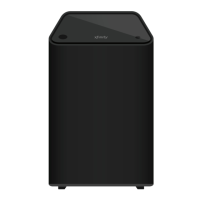
Connect with Ethernet
If you do not have a WiFi capable device, or if you prefer an Ethernet connection, follow the
steps below to connect to the internet with the provided Ethernet cable.
or
Power
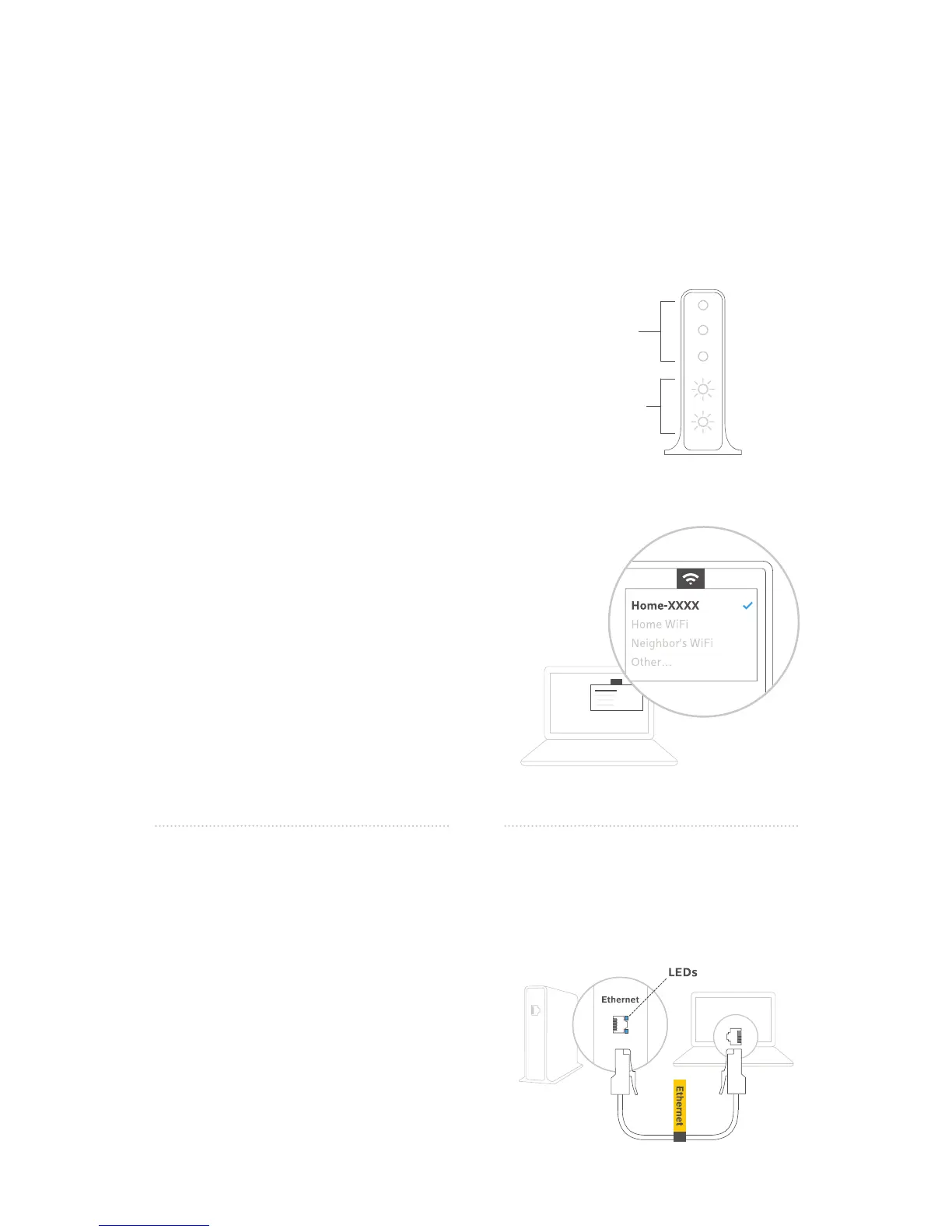
US/DS
5 GHz
2.4 GHz
Online
Flashing Lights
Steady Lights
A Wait for the 2.4 GHz and 5 GHz WiFi lights to
START ashing. Make sure they continue to
ash as you’re completing the steps below.
B Find the Network Name (SSID) and Password
(Security Key) on the sticker onthe side, back
or bottom of your Gateway. The name should
look like Home-XXXX or XFSETUP-XXXX.
Ifmore than one is listed, choose either.
C Access the WiFi settings on your personal
device. Ensure WiFi is turned on. Then select
the Network Name (SSID) printed on the sticker
(referenced above) from the list of available
networks.
D When prompted, enter the password printed
on the sticker to connect to the network.
WindowsUsers: You may be prompted to
enter a PIN instead which you can nd on a
separate sticker on the Wireless Gateway.
You can also click the link to connect using
a security key to proceed with using the
password. Go to Step 3.
A Plug the Ethernet cable into one of the
open ethernet ports on your Gateway until it
clicks. Plug the other end into the ethernet
port in your computer.
B If this worked, the LEDs next to the ethernet
ports on your Gateway will light up. Go to
Step 3.
2. Connect to Your Gateway


 To Next Page