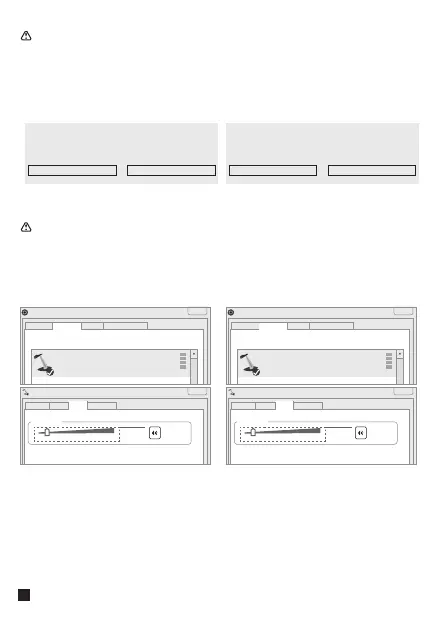
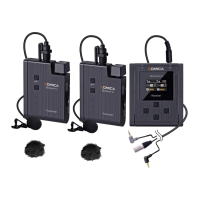
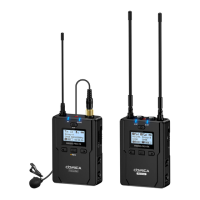
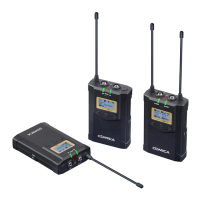
When connect the mic with computer, please click sound setting and
choose "Comica_EJoy Uni Pro TX" as the output and input device; when
connect the receiver with computer, please click sound setting and
choose "Comica_EJoy Uni Pro RX" as the output and input device
Sound
Output
Choose your output device
Comica_EJoy Uni Pro TX
Choose your input device
Input
Comica_EJoy Uni Pro TX
When connect the microphone with computer:
Sound
Output
Choose your output device
Comica_EJoy Uni Pro RX
Choose your input device
Input
Comica_EJoy Uni Pro RX
When connect the receiver with computer:
When connect the microphone with computer: When connect the receiver with computer:
X
Sound
Playback
Sounds
Recording
Communications
Select a recording device below to modify its settings:
Microphone
Default Device
X
Microphone Properties
General
LevelsListen Advanced
Microphone
10
Comica_EJoy Uni Pro TX
X
Sound
Playback
Sounds
Recording
Communications
Select a recording device below to modify its settings:
Microphone
Default Device
X
Microphone Properties
General
LevelsListen Advanced
Microphone
10
Comica_EJoy Uni Pro RX
If the input sound is too loud when connected to the computer, users
can adjust the computer's "Microphone Properties-Level" to reduce the
gain(Take the Windows system as an example)
2


 To Next Page