User Manual COMM-TEC UP-1080p
COMM-TEC GMBH www.comm-tec.de 8 of 21
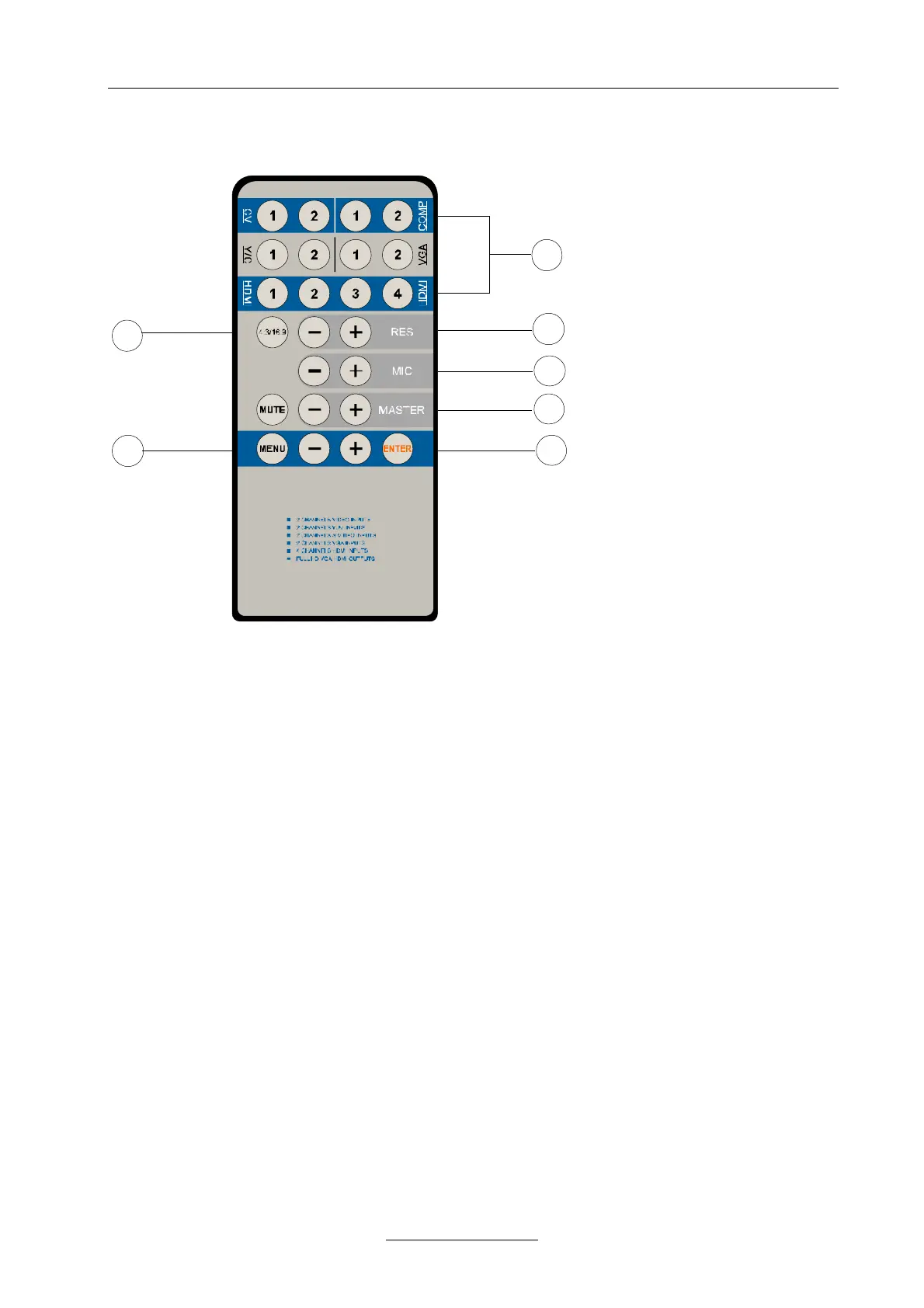
4 Remote control
1
2
3
4
5
6
7
Remote control operation and function the same as with the front panel.
j Model and channel selection button
By using the remote controller, the user can more swiftly choose the corresponding channels for CV,
COMP, Y/C, VGA and DVI/HDMI signals.
When selecting the HDMI signal input, short-press the signal source switch button ( e.g.1,2, 3, 4) to
choose HDMI signal source input channel; long-press signal source switch button (E.g. 1, 2, 3, 4) to
choose HDMI(DVI) video signal + Y/C audio signal/VGA audio signal as the corresponding input
channels (E.g. long-press 1/2 button to choose HDMI (DVI) channel 1/2 video signal + Y/C channel
1/2 audio signal as the input signal channels; long-press 3/4 button to choose HDMI(DVI) channel
3/4 video signal + VGA channel 1/2 audio signal as the input channels)
k Resolution Selection Button
Press the resolution selection button can cycle select in both directions of the following resolutions:
800×600 @60Hz, 1024×768@60Hz, 1280×720@60Hz, 1280×800@60Hz, 1280×1024@60Hz,
1366×768@60Hz, 1440×900@60Hz, 1440×1050@60Hz, 1600×900@60Hz, 1600×1200@60Hz,
1680×1050@60Hz, 1920×1080@60Hz
l Microphone volume adjust button, picture zooming selection button
m Main volume adjust selection button, MUTE button
n Enter button
o Picture mode button
Press the picture zooming selection button to select FULL/Normal/Auto three modes, and output
16:9/4:3 pictures.
p Menu function selection button
For detailed operation instructions, please refer to Chapter 11 “Menu Settings”.


 To Next Page