Harris A.
117
d-Menu
Add function
1. Open main menu with
c
.
2. Select menu item “Favourites”
with arrow buttons and open with
e
or directly with
3
.
3. Open menu “Edit Favourites”
with
c
.
4. Select menu item “Add” with
arrow buttons and open with
e
or directly with
1
.
5. Select menu item “Functions” with arrow buttons and open
with
e
or directly with
2
.
6. Select function with arrow keys and activate with
e
or directly
with
1
to
5
.
7. Open menu “Edit Favourites” with
c
.
8. Select menu item “Save” with arrow buttons and accept with
e
or directly with
3
. Otherwise, leave menu item with
x
without saving entry.
Functions
Subscribers1
Add Favourites
X-Cancel ›OK
2
Delete favourites
1. Open main menu with
c
.
2. Select menu item “Favourites”
with arrow buttons and open with
e
or directly with
3
.
3. Select function or subscriber with
arrow keys and open menu “Edit
Favourites” with
c
.
4. Select menu item “Delete” with arrow buttons and accept with
e
or directly with
2
. Otherwise, leave menu item with
x
without deleting entry.
Save3
Delete
Add1
Edit Favourites
X-Cancel ›OK
2
Menu “save”
When trying to leave the favourites list after a modication with
x
without saving it previously, the menu “Save” appears:
1
Save: save changes
2
Drop: drop changes
3
Continue: continue changing
the favourites list
• Select desired menu item with
arrow keys and accept with
e
or
directly with
1
to
3
.
Continue3
Drop2
Save1
Save
X-Cancel ›OK
Backlight
It is possible to adjust intensity, timeout as well as contrast for
the display and the keypad directly via the Intercom station:
1. Open main menu with
c
.
2. Select menu item “Settings” with
arrow buttons and open with
e
or directly with
4
.
3. Select menu item “Backlight” with
arrow keys and open with
e
or
directly with
2
.
4. Select desired menu item with
arrow keys and open with
e
or
directly with
1
to
5
.
5. Adjust desired value with arrow
buttons or directly with
0
to
9
and save with
e
. Otherwise,
leave menu item with
x
without
saving adjustment.
Display
25
Timeout
X-Cancel ›Save
Display
X-Cancel ›Save
œChange -/+
8
Intensity
Call history
Via the call history, it is possible to initiate calls to the last called
subscribers:
1. Open main menu with
c
.
2. Select menu item “Call History”
with arrow buttons and open with
e
or directly with
5
.
3. Select desired subscriber with
arrow buttons.
4. Initiate call with
e
. Otherwise,
leave menu item with
x
without initiating call.
<- Brown S.
<- Johnson G.
<- Scott U.
<- Taylor H.
<- Miller F.
<- Smith I.
Call History
X-Cancel ›Execute
Settings
It is possible to carry out certain congurations directly via the
Intercom station:
1. Open main menu with
c
.
2. Select menu item “Settings” with
arrow buttons and open with
e
or directly with
4
.
3. Select desired menu item with
arrow keys and open with
e
or
directly with
1
to
5
. Otherwise,
leave menu item with
x
without selecting menu item.
1
Volume: see section “Volume”
2
Backlight: see section “Backlight”
3
Language: select display language
4
Edit Favourites: see section “Edit favourites”
5
Device Version: show Intercom station information
Language3
Edit Favourites4
Device Version5
Backlight2
Volume1
Settings
X-Cancel ›OK
Volume
It is possible to adjust the volume levels directly via the Intercom
station:
1. Open main menu with
c
.
2. Select menu item “Settings” with
arrow buttons and open with
e
or directly with
4
.
3. Select menu item “Volume” with
arrow keys and open with
e
or
directly with
1
.
4. Select desired menu item with arrow keys and open with
e
or
directly with
1
to
6
(twelve menu items in total).
5. Adjust volume level with arrow buttons or directly with
0
to
9
and save with
e
. Otherwise, leave menu item with
x
without saving adjustment.
Volume
Tones
6
X-Cancel ›Save
œChange -/+
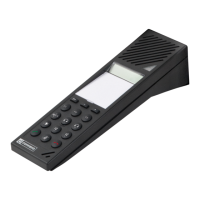
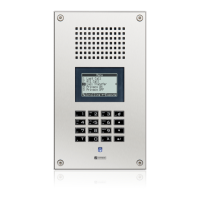
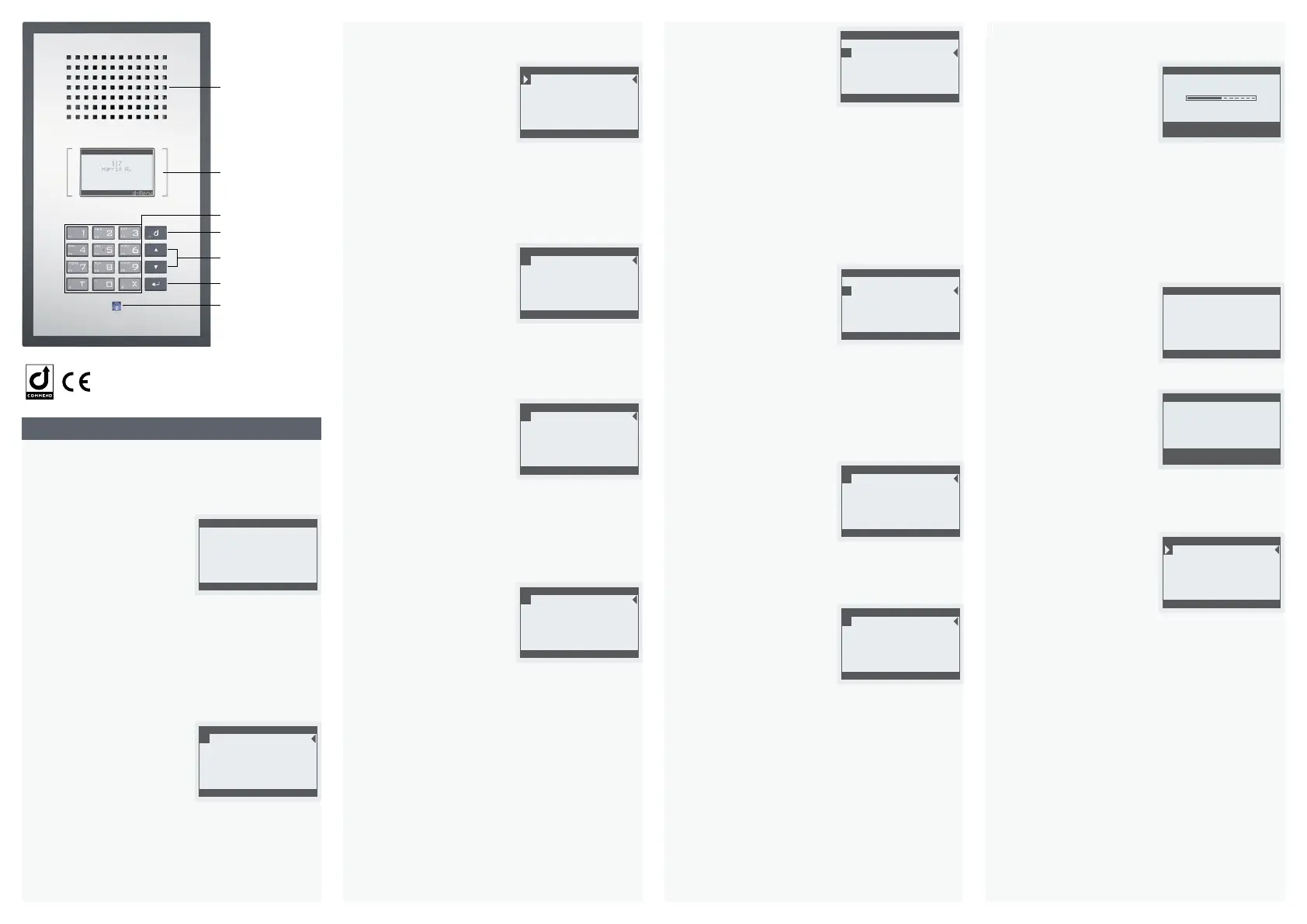
Full keypad
Microphone with
multifunction LED
Menu button
Loudspeaker
Monochrome
LCD display
Enter button
Arrow buttons
Up / Down
Display functions
Help function
At the bottom of the display, possible button commands are
indicated.
NOTES: Idle mode
• In idle mode, it is possible to
display an individually congurable
direct dialling menu. For this feature, however, an appro priate
Intercom Server conguration is required.
• In idle mode, the contrast of the display can be set with
E and
D and saved with F.
Scott U.3
Stewart O.4
Smith I.5
Call Transfer6
Last Call2
All Call1
Favorites
›Execute d-Edit
Favourites
Via an individually congurable favourites list, it is possible to
execute frequently used functions
and initiate calls to subscribers:
1. Open main menu with
c
.
2. Select menu item “Favourites”
with arrow buttons and open with
e
or directly with
3
.
3. Select function or subscriber with
arrow buttons and execute with
e
or directly with
1
to
6
. Otherwise, leave menu item with
x
without executing entry.
Scott U.
Smith I.
Stewart O.
Sullivan E.
Sanders A.
Sanchez M.
Subscribers
Search:......
Subscribers
Via the subscriber list, it is possible to initiate a call to a sub-
scriber:
1. Open main menu with
c
.
2. Select menu item “Subscribers”
with arrow buttons and open with
e
or directly with
1
.
3. Select subscriber with arrow but-
tons or enter subscriber name via
full keypad (
2
to
9
).
4. Initiate call with
e
. Otherwise, leave menu item with
x
without initiating call.
Call Transfer3
Privacy ON4
Privacy OFF5
All Call2
Last Call1
Functions
›Execute X-Cancel
Functions
Instead of entering the appropriate button sequences for func-
tions, it is possible to execute functions via the individually
congurable function list:
1. Open main menu with
c
.
2. Select menu item “Functions”
with arrow buttons and open with
e
or directly with
2
.
3. Select function with arrow keys
and execute with
e
or directly
with
1
to
5
. Otherwise, leave
menu item with
x
without executing function.
Favourites3
Settings4
Functions2
Subscribers1
Main Menu
X-Cancel ›OK
Call History5
Main menu
Via the main menu, it is possible to manage functions and settings:
1. Open main menu with
c
.
2. Select desired menu item with
arrow keys and open with
e
or
directly with
1
to
6
. Otherwise,
leave main menu with
x
without
selecting any menu item.
1
Subscribers: show
subscriber list
2
Functions: show function list
3
Favourites: show favourites list
4
Settings: show settings menu
5
Call history: show call history
Idle mode
The call number and the name of the
Intercom station are indicated in idle
mode of the standard conguration.
Functions2
Subscribers1
Add Favourites
X-Cancel ›OK
Edit favourites
It is possible to edit the favourites list directly via the Intercom
station.
Add subscriber
1. Open main menu with
c
.
2. Select menu item “Favourites”
with arrow buttons and open with
e
or directly with
3
.
3. Open menu “Edit Favourites”
with
c
.
4. Select menu item “Add” with
arrow buttons and open with
e
or directly with
1
.
5. Select menu item “Subscribers” with arrow buttons and open
with
e
or directly with
1
.
6. Select subscriber with arrow buttons or enter subscriber name
via full keypad (
2
to
9
).
7. Open menu “Edit Favourites” with
c
.
8. Select menu item “Save” with arrow buttons and accept with
e
or directly with
3
. Otherwise, leave menu item with
x
without saving entry.
This equipment fulls the requirements of the
EU directive 2004/108/EC (EMC).
Therefore, this station is CE-labelled.
Type: OI-WS800-EN, Version: 2.0/0116 www.commend.com


 To Previous Page
 Loading...