right
afler the height number The command
CIRCLE
1,160, 100,50,42,90, 1B0 displays only
the
lower
right section ot the
circle To rotate an oval,
add the angle ot
clockwise
rotation after
the
command, like this example:
CIRCLE
1,160,100,100,20,, ,30.
Here's
a program that uses CIRCLE commands (or an interesting
effect. Don't forget
to
clear
your computer's memory
by
typing in
NEW
if
you entered the last program
10 COLOR 0,
1
20 COLOR 1,2
30 GRAPHIC 1,1
40 A
=
RND(l)" 20+
10
SO FOR L=0 TO 359 STEP A
60 CIRCLE
1, 160. 100, 80, 40...L
70 NEXT L
80 FOR L= 1 TO 2000: NEXT L
90 GRAPHIC 0,1
I
This
program will
be
slightly
different each time
you
RUN
The Paint Command
To make
a
circle or other
shape more than just an outline,
you can use
Ihe PAINT
command
The
PAINT
command fills In any enclosed
area
up to
the boundaries
formed
by
lines drawn
on the screen. If there are
no lines rjrawn,
the
screen
is
filled
right
to
the
edge. The BOX
command has
a
fill option
that
colours In
boxes
and
rectangles. The
PAINT
command can colour in irregular shapes
and other non-uniform
areas
on the screen
that can't be filled with other commands.
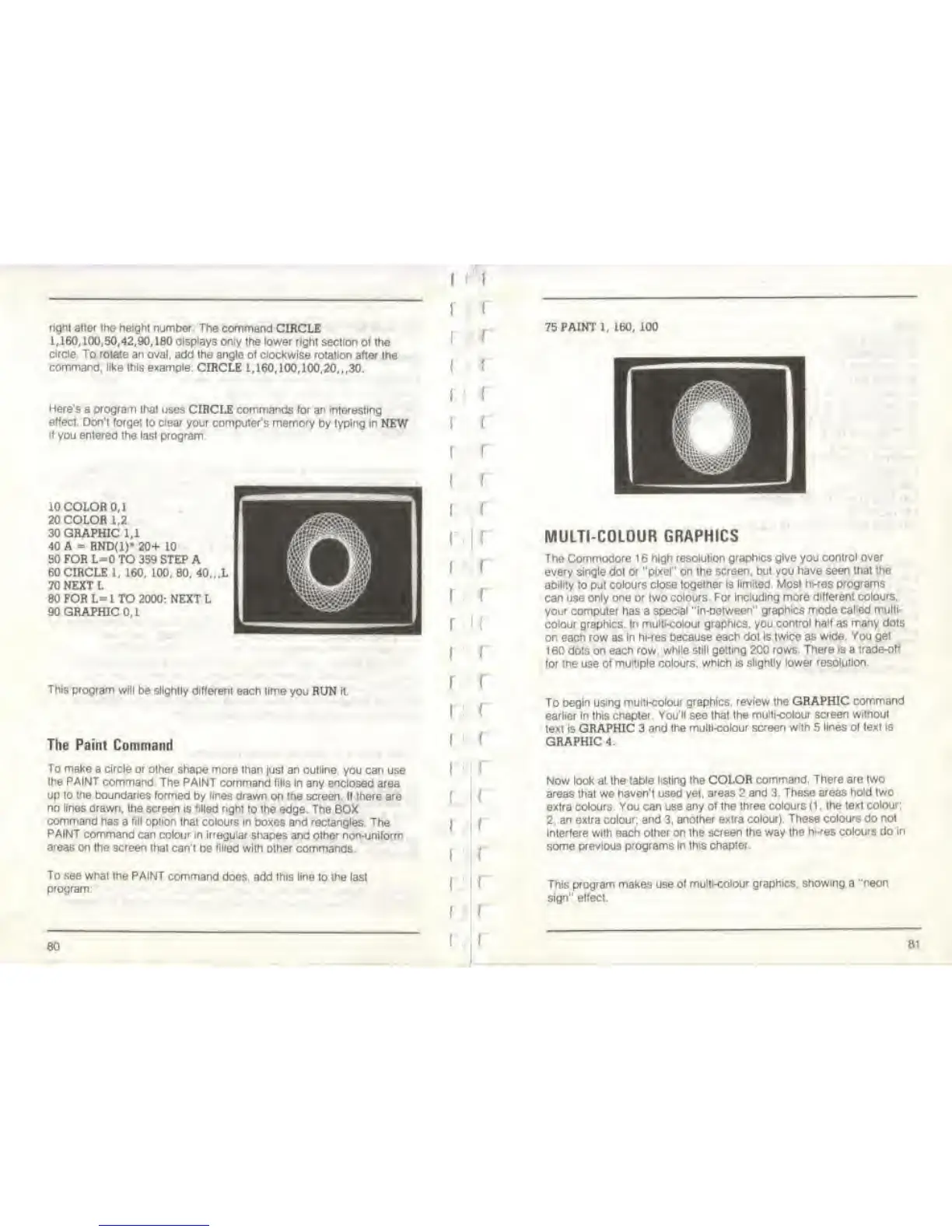
To
see what the PAINT
command does, add this line to the last
program:
BO
f
I
I
f
I
I
(
:
I
f
(
I
I
f
f
(
f
f
75 PAINT 1, 160, 1O0
MULTI-COLOUR GRAPHICS
The Commodore 1 6
high resolution
graphics
give you
control over
every
single
dot
or "pixel" on the
screen,
but you
have seen that the
ability
to put
colours close
together
is
limited. Most hkes programs
can use only
one or
two
colours For Including more
different
colours,
your
computer has a
special "in-between"
graphics mode called multi-
colour graphics. In multi-colour graphics, you
control half as
many
dots
on each row
as
in hi-res because each dot
is twice as wide.
You
get
160 dots on each row. while
still getting 200 rows.
There is
a
trade-off
for
the
use
of multiple colours,
which is slightly lower resolution.
To begin using
multi-colour graphics, review the GRAPHIC
command
earlier in this
chapter. You'll
see
that the
multi-colour screen without
text is
GRAPHIC 3 and
the multi-colour screen with 5 lines of text
Is
GRAPHIC 4.
Now look at the
table listing the COLOR
command. There are two
areas that we haven't used yet,
areas
2
and 3. These areas
hold
two
extra colours.
You
can use
any of the three colours (1 . the
text colour;
2. an extra
colour; and
3,
another extra
colour) These colours do not
Interfere with each other on the screen
the
way
the
hi-res colours
do
in
some previous
programs
In
this chapter.
This program makes use
of multi-colour graphics,
showing
a
"neon
sign" effect.
,i



 To Next Page