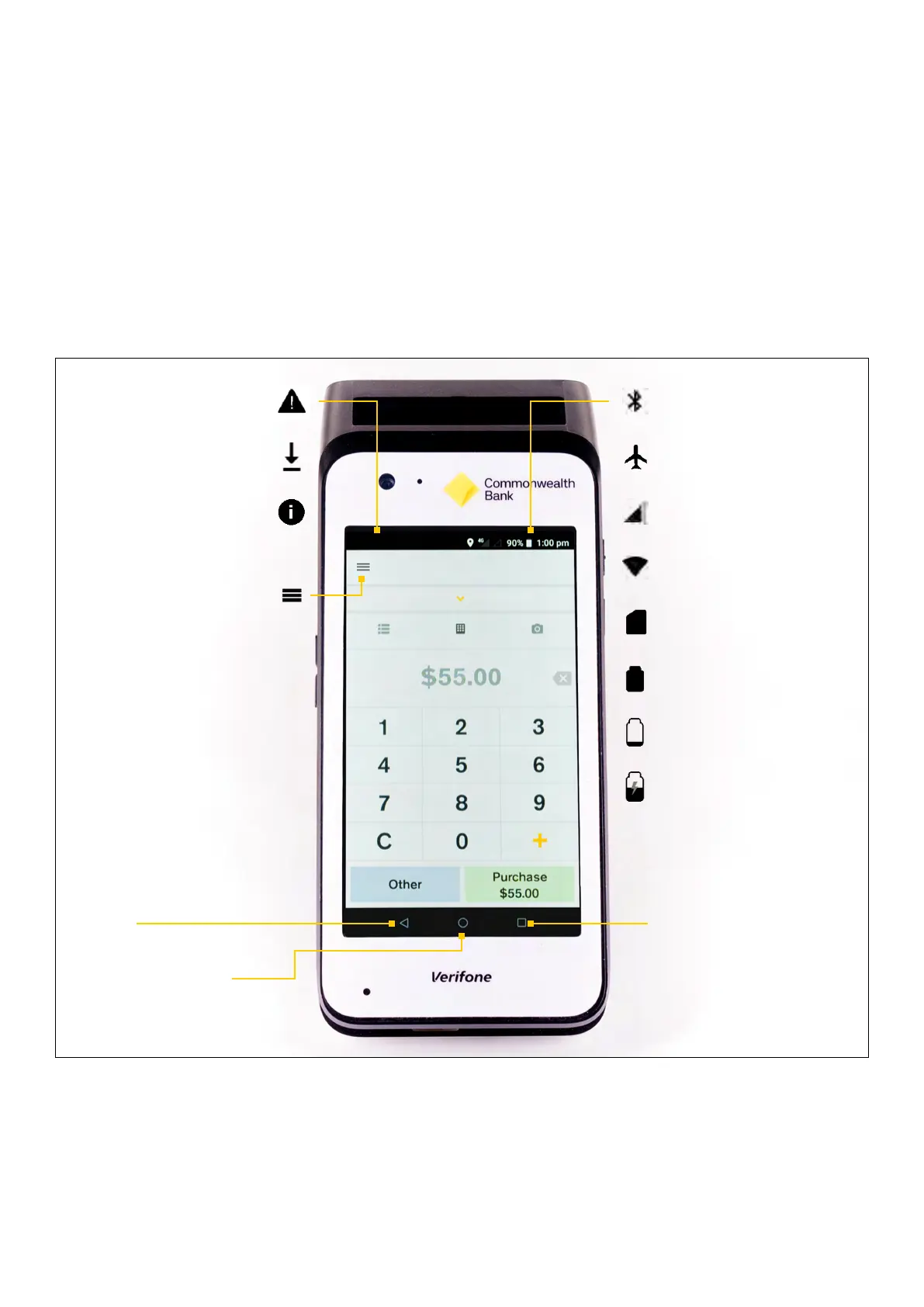
Navigation and understanding the status bar
Just like an Android smartphone, your Smart terminal has a full touchscreen that responds to
gestures like tapping and swiping:
• Tap - Lightly touch items to select or launch them.
• Swipe - Lightly drag your finger across the screen to swipe. For example, swipe down from the
top of the screen to access the Quick Settings panel.
• Touch and hold - Touch and hold items to see more information or open a pop-up menu of
options.
• Drag and drop -Touch and hold an item, and then move it to a new location.
Warning/Attention Bluetooth active
Download/ update
in progress
Aeroplane mode
Important information
Hamburger menu
Back Recent items
Payment screen
Cellular signal
Wi-Fi active
SIM card status
Battery full
Battery low
Battery charging
5 Commonwealth Bank of Australia | Smart User Guide



 To Next Page