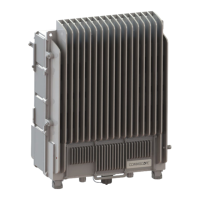
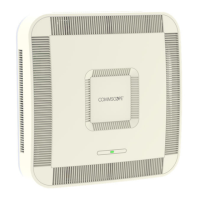
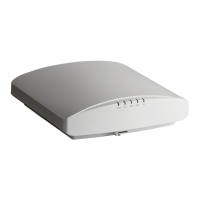
R850 Access Point
Quick Setup Guide
This Quick Setup Guide provides step-by-step instrucons on how to install
and begin using your Ruckus R850 Dual-Band 802.11ax Mulmedia Wi-Fi
Access Point (AP). Aer compleng the steps described in this guide, you
will be able to place the R850 at your site and begin providing wireless
access to users.
NOTE: AP R850 is supported in the following releases:
• SmartZone (SZ) release 5.2 using New AP Model Patch
• ZoneDirector (ZD) release 10.4.1 Nave Support
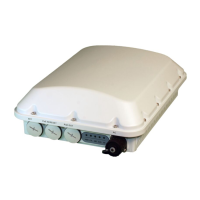
FIGURE 1 R850 - top
This Guide in Other Languages
• 请从以下网站获得该指南的简体中文版 hps://
support.ruckuswireless.com.
• Vous trouverez la version française de ce guide à l'adresse suivante
hps://support.ruckuswireless.com.
• このガイドの日本語版は hps://support.ruckuswireless.com でご覧
ください。
• 이 가이드의 한국어 버전은 웹 사이트 (hps://
support.ruckuswireless.com) 에서 확인하시기 바랍니다.
• Veja a versão em português (Brasil) deste guia em hps://
support.ruckuswireless.com.
• Puede ver la versión en español (América Lana) de esta guía en
hps://support.ruckuswireless.com.
Before You Begin
Before deploying Ruckus products, please check for the latest soware and
the release documentaon.
• Release Notes and other user documentaon are available at hp://
support.ruckuswireless.com/documents.
• Soware upgrades are available at hp://support.ruckuswireless.com/
soware.
• Soware license and limited warranty informaon are available at
hp://support.ruckuswireless.com/warranty.
Package Contents
A complete R850 installaon package includes all of the items listed below:
• R850 Access Point
• One wall-mount anchor kit, including two 1-in. No. 8 steel pan head
Phillips sheet metal screws and wall-mount anchors
• One external T-bar bracket (two unassembled parts)
• Service Level Agreement/Limited Warranty Statement
• Declaraon of Conformity
• Regulatory Statement
• Ruckus Access Point Geng Started Guide
• AP Cloud Management Insert
• This Quick Setup Guide
Step 1: Collecng Setup Requirements, Hardware
and Tools
• Admin PC (computer with an Ethernet port and Wi-Fi adapter)
• Cat 5e (or beer) Ethernet cable
• Ruckus Wireless 48VDC power adapter (sold separately) or 802.3at-
compliant Power over Ethernet (PoE) switch or PoE injector
NOTE: The PoE switch port must run link layer discovery protocol
(LLDP) power over Ethernet/MDI (PoE+) in order for the R850 to
operate in full-power mode. This may require enabling both LLDP
and Power via MDI (dot3) on the switch, if available.
NOTE: If powered by 802.3at PoE, note that the feature set is
reduced, as follows:
– 4x4 (2.4GHz) + 4x4 (5GHz) chain operaon mode (reduced from
4x4 (2.4GHz) + 8x8 (5GHz) under full power)
NOTE: The recommended PoE injector for the R850 is GRT-480125A
(60W power rang and 1 Gbps link speed). If using the
recommended PoE injector, you must 1) manually select AT+ mode
as the power mode in the SmartZone/ZoneDirector GUI, and 2) force
1Gbps link speed on the switch.
Oponal hardware and tools:
• Customer-supplied small padlock with a 3.5-mm (0.14-in.) or smaller
shackle diameter, used to fasten the AP to the secure mounng bracket
or the T-bar bracket.
• Customer-ordered Ruckus Wireless 902-0120-0000 secure mounng
bracket kit:
– If you are mounng the AP on a at surface using the secure
mounng bracket kit, then you need an electric drill with 4.75-mm
(3/16-in.) drill bits.
– If you are mounng the AP on a pipe or pole using the secure
mounng bracket kit, then you will also need a 38.1-mm to 63.5-mm
(1.5-in. to 2.5-in.) pipe or pole, two pole clamps, and hand tools to
ghten the clamps.
Step 2: Connecng Your Computer to the AP
1. Using an Ethernet cable, connect your computer’s network port to
the 5G ETH PoE port on the AP (1 in the Figure below).
2. Using a DC power adapter (sold separately), connect the AP's 48 VDC
port (2 in the Figure below) to a convenient and protected power
source.
NOTE: Alternavely, connect the 5G ETH PoE port to a PoE injector
or switch for both power and network connecvity.
FIGURE 2 AP Ports
TABLE 1 R850 boom panel elements
No. Label Descripon
1 5G ETH
PoE
100/1000/5000 Mbps PoE In Port: RJ-45
Ethernet port (supports 802.3at/at+ PoE
in)
2 1G ETH 10/100/1000 Mbps port: RJ-45 Ethernet
port (non-PoE)
3 48 VDC 48 VDC input
4 USB USB Port
• Max Dimensions: 6 cm x 2 cm x 1.1
cm
• Interface: USB 2.0
• Connector: USB – Type-A plug
3. Verify that the PWR LED on the AP is a steady green.
Step 3: Preparing Your Computer for AP Setup
NOTE: The following procedures assume Windows as the operang
system. Procedures for other operang systems are similar.
1. On your Windows PC, congure your network adapter from the Local
Area Connecon sengs as follows:
Start > > Control Panel > Network and Sharing Center > Change
Adapter Sengs
2. Edit the TCP/IPv4 address sengs as follows:
Copyright
©
2020 CommScope, Inc. All rights reserved. Page 1 of 4
Published April 2020, Part Number 800-72487-001 Rev B


 To Next Page
 Need help?
 General