12
Adjusting Your Monitor
This chapter contains information about how to change display settings for your LCD Monitor. It is
designed with an On-Screen Display (OSD) menu to help you easily adjust to its optimum
performance.
Note: You must perform Auto Configuration before making any adjustment.
Summary of Control Buttons
There are three control buttons located at the lower middle part of the front panel of your monitor:
Select (
): Displays the OSD Main Menu and selects items for user adjustment.
Up (
▲ ): Moves upward through the choice in the OSD Main Menu. If an adjustment bar is
displayed, this button increases the setting value.
Note: This key is also used as a direct key. When the OSD Main Menu is inactive, press this
key to open the OSD Brightness Menu.
Down (
▼ ): Moves downward through the choice in the OSD Main Menu. If an adjustment bar
is displayed, this button decreases the setting value.
Note: This key is also used as a direct key. When the OSD Main Menu is inactive, press this
key to perform the Auto Configuration function.
Displaying the OSD Main Menu
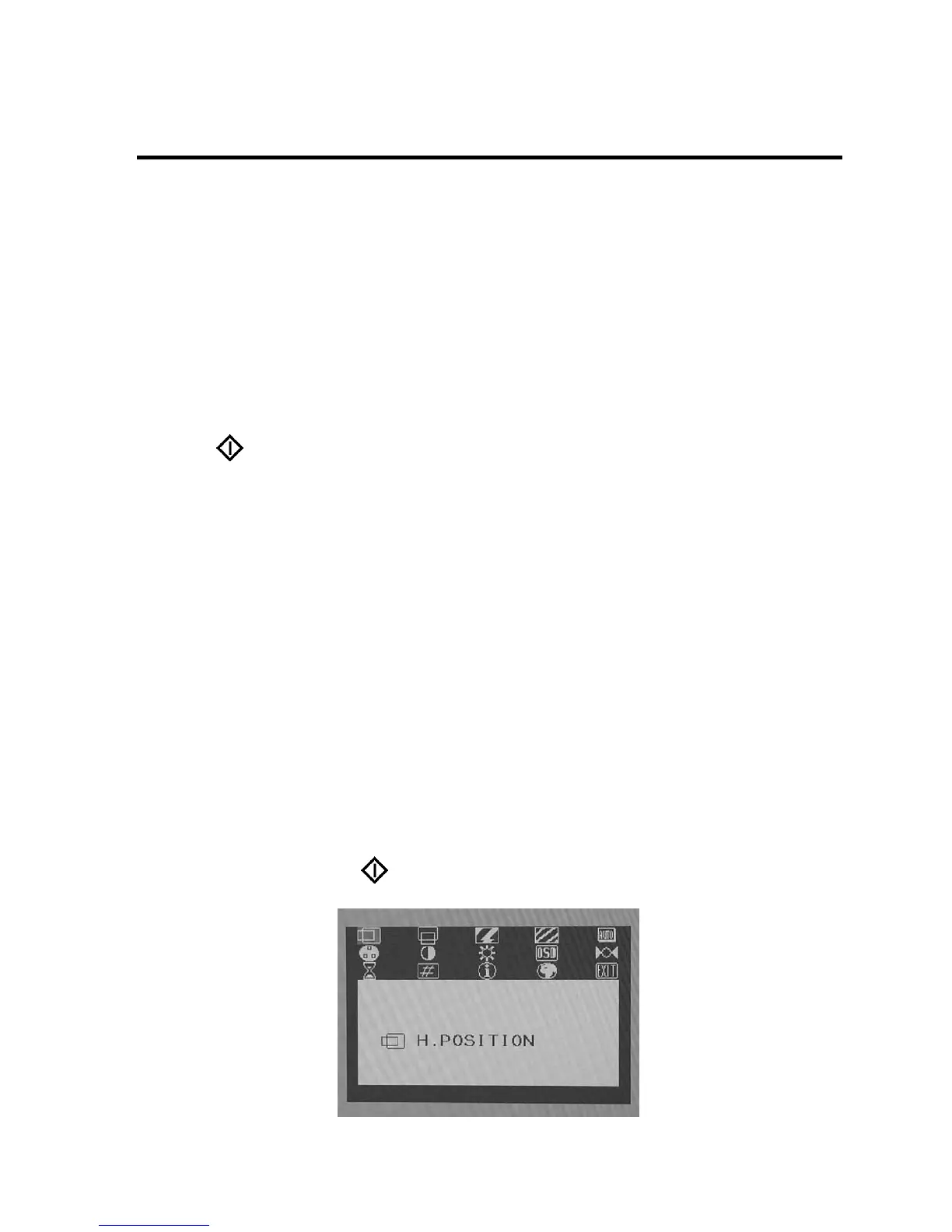
You can use the OSD features to change the screen settings of your monitor. To display the OSD
Main Menu, press the Select (
) button.



 To Next Page