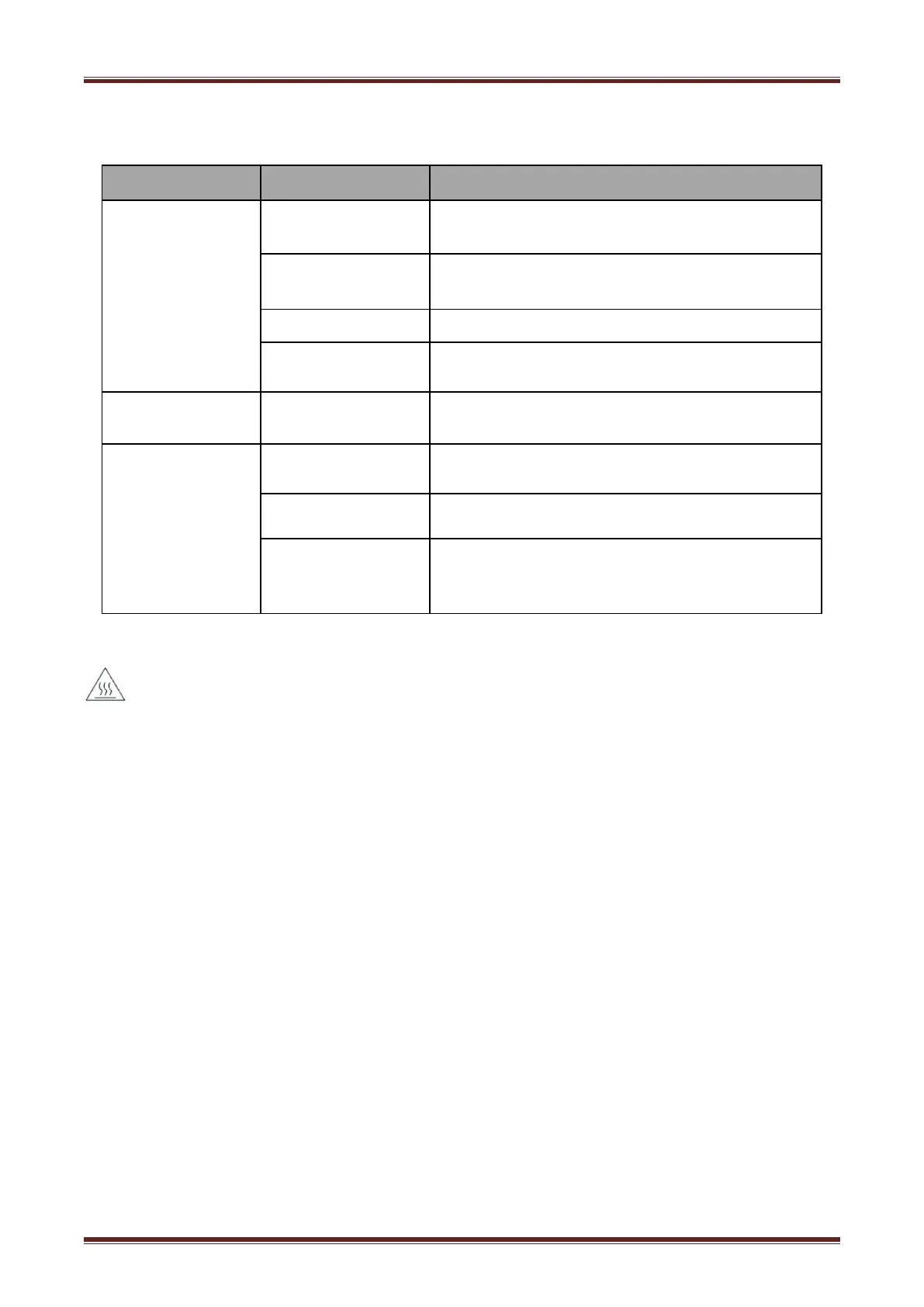
6.4 Problems Emerge During The Paper Cutting Processes
Cutter jam, the
movable cutter cannot
back
Cutter abrasion,
insufficient cutting
Worm gear and worm
wheel abrasion
Replace the worm gear and worm wheel
Clean the paper scraps on the transmission system
Cutter edge abrasion,
paper too thick
Thermal printer head
over heat
Reduce the density of printing
Reduce the printer speed to the limit of thermal printer
head
Wrong paper feeding
position
Put the paper parallel with the paper mount and insert
into the space between platen roller and the thermal
printer head
6.5 Remove Jammed Paper
Warning: Do not touch the thermal print head because it becomes very hot after printing.
If the top cover can be opened,operate it according to the next steps.
1)Turn off the printer and press open cover button.
2)Remove jammed paper, reinstall the roll, and close the cover.
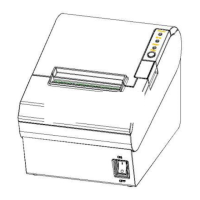
If the auto cutter jam occurs on printer VLINE80-2 and you cannot open the printer cover, open
the cutter cover as shown on the left below.
1)Turn the printer off and open the front cover.
2)Turn the knob until cutter return to the normal position(tip tag).



 To Next Page