Right-Click Mouse Menu
If using mouse to right-click on the TV screen, you can see a menu pop up.
There are many useful options for your convenience.
The right-click menu also provides SmartZoom feature to auto-fit or customize
video screen for different type monitors, the Aspect Ratio setting provides 4:3,
16:9, 1.85:1, 2.35:1 and customize for different resolutions.
Still Image Capture
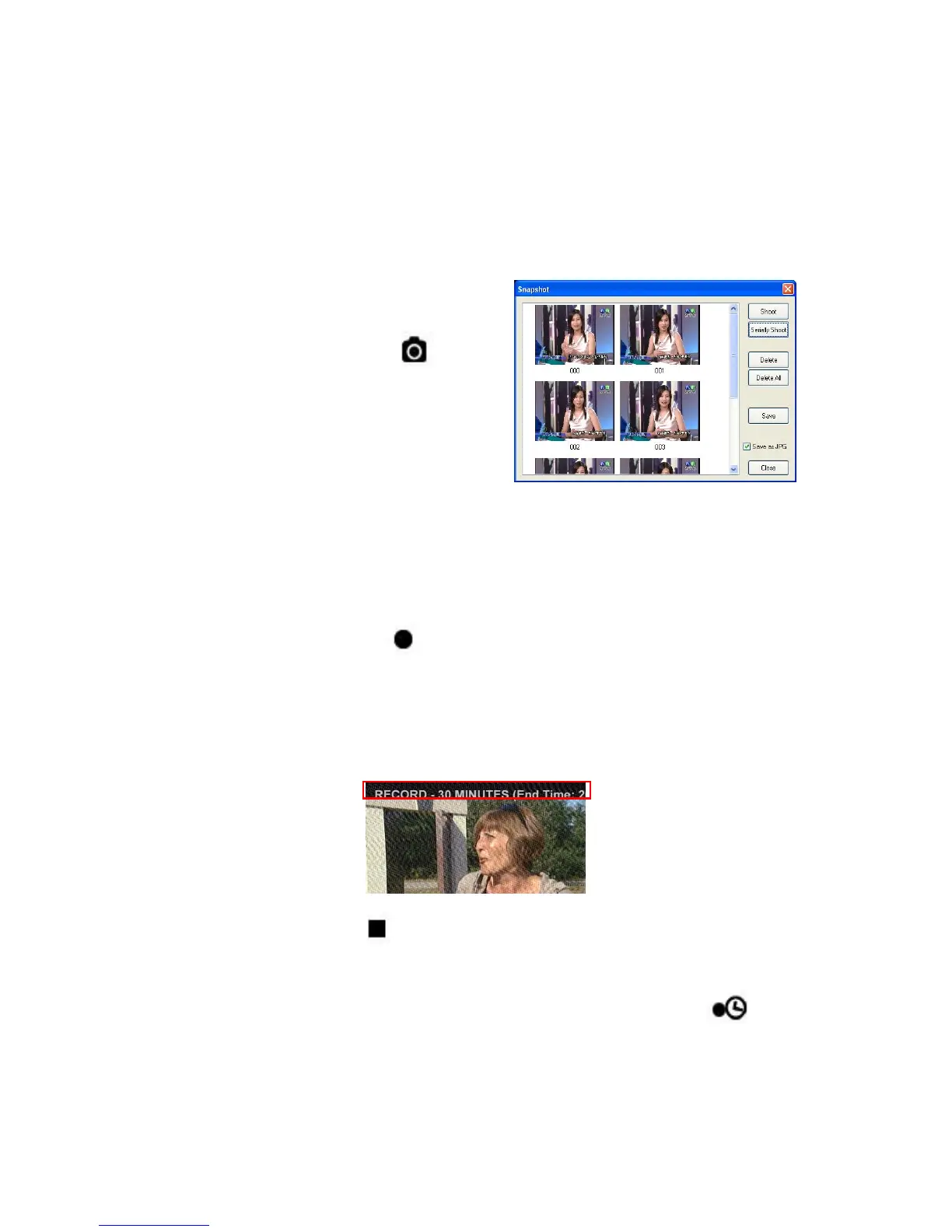
Click on the capture icon on the
control panel or hit the "Space Bar" of the
keyboard shortcut to capture an image of
the display window. You can see the
screen capture dialog as below. You can
setup to save it as jpg or bmp format.
Recording
ComproDTV 4.5 supports MPEG-1/2/4 formats recording in analog TV.
To instantly start recording:
Press the Record button .ComproDTV 4.5 starts recording the video
source currently showing in the display window. It will save it to a file on your
disk. If you already start recording, you still can click the record button to
setup 30, 60, 90, and 120 minutes recording immediately. Thus, you can
go out without worry about the record still ongoing.
Press the Stop button to stop recording. ComproDTV 4.5 will save it
automatically and show the file name on the screen.
You can also use the schedule recording by press Schedule button on
control panel of ComproDTV 4.5.


 To Next Page