VXH5AHD QUICK START GUIDE
6
ACTIVATING VIDEO ANALYTICS
Some Concept Pro cameras come equipped with video analytics functionality, including
line crossing, area entrance/exit, loitering, stopped, and object removed detection, that
can be used from the Concept Pro suite of recorders. To use video analytics, you must
rstensurethelicenseisrecognisedbytherecorder.Todothis,rstconnectthecamera
to the Concept Pro recorder over the network. Then, through the recorder user interface,
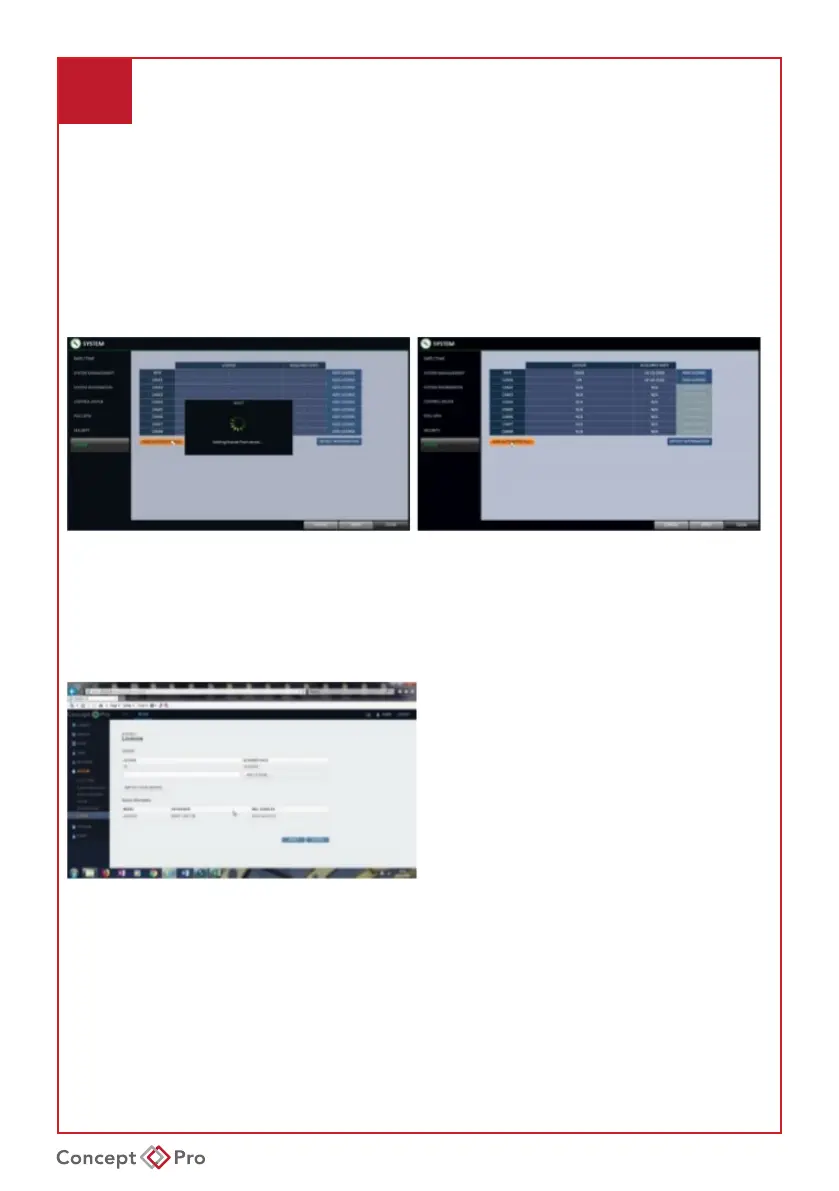
navigate to <MENU> - <SYSTEM SETUP> - <SYSTEM> - <LICENSE>. Click <ADD
AUTOMATICALLY> if the recorder is connected to the network to automatically add the
license for all valid connected cameras.
Alternatively, the individual camera license can be found by logging into the camera
web interface, navigating to <SETUP> - <SYSTEM> - <LICENSE>. The license
should be listed in this menu. The license can then be manually added to the recorder
<LICENSE> menu should the automatic option not properly update.
Once the license is applied, simply navigate to the <CAMERA> - <VA SETUP> menu to
setup video analytics. Select the desired channel and turn ACTIVATION to ON.
Click START WIZARDandfollowtheinstructionstocongureanewVArule,calibrate
theaccuracyofthecamera,andcongurerelatedsettings.Alternatively,clickADD in
theruletabtomanuallyconguresettings.ClicktheSCHEDULE tab to customize the
VA schedule.
Note: Performing CALIBRATION is recommended to increase the video analytics accuracy.



 To Next Page