36 37
• Tap or to switch between uppercase and lowercase. Double-tap
or to lock uppercase. This key also changes to indicate the current case
you are using.
• Tap to delete the text before the cursor.
• Tap to select numbers and symbols. You can then tap to find
more.
• Tap to choose emoji, emoticon, stickers, or GIFs.
• Tap to use Google voice typing.
• Press and hold to set up the Gboard.
• Press and hold and then slide to to change to a smaller keyboard
for easier one-handed typing. Tap or to switch to the right-hand or left-
hand keyboard respectively. Tap or to resize the keyboard or switch
back to the full-sized keyboard.
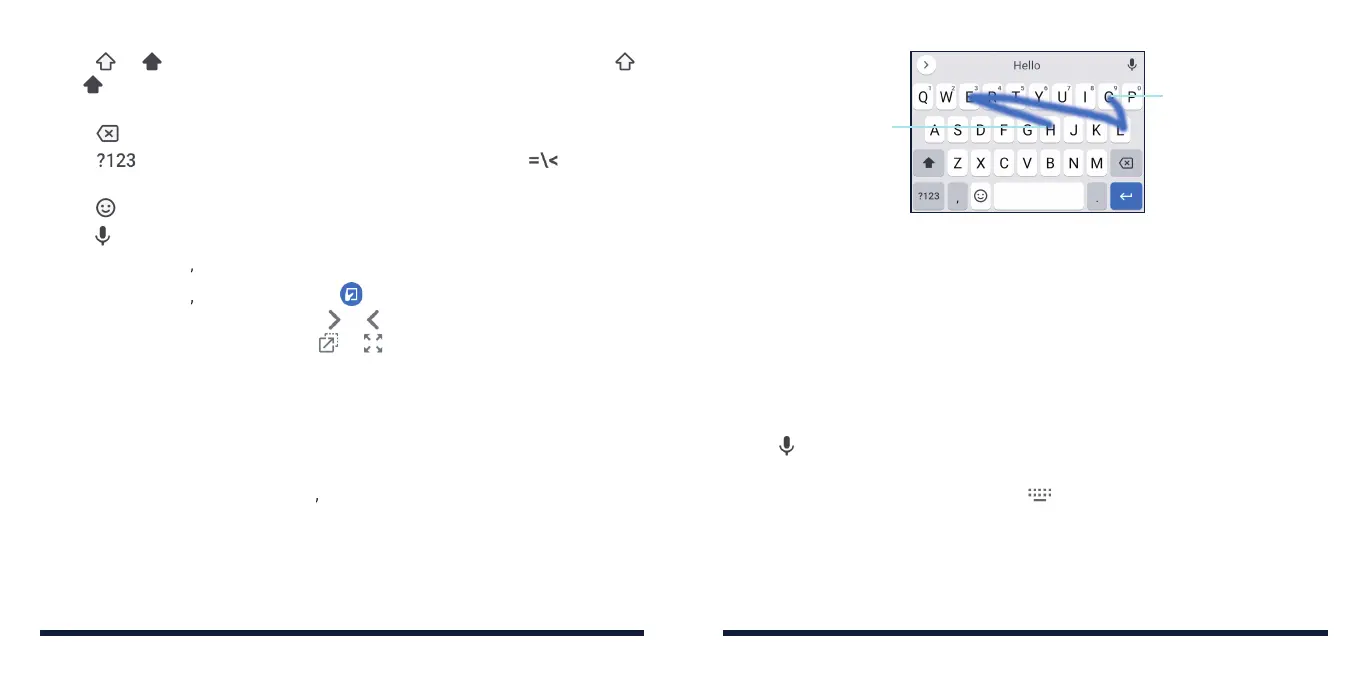
Glide Typing
The Gboard supports the glide typing feature. You can use this feature to
input a word by sliding your finger from letter to letter on the keyboard.
To enable and use glide typing:
1. On the Gboard, press and hold and tap Glide typing > Enable glide
typing if this feature is turned off.
2. Move your finger from letter to letter on the keyboard to trace a word
without lifting the finger until you reach the end of the word.
KNOWING THE BASICS
Start of the word
End of the word
NOTES:
• Tap when you want to. If you want to enter a single letter, simply tap the
key once.
• Lift your finger at the end of the word. A space is added automatically
when you begin to input the next word.
Google Voice Typing
Google voice typing uses the Google voice recognition service to convert
speech to text.
1. Tap to access the voice typing feature when you are using the Gboard.
If you have installed and enabled other input methods in addition to the
pre-installed ones, you can also tap at the bottom right of the screen
when entering text and tap Google voice typing.
2. When you see the microphone image, speak what you want to type.
3. You can continue entering text or tap an underlined transcription to change
or delete it.
KNOWING THE BASICS



 To Next Page