EasyManua.ls Logo

Core CLT1564 - User Manual

Core CLT1564
26 pages
Print Icon
To Next Page IconTo Next Page
Loading...
CORE
INNOVATIONS
TM
15.6” Laptop with Windows™ 10 S
CLT1564
User Manual
Question and Answer IconNeed help?

Do you have a question about the Core CLT1564 and is the answer not in the manual?

Summary

Read Before Use

Safety and Usage Guidelines

Critical safety, environmental, and handling precautions for optimal laptop use.

Unit at a Glance

Hardware Component Identification

Visual guide to laptop parts, including views, power button, camera, and touchpad.

Ports and Input Devices

Details on keyboard, ports, USB, HDMI, headphone jack, SD card slot, and speakers.

Getting Started

Initial Setup and First-Time Use

Steps for charging, powering on, connecting to Wi-Fi, logging in, and creating a user account.

Windows 10 Interface

Start Menu and Application Access

Overview of the Start Menu, app display, and requirements for running applications.

Switching Out of S Mode

Instructions and implications for transitioning from Windows™ 10 S mode.

Application Management

Customizing Start Menu Tiles

Guide to pinning, organizing, resizing, and removing tiles on the Start Screen.

Downloading Apps

Using the Microsoft Store

Process for downloading apps, requiring a Microsoft account for access.

System Navigation and Features

Search Bar and Action Center Usage

Utilizing the search bar for files/web and the Action Center for notifications.

Cortana Virtual Assistant

Features and Capabilities

Overview of Cortana's functions, including reminders, tracking, and information retrieval.

Multitasking and Basic Operations

Managing Multiple Desktops and Apps

Techniques for efficient multitasking using virtual desktops and app snapping.

Power Button Functions

Using the power button for sleep, restart, and shutdown operations.

Device Connectivity

Action Center Quick Settings Overview

Accessing and managing Bluetooth, Wi-Fi, Network, Location, and other quick settings.

Connecting to External Devices

Pairing Bluetooth, setting up printers, and connecting to wireless displays or second screens.

Laptop Personalization

Customizing Start Screen and Desktop

Modifying background, colors, lock screen, and managing notifications.

Network Configuration

Wi-Fi and VPN Setup Guide

Connecting to Wi-Fi, managing networks, and configuring VPN connections.

User Account Management

Account Types and Security Settings

Differentiating Microsoft vs. Local accounts, changing passwords, and signing out.

System Settings and Accessibility

Ease of Access and General Configurations

Configuring accessibility options and managing device settings like updates and privacy.

Device Maintenance and Specifications

Refresh, Restart, and Hardware Specs

Procedures for refreshing/restarting the device and overview of hardware specifications.

Support and Warranty Information

Customer Support and Help Resources

Information on obtaining technical assistance and contacting customer service.

Warranty Terms and Coverage Details

Details on limited warranty duration, parts, labor, and conditions.

FCC Compliance

Regulatory Guidelines and Interference

Compliance with FCC rules regarding radio frequency and interference.

Summary

Read Before Use

Safety and Usage Guidelines

Critical safety, environmental, and handling precautions for optimal laptop use.

Unit at a Glance

Hardware Component Identification

Visual guide to laptop parts, including views, power button, camera, and touchpad.

Ports and Input Devices

Details on keyboard, ports, USB, HDMI, headphone jack, SD card slot, and speakers.

Getting Started

Initial Setup and First-Time Use

Steps for charging, powering on, connecting to Wi-Fi, logging in, and creating a user account.

Windows 10 Interface

Start Menu and Application Access

Overview of the Start Menu, app display, and requirements for running applications.

Switching Out of S Mode

Instructions and implications for transitioning from Windows™ 10 S mode.

Application Management

Customizing Start Menu Tiles

Guide to pinning, organizing, resizing, and removing tiles on the Start Screen.

Downloading Apps

Using the Microsoft Store

Process for downloading apps, requiring a Microsoft account for access.

System Navigation and Features

Search Bar and Action Center Usage

Utilizing the search bar for files/web and the Action Center for notifications.

Cortana Virtual Assistant

Features and Capabilities

Overview of Cortana's functions, including reminders, tracking, and information retrieval.

Multitasking and Basic Operations

Managing Multiple Desktops and Apps

Techniques for efficient multitasking using virtual desktops and app snapping.

Power Button Functions

Using the power button for sleep, restart, and shutdown operations.

Device Connectivity

Action Center Quick Settings Overview

Accessing and managing Bluetooth, Wi-Fi, Network, Location, and other quick settings.

Connecting to External Devices

Pairing Bluetooth, setting up printers, and connecting to wireless displays or second screens.

Laptop Personalization

Customizing Start Screen and Desktop

Modifying background, colors, lock screen, and managing notifications.

Network Configuration

Wi-Fi and VPN Setup Guide

Connecting to Wi-Fi, managing networks, and configuring VPN connections.

User Account Management

Account Types and Security Settings

Differentiating Microsoft vs. Local accounts, changing passwords, and signing out.

System Settings and Accessibility

Ease of Access and General Configurations

Configuring accessibility options and managing device settings like updates and privacy.

Device Maintenance and Specifications

Refresh, Restart, and Hardware Specs

Procedures for refreshing/restarting the device and overview of hardware specifications.

Support and Warranty Information

Customer Support and Help Resources

Information on obtaining technical assistance and contacting customer service.

Warranty Terms and Coverage Details

Details on limited warranty duration, parts, labor, and conditions.

FCC Compliance

Regulatory Guidelines and Interference

Compliance with FCC rules regarding radio frequency and interference.

Overview

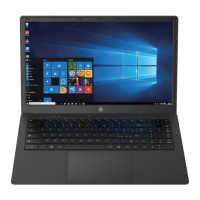
The Core Innovations CLT1564 is a 15.6" laptop designed for everyday use, running on Windows™ 10 S. This operating system is optimized for security and performance, exclusively running apps from the Microsoft™ Store. Users have the option to switch out of S mode if they need to install applications not available in the Microsoft™ Store, though this is a one-way process.

Function Description:

The CLT1564 serves as a portable computing device, suitable for tasks such as web browsing, document creation, media consumption, and light productivity. Its Windows 10 S operating system provides a streamlined and secure experience, with applications displayed as "magnets" on the Start menu for easy access. The laptop features a virtual assistant, Cortana™, which helps with reminders, tracking, emails, texts, calendar management, list creation, fact-finding, and opening applications. Multitasking is supported through multiple desktops, allowing users to organize files and documents efficiently. The Action Center provides a centralized location for notifications and quick access to customized settings like Bluetooth®, Wi-Fi®, location, nightlight, and battery saver.

Important Technical Specifications:

  • Processor: Intel® Celeron® N3350
  • Operating System: Windows™ 10 Home in S Mode
  • Storage: 3GB RAM, 64GB Storage
  • Display: 15.6" IPS Screen (1366x768)
  • Network: Wi-Fi® Ready: 802.11b/g/n (supports 2.4GHz Wi-Fi® networks only)
  • Headphone Output: 3.5mm Headphone Jack
  • USB Ports: 2x USB Inputs
  • HDMI®: Mini HDMI® Output
  • Bluetooth®: Compatible with Bluetooth®
  • Camera: 0.3 MP Front Camera
  • Power: Rechargeable Li-Polymer Battery
  • DC IN: 12V/2A
  • Speakers: 2x1W Speakers
  • Charging: 12V = 2A

Usage Features:

  • Power Button: Turns the device on/off, sets it to Sleep, or wakes it from Sleep.
  • Front Camera: For taking photos and videos.
  • Touchpad: For cursor navigation.
  • Keyboard: For typing, with indicators for Power, Caps Lock, and Num Lock.
  • Microphone: Transmits audio signals.
  • Charging Indicator: Red light when connected to a power adapter.
  • USB Input: For connecting external USB devices.
  • Mini-HDMI® Output: For connecting to external monitors, TVs, or other HDMI®-enabled devices.
  • Headphone Jack: For transmitting audio to speakers or headphones.
  • Micro SD Card Slot: Supports Micro SD format up to 128GB for expanded storage.
  • Speakers: Built-in 2x1W speakers for audio playback without external devices.
  • Getting Started: Requires an initial 6-hour charge. Turning on involves holding the power key for two seconds. Wi-Fi® connection and user account creation are part of the initial setup.
  • Windows™ 10 S Start Menu: Provides quick access to applications. Requires a Microsoft™ account for full functionality of pre-installed apps.
  • Downloading Apps: Apps can be downloaded from the Microsoft™ Store. A Microsoft™ account is required for app downloads.
  • Menu Bar: Located at the bottom of the screen, offering quick access to PC settings, Documents, Pictures, Settings, and Power options (Sleep, Shutdown, Restart).
  • Search Bar: Found in the Start Menu, used to find documents, files, or perform web searches with an Internet connection.
  • Action Center: Displays notifications and provides quick access to settings like Bluetooth®, Wi-Fi®, location, nightlight, network, connect, battery saver, and airplane mode.
  • Battery Status: Viewable on the Lock Screen and Desktop Taskbar.
  • Connecting to Devices: Supports USB cable connections and wireless connections via Bluetooth®/Wi-Fi®.
    • Bluetooth® Pairing: Turn on Bluetooth® device, open Action Center, select "Bluetooth®" and "Go To Settings," then follow on-screen instructions.
    • Printer/Scanner Setup: Access "All Settings" in Action Center > Devices.
    • Project to a Second Screen: Connect via HDMI® for movies, multiple apps, or presentations.
    • Connect to a Wireless Display: Open Action Center, click "Connect," and follow on-screen instructions.
  • Personalizing Your Laptop:
    • Create Tiles: Pin favorite apps and websites to the Start Screen.
    • Customize Tiles: Move, resize, or unpin tiles from the Start Screen.
    • Background and Color: Customize Start Screen colors and background via Action Center > "All Settings" > "Personalization."
    • Lock Screen: Personalize lock screen options via Action Center > "All Settings" > "Personalization" > "Lock screen."
    • Desktop: Customize theme, background, and colors via Action Center > "Personalization."
    • Notifications and Actions: Manage notifications and app notifications on the lock screen via Action Center > "All Settings" > "System" > "Notifications and Actions."
  • Network: Connect to Wi-Fi® Access Points or hotspots. Turn Wi-Fi® on/off via Action Center. Forget known Wi-Fi® networks.
  • Virtual Private Network (VPN): Built-in support for VPN. Connect via Action Center > "VPN."
  • User Accounts: Choose between a Microsoft™ account (for Windows™ Store and OneDrive™ integration) or a local account. Manage accounts via Action Center > "All Settings" > "Accounts" or "Sign-in Options."
  • Change Password: Via Action Center > "All Settings" > "Accounts" > "Sign-in Options."
  • Lock or Sign Out: Automatically locks when idle, or manually via the Start Screen.
  • Ease of Access: Customize accessibility settings (narrator, magnifier, high contrast, keyboard options) via Action Center > "All Settings" > "Ease of Access."
  • Laptop Settings: Manage display, typing, power, sleep, Bluetooth®, device information, user accounts, privacy, network connections, time and language, and update/security settings.

Maintenance Features:

  • Device Protection: Protect from impact, bumps, and falls.
  • Environmental Conditions: Avoid extreme cold, heat, humidity, dust, and direct sunlight.
  • Magnetic/Static Environments: Avoid strong magnetic and static environments.
  • Liquid Contact: If exposed to liquid, power off immediately and allow to dry completely before restarting.
  • Cleaning: Use a dry, soft cloth; avoid chemical cleaning products.
  • Data Backup: Regularly back up important data and files to prevent loss.
  • Disassembly: Do not disassemble the device, as this will void the warranty.
  • Refresh Device: In Action Center > "All Settings" > "Update and Security" > "Recovery," choose to refresh the device.
  • Restart Device: In Action Center > "All Settings" > "Update and Security" > "Recovery," choose "Restart Now."


Core CLT1564 Specifications

General IconGeneral
BrandCore
ModelCLT1564
CategoryLaptop
LanguageEnglish

Related product manuals