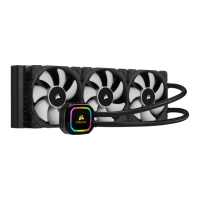
The XC9 RGB may be installed in any direction, there is no performance penalty for installing the product rotated by 90° or 180°.
1. Remove the TIM protective cover from the underside of the water block. Avoid touching the thermal interface material!
2. Place the XC9 RGB with a pre-installed Intel LGA-2066 mounting bracket onto the motherboard (figure 1).
3. Secure the XC9 RGB onto the motherboard by tightening the screws by hand until you reach the end of the thread. Tighten the screws evenly, preferably in a
cross-pattern (figure 2).
INSTALLING AMD sTRX4 MOUNTING BRACKET
In order to use the XC9 RGB on the AMD sTRX4 platform, it is necessary to replace the Intel LGA-2066 bracket with the AMD sTRX4 bracket supplied in the
package.
Due to the construction of the AMD sTRX4 processors, the water block orientation does matter. For best performance on AMD sTRX4, we recommend you
assemble and use the water block precisely as shown in the image below. This limitation does not apply to Intel LGA-2066.
1. Pull the bracket upwards towards the cover.
2. Rotate it slightly clockwise until it stops (1/16 of a full turn).
3. Separate the water block from the bracket by pulling the bracket downwards past the water block cold plate.
4. Now install the sTRX4 bracket in reverse order and your preferred orientation. Align the sTRX4 bracket tabs with the cut-outs and press it upwards.


 To Next Page
 Loading...