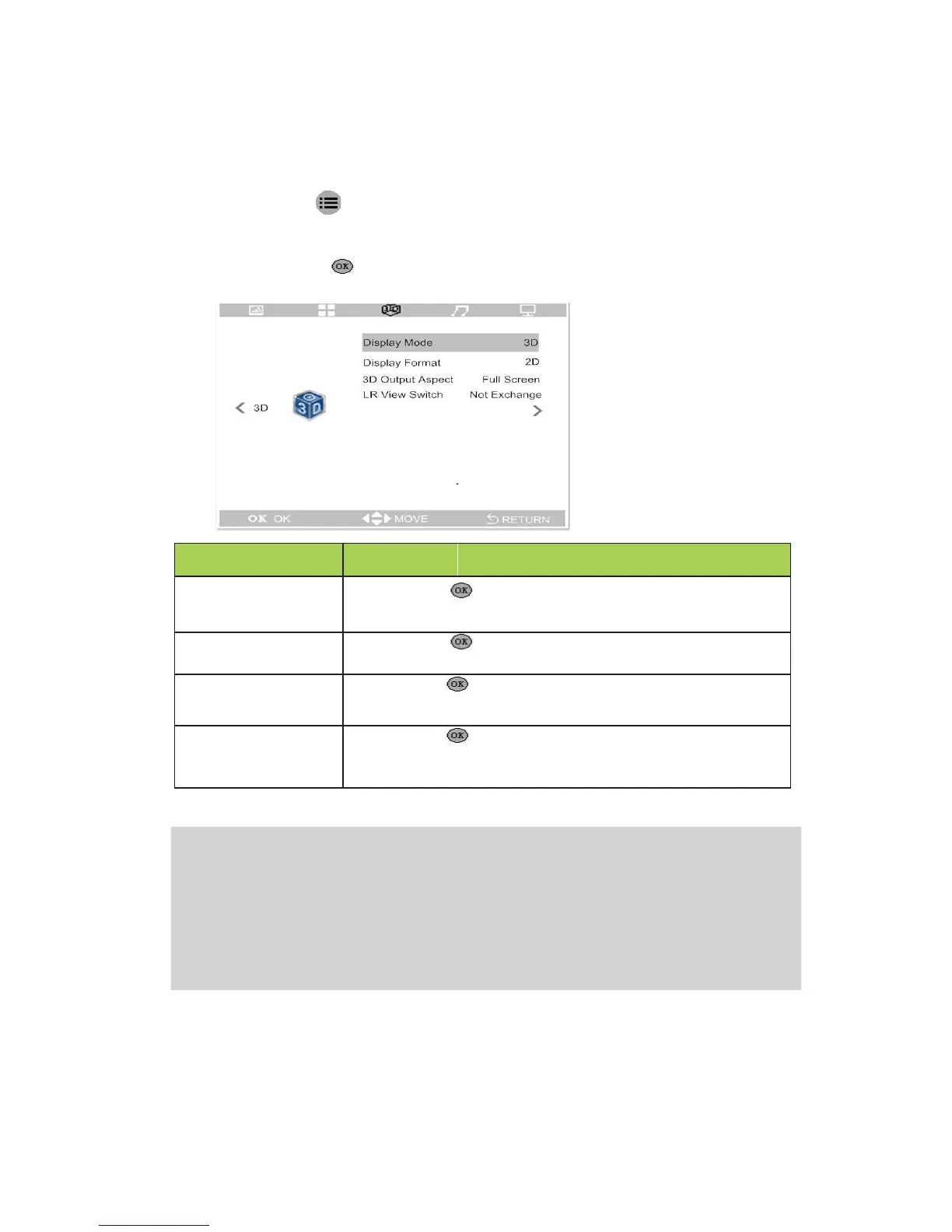
3D Settings
To access the 3D setting menu and adjust the settings, perform the following
steps: 1. Press the key to enter the OSD menu.
2. Press buttons ◄ and ► to select the menu of 3D.
3. Press button ▲and ▼ to move to the item needs to be adjusted.
4. Press the button to adjust the option settings.
to set the 3D signal source display mode.
to set the 3D signal playback format.
to set the ratio of the 3D image output.
(Full screen, Center, Auto Adapted)
to set to exchange the image of left and right
Note:
1. If use the function of 3D, you must set the display mode as 3D in the 3D
menu. Set the display format to a format that matches the signal source
format(Side by side , Top bottom)
2. If use the 3D must have the correct 3D signal source.
3. Need to use 3D shutter glasses to view 3D images. And follow the
configuration instructions that came with the glasses to complete the setup
process of the Glasses.
15


 To Next Page