Mouse Operation
Software Operation
Left click
Select model, hold and
move to change
position, double-click to
load 3D models.
Right click
Hold and move to rotate
the viewpoint around
the 3D model.
Left + Right
Hold and move the
mouse to zoom.
Scrollwheel
Use the scroll wheel to
zoom in or out.
Left + Shift
Click and drag in rotary
model can according to
each 1 degree angle.
+
Shift
Right + Shift
Hold and move the
mouse to pan the 3D
view.
+
Shift
Keyboard Shortcut
Ctrl+L
Load model/Picture
Ctrl+S
Save model as
Delete
Remove model
F5
Refresh view area
Ctrl+E
Export setting
Ctrl+,
Preferences
- 22 -
- 22 -
Software Operation
Full Setting UI
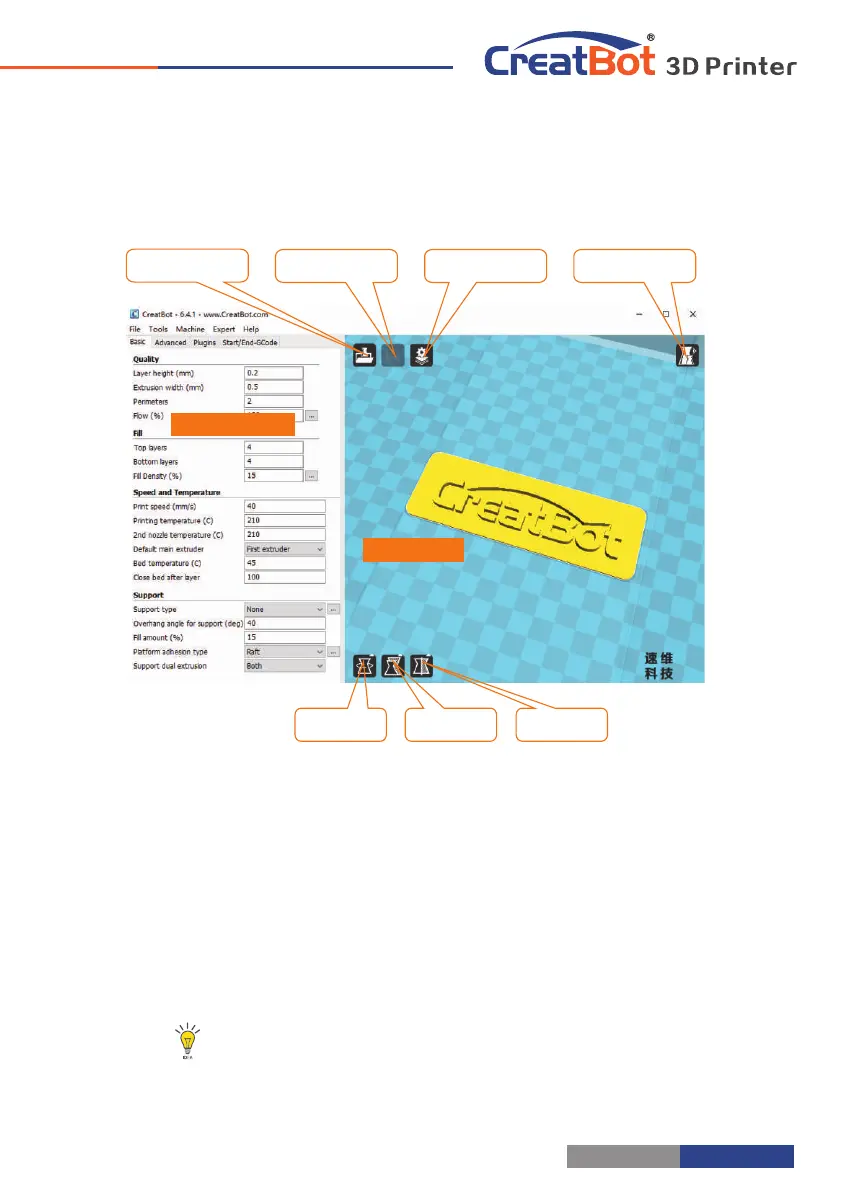
Tip: Double-click view area can quickly load 3D model file.
The view mode and edit icon will appear when you select the 3D
mode.
As you can see from the complete UI, the left side of the software is
setting area, the right side is view area. The setting area contain "Basic",
"Advanced", "Plugins", "Start/End GCode" four tabs. The Basic tab is the
most common settings, usually the most frequently used parameters are
here. Each parameter has a mouse-over tips, you can set parameters
according the prompt. If you want to restore the default settings, please
click on the menu "Tools"->"Restore Default".
Manual slicing
Rotate Zoom Mirror
View mode
Save toolpath
Load model
View area
Setting area
- 23 -



 To Next Page