Tutorials
E-MU Systems 22
Return to the Audio Setup Options
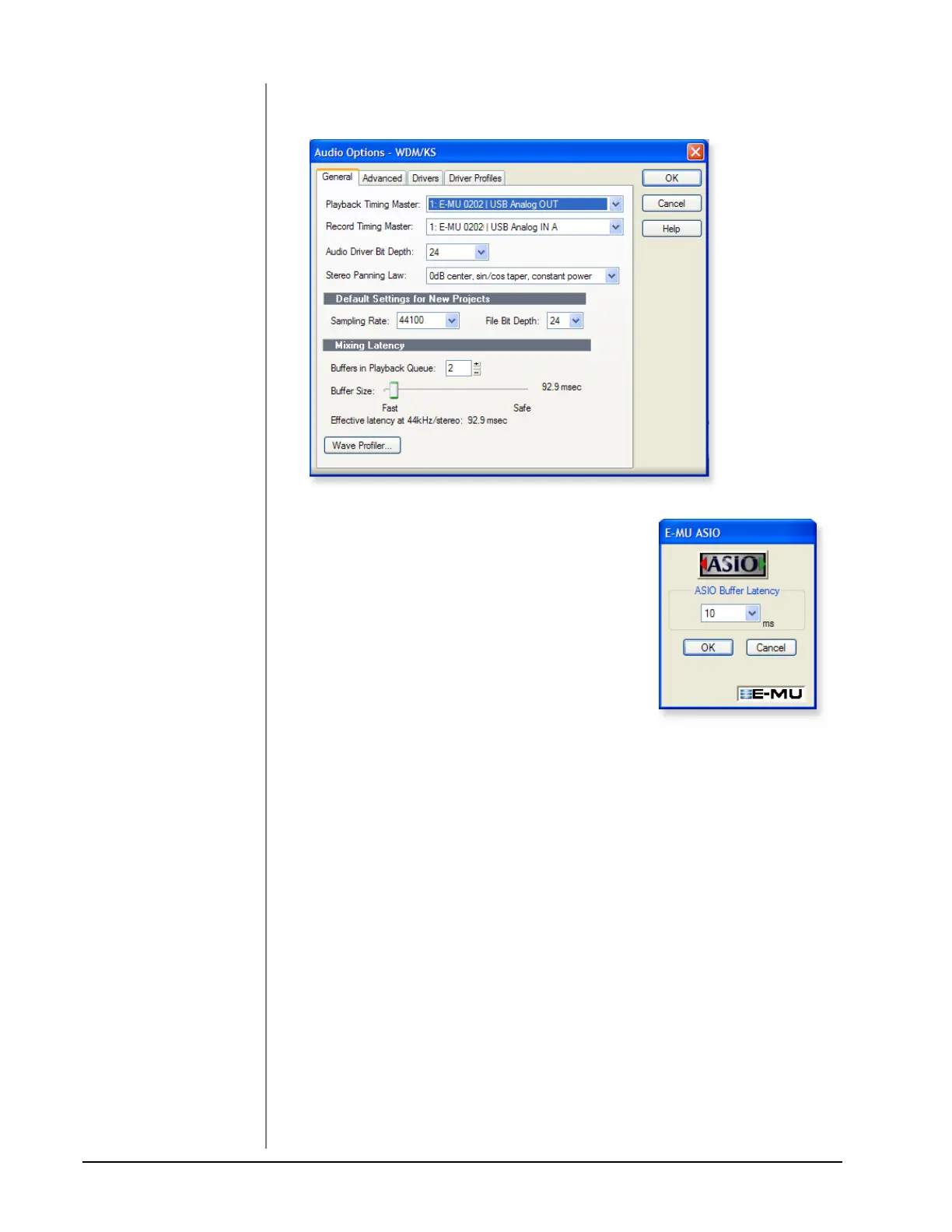
8. Once Sonar LE has restarted, select Audio from the Options menu.
9. Click the ASIO Panel. The pop-up dialog box
shown at right appears.
10. Set the ASIO Buffer Latency as low as your com-
puter will allow. A low latency setting is impor-
tant to assure fast response when using virtual
instruments and to minimize delay when moni-
toring through Sonar LE. If you hear crackles or
other audio problems, try increasing the Buffer
Size.
11. Close the Audio Options screen by clicking OK.
Note: If the Sonar LE application crashes for any
reason, it is recommended that you re-boot the
computer.
Set the Location of your Audio Files
TIP . . .
If you have two or more
hard disks, it’s better to store
audio files on a disk that
isn’t running your OS.
12. From the Options menu, select Global.
13. Select Audio Data, then select a location for the Global Audio Folder.



 To Next Page