Tutorials
0202 USB 2.0 Owner’s Manual 23
2 - Basic Multitrack Recording
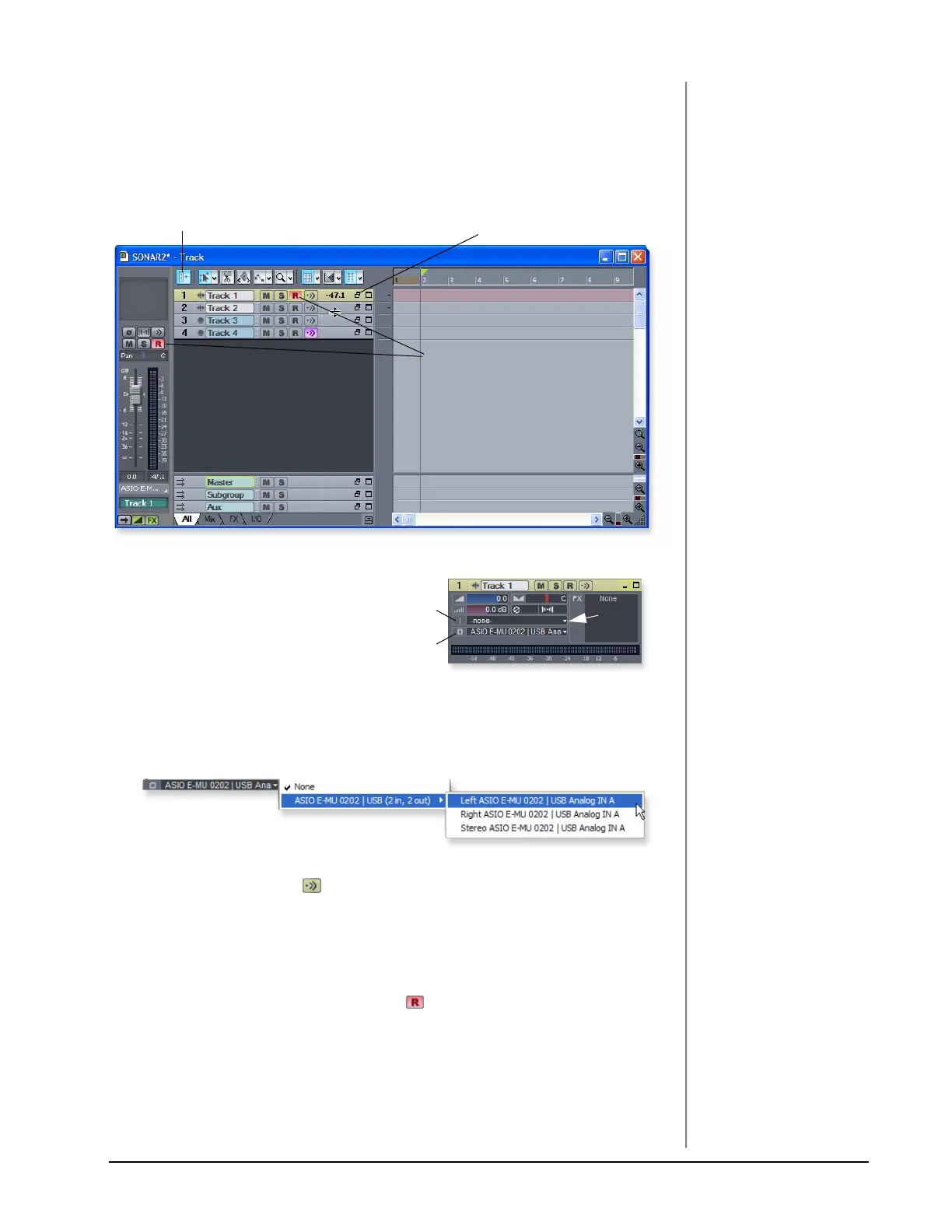
This tutorial assumes you’re using a single input or pair of inputs. For more
advanced recording, refer to the Sonar LE manual. Sonar opens by default with
with 2 audio tracks and 2 MIDI tracks.
1. Click the Restore Strip Size
button for Track 1. This reveals
the input and output routing of
the track. The E-MU 0202 USB
2.0 will already be selected as the
output destination.
2. Select the input source by clicking on the small triangle on the input field. If
you wish to record a mono signal on the “A” input of the 0404 USB, select Left
ASIO E-MU 0202|USB Analog In A. To record both inputs in stereo select
Stereo ASIO E-MU 0202|USB Analog In A.
3. The Input Echo button should be OFF. You will be monitoring the input
through the E-MU 0202.
4. Press the Direct Monitor button on your E-MU 0202 USB 2.0. If you are
recording a mono track, set Direct Monitor to Mono by pressing the Direct
Monitor button again.
TIP . . .
If you don’t see meter
activity on the track, check
the Input for the track.
Make sure you are selecting
the proper input source.
5. Press the Track Record Enable button for the track. (See the diagram on
the previous page.) The track turns a dull red color to indicate that it is record-
enabled. You should now see activity on the Track Input Meter when feeding a
signal into the 0202 USB 2.0.
The Sonar Project Window
Track Record Enable
Step 3
Inspector Restore Strip Size
Input
Click
Here
Output



 To Next Page