Tutorials
E-MU Systems 24
6. If your input signal is either too weak or too strong, adjust the input level
control on the 0202 USB 2.0.
7. Optional Step - Metronome: First, select Toolbars from the View menu and
check the Metronome Toolbar. Next turn Metronome During Record On by
clicking the button.
Record a Track
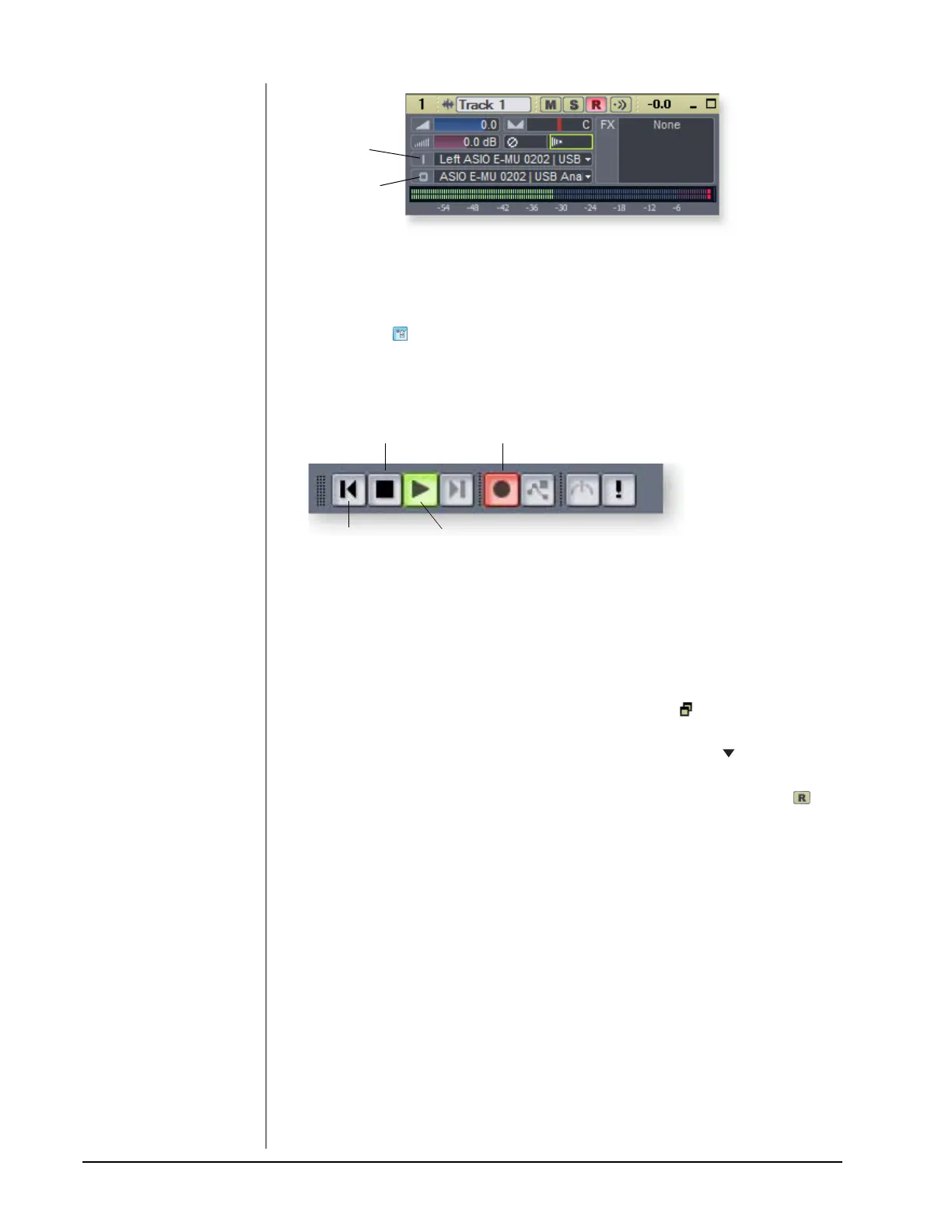
8. Press Record on the Sonar LE Transport control and start playing.
9. Press Stop when you’re finished recording the first track.
10. Press Play on the Sonar LE Transport to play back your track.
11. If you want to dump the track and start over, Right-click over the waveform
display in the track and choose Delete.
Record Another Track
TIP . . .
You can create a new track
by selecting Clone, from the
Track menu. This handy
feature duplicates the
currently selected track
complete with input/output
routings.
12. Select Track 2 and click the Restore Strip Size button to expose the input
and output routing.
13. Set the Input source for the track. Click on the little triangle on the right
side of the track Input box.
14. Disable record for Track 1 by clicking on the Track Record button Off.
15. Enable recording for Track 2 by clicking on the Track Record button On.
16. Press the transport Record button and you’re recording.
Hot Tip: A quick way to record additional tracks using the same input is to simply
drag the Part (audio region) you just recorded up or down to another track in the
Sonar Project Window, then just hit Record again and go. (Choose Blend Old and
New when asked in the Drag & Drop Options.)
Save your Project
17. Choose Save As… from the Sonar LE File menu to save your project. Choose a
name and location that will make the project easy to find later.
Input Select
Output Select
Record
Play
Stop
Return-To-Zero



 To Next Page