12
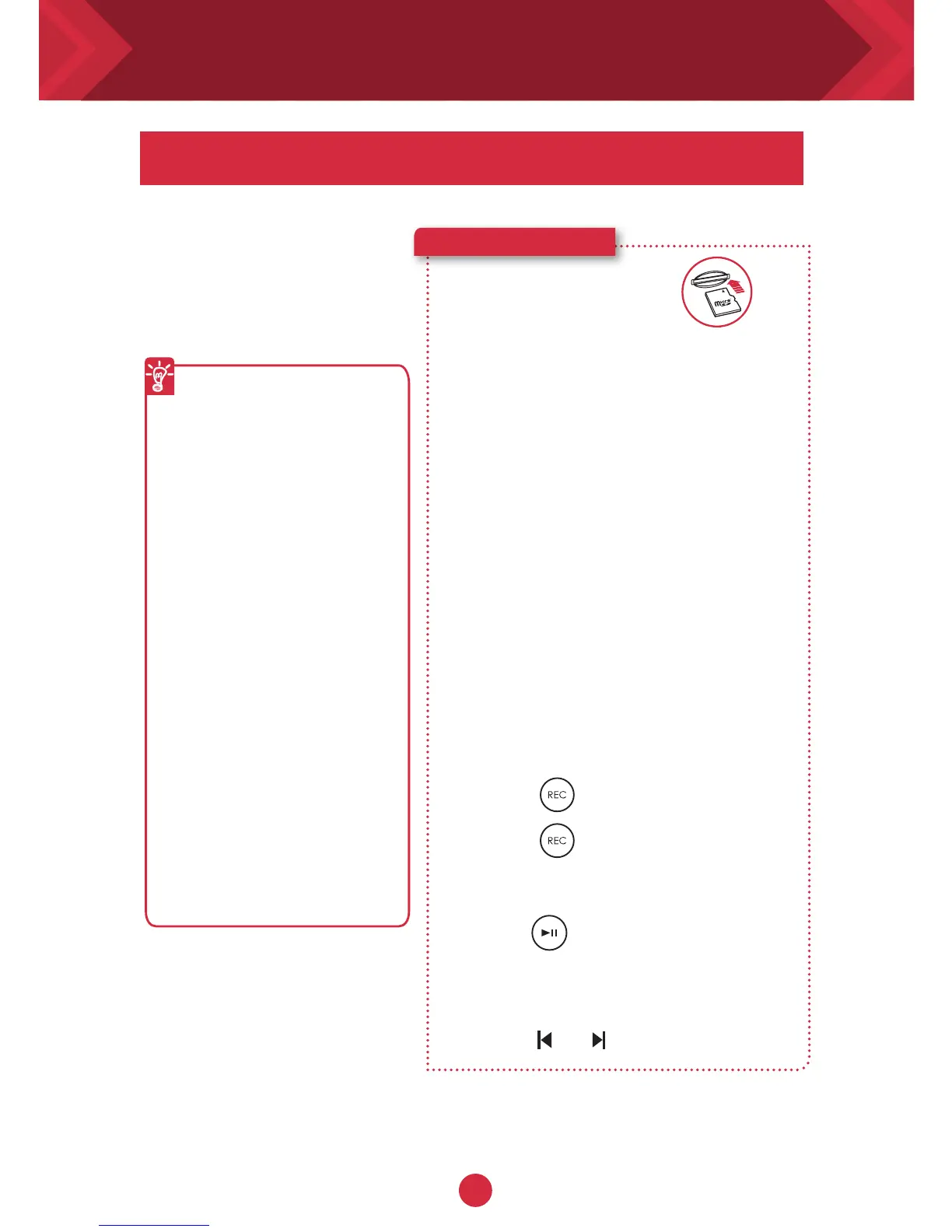
microSD Card
Recording is made really easy with the iRoar Go.
Record your voice to the
iRoar Go, just insert a
microSD card and you’re
ready to go
Here’s how you do it!
1 Insert a microSD card.
2 Select source.
To record from built-in
microphone
– Please ensure there are no
connectors plugged into the
Aux-In socket.
To record from an external
microphone
– Plug in an external microphone
to the microphone adapter.
– Plug in the microphone adapter
to the Aux-In socket.
– Ensure the “Aux” source is
selected”
Recording
specifications
l
Audio recording
is saved in MP3
format in the
RECORD folder.
l
For recording,
a Class 10
microSD card is
recommended.
l
Each recording is
limited to a length
of 1Hr, and up to 50
recordings could be
kept on the microSD
card.
l
Simultaneous
Bluetooth, Flac/MP3,
as well as USB audio
playback during
audio recording is not
supported.
3 Press (REC) to start recording.
Press (REC) again to stop
recording.
4 Press (REC) to playback
recordings.
To skip recorded tracks:
Press or during playback.
Recording audio with your speaker




 To Next Page