EasyManua.ls Logo

Creative iRoar - User Manual

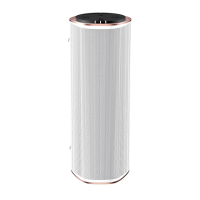
Creative iRoar
52 pages
Print Icon
To Next Page IconTo Next Page
Loading...
Introduction
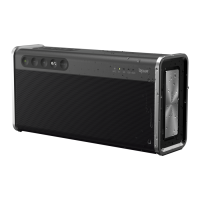
Thank you for choosing Creative iRoar, the next generation Sound Blaster
®
that is equipped with
speaker and microphone functions for both audio playback and voice recording capabilities. The iRoar
(SB1630) model design provides portability and low power consumption without compromising your
audio pleasure.
Package Checklist
Your Creative iRoar package comes with the following:
l The Creative iRoar speaker
l 1.5m Micro-USB cable
l 15V 1.6A 24W AC-DC Adapter with interchangeable plugs
System Requirements
For Windows
®
OS
l Intel® Core™2 Duo or AMD equivalent processor, 2.8 GHz or faster recommended
l Microsoft
®
Windows 8.1 64-bit or 32-bit, Windows 8 64-bit or 32-bit, Windows 7 64-bit or 32-bit,
Windows Vista
®
64-bit or 32-bit
l 1 GBRAM
l 600 MB of free hard disk space
l Powered USB 2.0 / USB 3.0 port
For Mac
®
OS
l Intel® Core™2 Duo, 2.8 GHz or faster recommended
l Mac OS 10.6.8 or higher
l 1 GB RAM
l 600 MB of free hard disk space
l Powered USB 2.0 / USB 3.0 port
For iOS device
l iPhon / iPad® running iOS 5.0 or higher for Bluetooth
For Android device
l Phone / tablet running Android 2.3 or higher for Bluetooth
Registering Your Product
Registering your product ensures you receive the most appropriate service and product support
available. You can register your product during installation or at register.creative.com. Please note that
your warranty rights are not dependent on registration.
Introduction 1

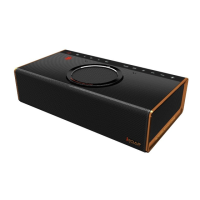
Table of Contents

Questions and Answers

  • A
    Austin JonesJul 27, 2025
    How to fix a Bluetooth link issue between my device and Creative iRoar Speakers?
    • L
      Lisa BentleyJul 28, 2025
      If you're having trouble establishing a Bluetooth connection between your device and the Creative iRoar speakers, here are a few things to try: * First, make sure your Bluetooth device supports the A2DP profile. * Then, remove the iRoar from your device's paired memory list and re-pair them using either One-touch NFC or manual Bluetooth pairing. * Also, ensure that neither your Bluetooth device nor the iRoar is connected to any other devices. * Finally, some devices may require you to manually select iRoar as the default output device after pairing.
  • L
    Lori GriffithAug 2, 2025
    What to do if my Creative Speakers iRoar cannot be powered on?
    • A
      Ashley StanleyAug 2, 2025
      If your Creative iRoar speakers aren't turning on, here's what you can do: 1. First, check the battery. Make sure the speaker has enough power; at least one LED should be lit on the battery indicator. 2. If the battery seems low, connect the speaker to a power source using the provided adapter or USB cable (from a computer or laptop). 3. If the internal battery is completely empty, charge it for about an hour before trying to turn it on again.
  • E
    Emily FinleyAug 8, 2025
    Why I am unable to pair my Bluetooth NFC-enabled device with Creative Speakers iRoar?
    • R
      ramosstevenAug 8, 2025
      If you're having trouble pairing your Bluetooth NFC-enabled device with the Creative iRoar speakers, try the following: * First, ensure that NFC is enabled on your device. * Make sure that neither your NFC-enabled device is connected to other Bluetooth devices, nor the iRoar is connected to two Bluetooth devices. Then, try again. * If you still face issues with only one Bluetooth device connected, pause the music before tapping another NFC device to connect. * Consider updating your NFC-enabled Bluetooth device firmware and repeating the first two steps.
  • L
    larsonjoannaAug 14, 2025
    What to do if Bluetooth is connected to Creative Speakers iRoar but there's no music?
    • T
      timothy30Aug 14, 2025
      If you've successfully paired your devices to the Creative iRoar speakers via NFC or manually, but there's no music playing, here's what could be happening: * If the device you paired is the second one connected to the speaker, and the first device is currently streaming music, you'll need to stop the music on the first device to allow the second device to play. * With some computers that have built-in Bluetooth, USB Bluetooth dongles, or other devices, you might need to manually set the audio output to iRoar.
  • B
    Bonnie PatrickAug 20, 2025
    Why Creative Speakers iRoar doesn't power off automatically?
    • M
      Mark RogersAug 20, 2025
      Your Creative Speaker iRoar may not power off automatically due to several reasons: * Ensure there are no Bluetooth devices connected to the speaker and that the Aux-in port does not have any music or noise signal. * Also, make sure the speaker is not in the following modes: audio playback from a microSD card, or recording onto a microSD card. * Note that when a device is connected to the speaker via a USB cable, power is supplied through the connected USB cable via DC out (USB output), even when the speaker is off.

Summary

Product Overview

Setting Up Your iRoar

Charging the iRoar

Instructions on charging the iRoar speaker using the power adapter.

Powering On;Off

Instructions on how to power the iRoar speaker on and off.

Connecting Peripherals (NFC & Bluetooth)

Guides on connecting external devices via NFC and manual Bluetooth pairing.

Using Your iRoar

Recording Audio

Instructions for recording audio from the microphone or external sources.

Software Management

Creative Software Suite Features

BlasterX Dashboard & Profiles

Navigating the dashboard, managing audio profiles, and adjusting volume settings.

SBX Pro Studio & Equalizer

Configuring audio enhancements like SBX Pro Studio and equalizer settings.

CrystalVoice Settings

Adjusting settings for microphone clarity, noise reduction, and voice effects.

Troubleshooting & Support

Power & Bluetooth Issues

Solutions for power on problems and Bluetooth connectivity or pairing errors.

Safety Information

General & Bluetooth Safety

Important safety guidelines for product use, including Bluetooth and battery precautions.

Creative iRoar Specifications

General IconGeneral
TypePortable Bluetooth Speaker
Battery LifeUp to 20 hours
Bluetooth ProfileA2DP, AVRCP, HFP
NFCYes
USB ChargingYes
MicrophoneBuilt-in
Water ResistanceNo
Roar TechnologyYes
Sound Blaster EngineYes
Bluetooth VersionBluetooth 4.0
Weight1.1 kg
Power Output40W
Inputs3.5mm audio jack, USB, microSD
Audio CodecaptX, AAC, SBC
Battery TypeLithium-ion
Frequency Response20 Hz - 20 kHz

Related product manuals