1. Click the SBX Profile menu on the left to view the SBX Profile screen.
2. Select your desired profile from the screen.
To modify and save changes to the active profile,
1. Click the Edit button to modify the profile you have selected.
2. Navigate through the various other menu options of the BlasterXDashboard and modify the
configurations as desired.
Adjusting Speaker Volume Via Software
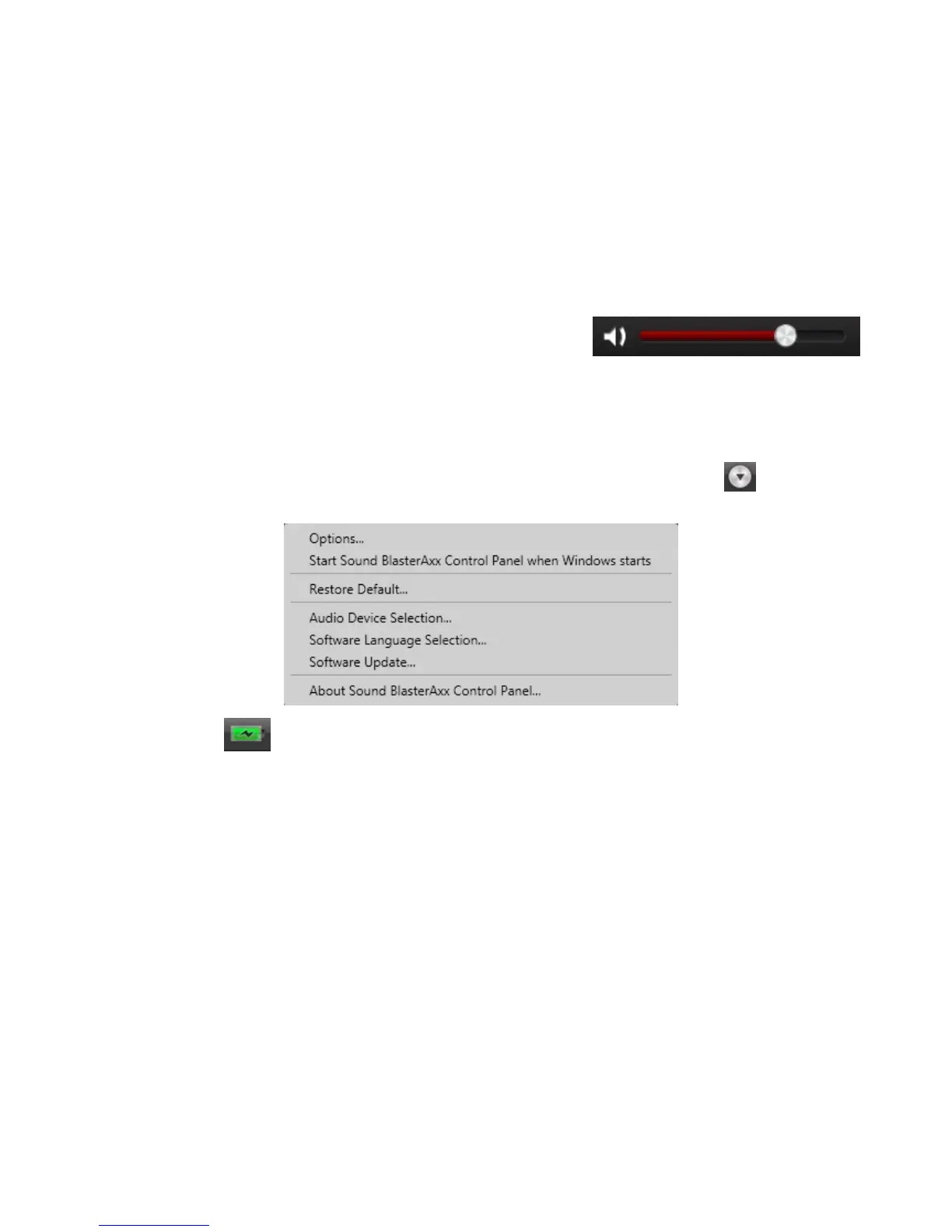
A master volume slider is available at the bottom left corner of
the interface. Drag the slider to adjust the master volume. You
can also mute / unmute the speaker by clicking the speaker icon to the left of the slider.
Configuring Your General Settings
You can change the language settings or restore settings to their default values. Click from the top
right corner of the interface and select the option from the list.
The battery icon indicates the battery status of the iRoar.
Using the Creative Software Suite 26




 To Next Page