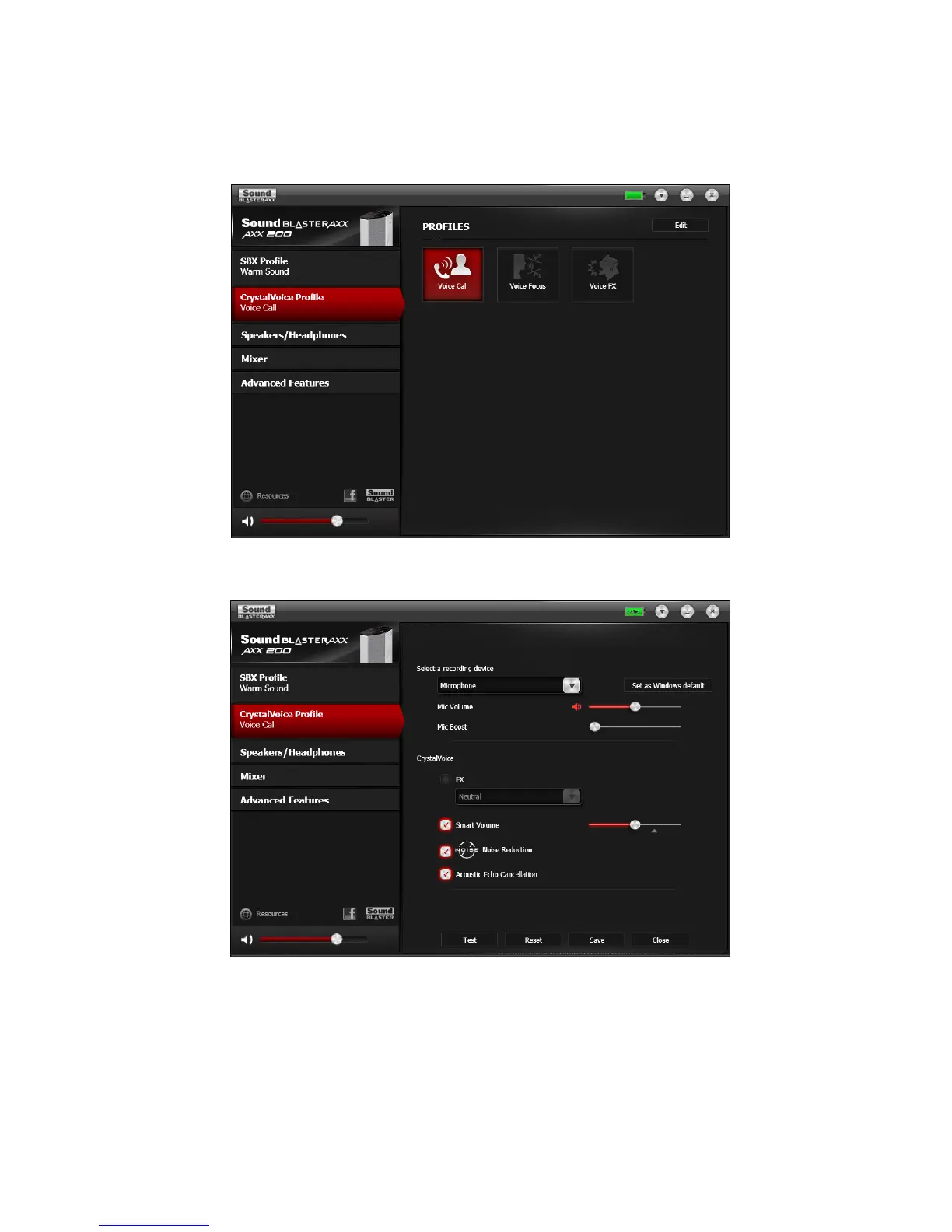
CrystalVoice Settings
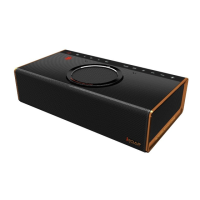
The iRoar is equipped with high-quality microphones, allowing you to easily carry out video/audio
conferencing using popular VoIP applications such as Ventrilo
®
etc. CrystalVoice enhancements help to
further this experience by enhancing the clarity of such communications.
To configure CrystalVoice settings, click the CrystalVoice menu option on the left. Select a
CrystalVoice profile and click Edit.
1. Select the iRoar as your recording device, adjusting the microphone volume using the slider.
2. Select the desired enhancements to turn on and adjust the settings according to your needs.
3. Click Test and speak into your iRoar to hear your voice recorded based on the configured settings.
Readjust if necessary.
Using the Creative Software Suite 29




 To Next Page