Product Guide 5
English
Step 2: Installing Device Drivers
If you are running Windows 95/98/ME, follow these
steps:
1. Turn on your computer.
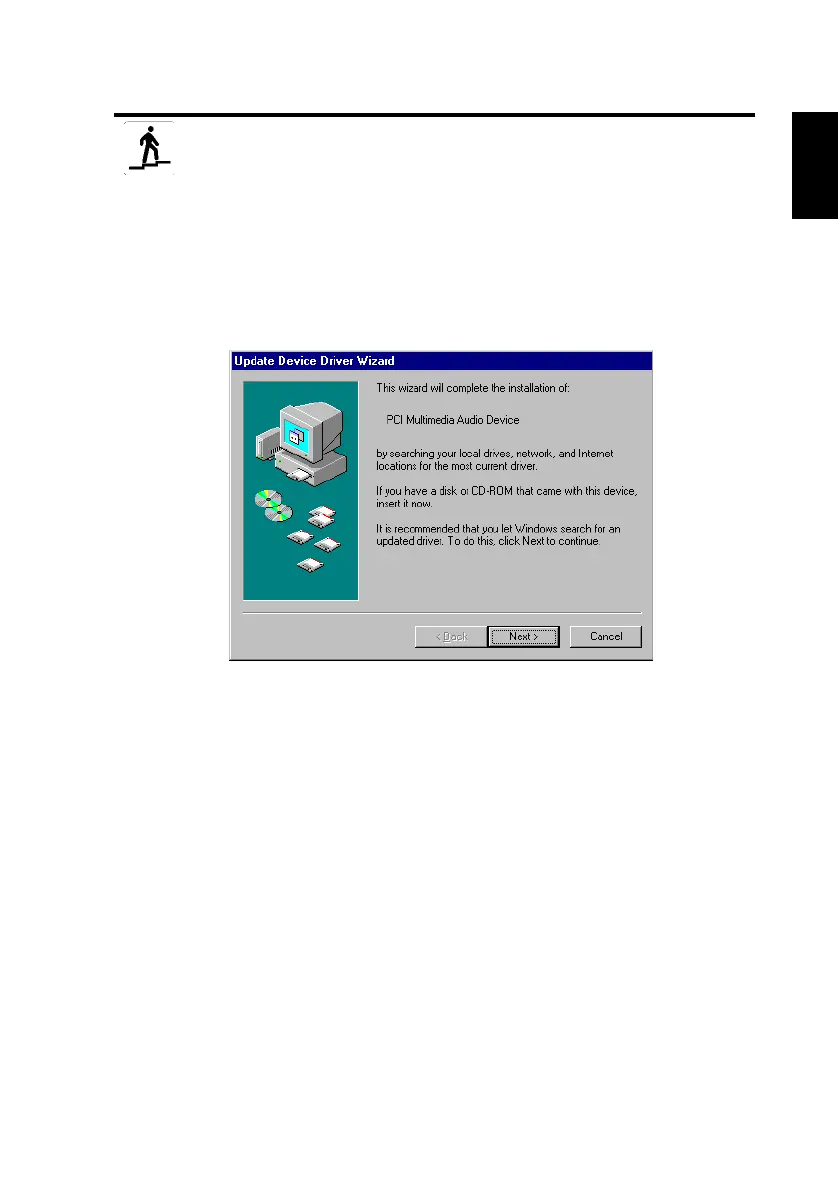
Windows 95/98/ME starts and briefly displays a message that the
new hardware (audio card) has been detected. Then the following
screen appears:
2. Read the instructions on screen and click Next.
Windows searches for the device driver. If none is found,
the
Update Device Driver Wizard
dialog box re-appears.
3. Click Other Locations. The
Select Other Locations
dialog
box appears.
4. Click Browse. The
Browse for Folder
dialog box appears.
5. Double-click the CD-ROM drive icon and select the folder:
Audio\English\Win9xdrv or Wdmdrv.
6. Click OK twice and then click Finish when the Update Device
Driver Wizard dialog box re-appears. The required files are copied
to your computer’s hard disk.
7. If the Copying Files dialog box notifies you that the
a3d.dll
file
cannot be found, then repeat steps 4 and 5, select the
a3d.dll
file,
and then click OK twice. The
a3d.dll
file is copied to your
computer’s hard disk.




 To Next Page