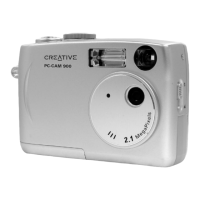
Installing Creative PC-CAM 900 4-5
12. Click the Finish button and restart your computer if you are prompted to do so.
Ver if ying the
installation in
Windows XP and
2000
1. Be sure that your camera’s Mode Selector dial is turned to Web Cam mode.
2. Right-click on the My Computer icon on your desktop.
3. On the menu that appears, click Properties.
4. In the System Properties dialog box, click the Hardware tab.
5. Click the Device Manager button. A window appears.
6. Click the plus (+) sign next to the Imaging Device icon.
The entries “Creative PC-CAM 900 (Still)” and “Creative PC-CAM 900 (Video)”
should appear.
Ver if ying the
installation in
Windows Me and
98/98 SE
1. Be sure that your camera’s Mode Selector dial is turned to Web Cam mode.
2. Right-click the My Computer icon on your desktop.
3. On the menu that appears, click Properties.
4. In the System Properties dialog box, click the Device Manager tab.
5. Click the plus (+) sign next to the Imaging Device icon.
The entries “Creative PC-CAM 900 (Still)” and “Creative PC-CAM 900 (Video)”
should appear.


 To Next Page