1-4 Installing Sound Blaster Live! Player 5.1
Connecting Related
Peripherals
❑
If you are playing games in
Windows 95/98 MS-DOS
mode (pure DOS mode), you
must:
• Make sure the CD In
connector and the Analog
Audio connector of the
CD-ROM or PC-DVD
drive are connected.
• In addition, if you get
distorted audio, do not
connect the CD SPDIF
connector to the Digital
Audio connector of the
CD-ROM or PC-DVD
drive.
❑
If you connect to the Digital
Audio and Analog Audio
connectors of the same CD-
ROM or PC-DVD drive, do not
unmute CD Audio and CD
Digital at the same time in
Surround Mixer.
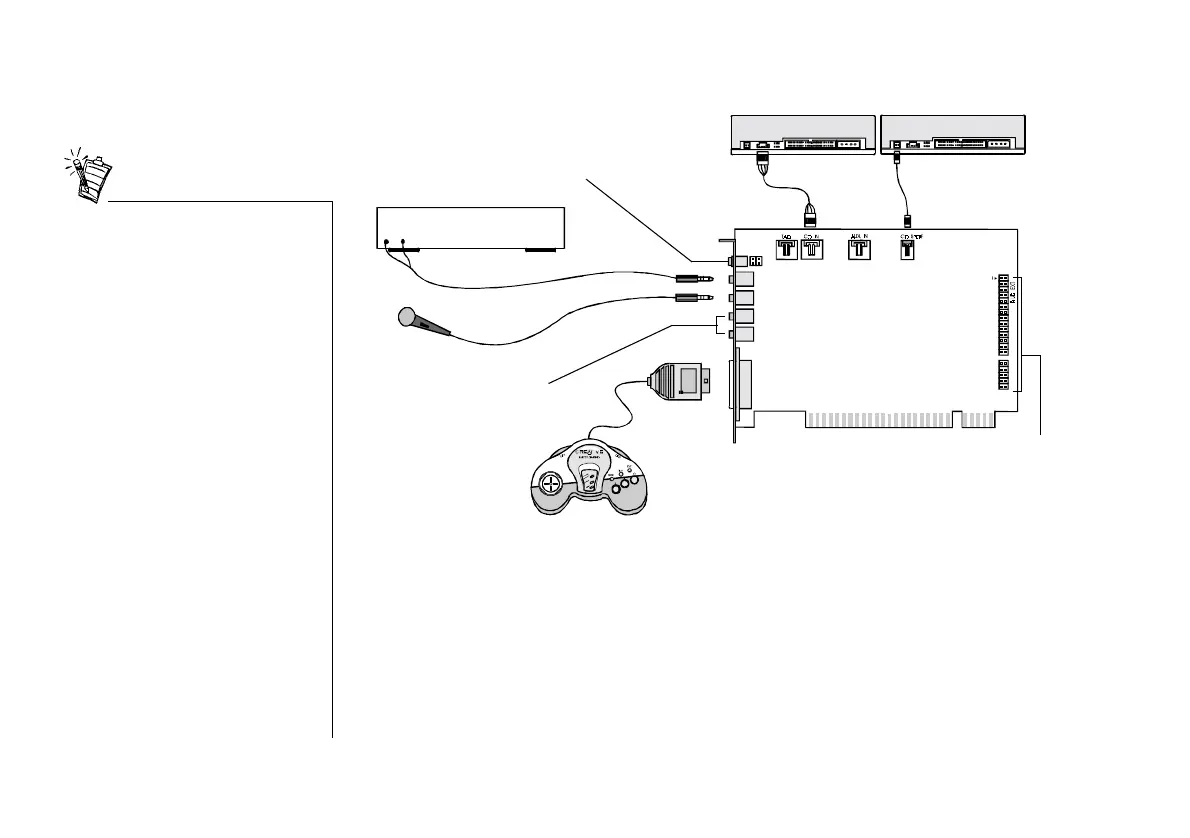
Figure 1-3: Connecting other devices.
CD-ROM drive
Rear Out
Joystick/MIDI
GamePad
Line-out
Microphone
MPC-to-
MPC (4-pin)
audio cable
Line Out
Sound Blaster Live! card
Connects to analog front
and rear inputs of
FourPointSurround
speakers
MPC-to-MPC (2-pin)
audio cable
PC-DVD drive
Line In
Cassette and CD player,
Synthesiser, etc.
Mic In
Connects to Live! Drive IR.
See “Enhancing Your
Sound Blaster Live!
Experience” for more
details.
Analog Mode (default): Connects to Centre and
Subwoofer channels.
Digital Mode: Connects to digital speakers*,
MiniDisc or DAT via minijack-to-DIN cable.
For instructions on how to switch between digital
and analog modes, see “Switching between
analog and digital output modes” on page 3-4.
* e.g., Playworks
DTT3500 Digital
speakers


 To Next Page