2-2 Installing Software
Setting Up Joystick Drivers in
Windows NT 4.0
1. Log on to your computer as Administrator.
2. Click
Start
->
Settings
->
Control Panel
.
3. Double-click the
Multimedia
icon, click the
Devices
tab, and then click the
Add
button.
4. In the List of Drivers box of the
Add
dialog box, select
Unlisted Or Updated Driver
, and
then click the
OK
button.
5. Insert the Windows NT 4.0 CD-ROM into the CD-ROM drive.
6. In the
Install Driver
dialog box, type
E:\DRVLIB\MULTIMED\JOYSTICK\X86
if E:\ is the CD-ROM drive letter, and then click the
OK
button.
7. In the
Add Unlisted Or Updated Driver
dialog box, click
Analog Joystick Driver
, and
then click the
OK
button.
8. In the
Microsoft Joystick Configuration
dialog box, click the
OK
button.
9. Restart your computer when prompted.
Using Sound Blaster
Live! Player 5.1
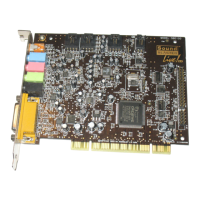
Congratulations! You have successfully installed Sound Blaster Live! Player 5.1. For more
information on how you can get the most out of your audio card, refer to the other chapters in
this manual.
In Windows 2000, the joystick
drivers are automatically set up.


 To Next Page