Playing and Managing Music 29
Selecting and playing music tracks
You can search for music tracks by album, artist, genre or title. If you have created playlists
(tracks you have organized into lists) on Zen, or transferred playlists from Creative
MediaSource, you can search for music tracks in playlists as well.
1 Press the Menu/Back button.
The main menu appears.
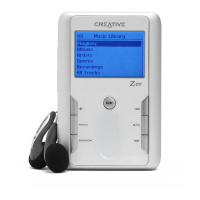
2 Select Music Library and select a music category, such as Albums or Genres. Select All
Tracks if you want to search by track title.
3 Continue searching with the Vertical Touch Pad until you find what you want.
At any time, press the Options button for more search and playback options.
4 To start playing a music track or a category of music tracks (like an album), scroll to the
item and press the Play/Pause button.
The currently playing track appears on the Now Playing screen. Firmly tap the Vertical
Touch Pad when viewing the Now Playing screen to view the Selected Music screen. The
Selected Music screen shows you your list of selected music tracks.
5 To add music tracks to the list of selected tracks, select a music track, and then select Add
to Selected.
NOTE
■ For more information about creating playlists on Zen, see "Managing the list of
selected tracks" on page 31.
■ Playlists cannot be transferred between Windows Media Player and Zen.






 To Next Page