Charge using the AC adapter
1. Connect one end of the data cable to the USB port located on the bottom of your phone.
2. Connect the other end to the power adapter.
3. Connect the power adapter to an electrical outlet to fully charge your phone.
WARNING!
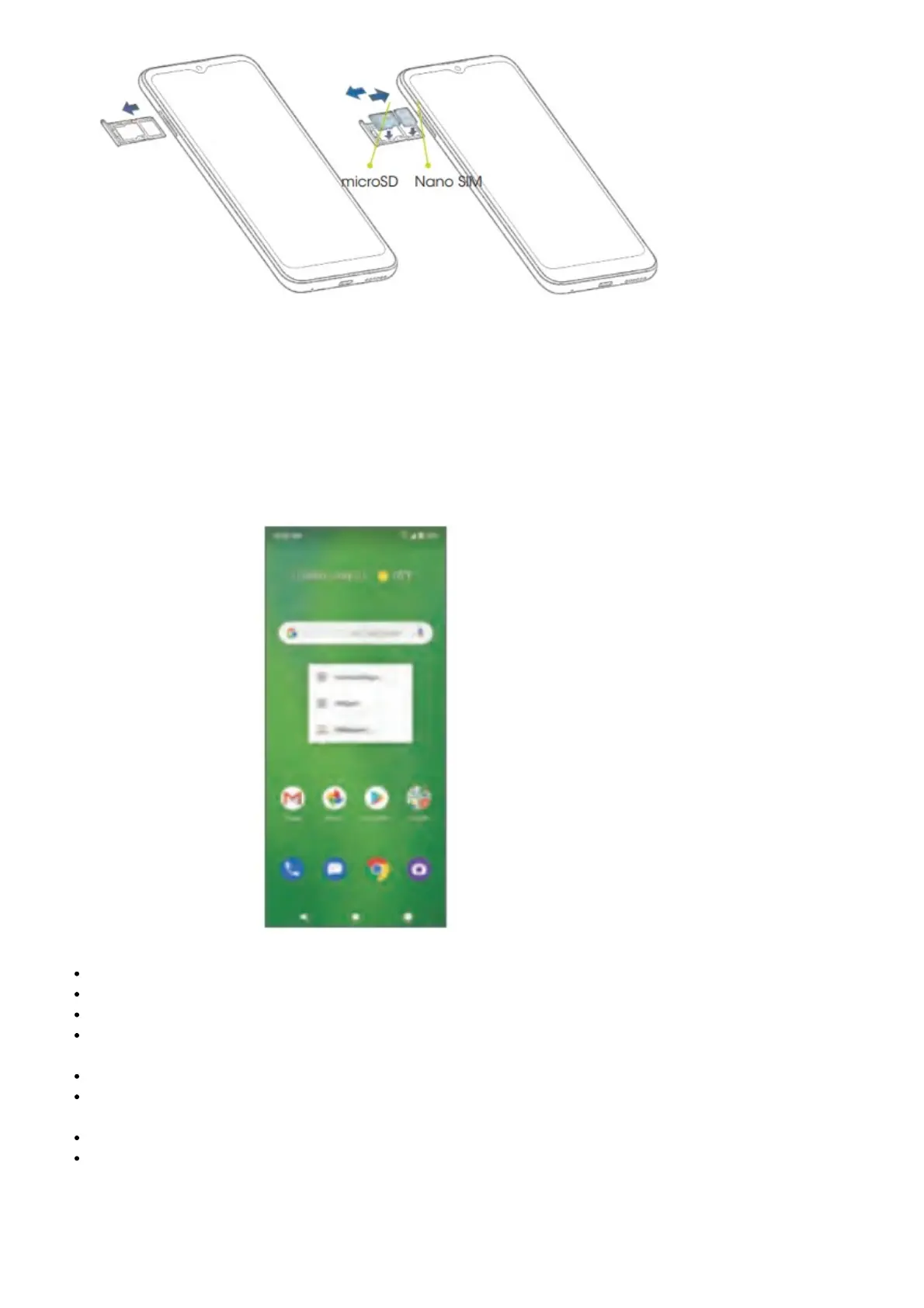
To avoid damage to the phone, do not use any other kind of SIM card or any non-standard Nano SIM card cut from a
SIM card. You can get a standard Nano SIM card from your service provider
Using the Touch Screen
Swipe up on the screen to unlock.
Use your fingertip to lightly tap the screen.
Use quick flicks of your finger on the touch screen to swipe up, down, left and right.
Spread two fingers apart or pinch them together on the screen to zoom in or out on a web page or Gallery
image.
To return to the previous screen, tap the Back key .
Tap the Home key at any time to return to the main Home screen. Press and hold the Home key to access
Google Assistant.
Tap the Recent apps key to access recently viewed apps.
Swipe up from the bottom of the Home screen to access applications on your phone.
Notification panel
1. Swipe down on the Status bar to open the Notification panel.
2. Swipe left or right on a notification to delete it, or tap CLEAR ALL to clear all event-based notifications (other



 To Next Page