Easily Adjust Settings
Swipe up from the Home Screen and tap Settings .
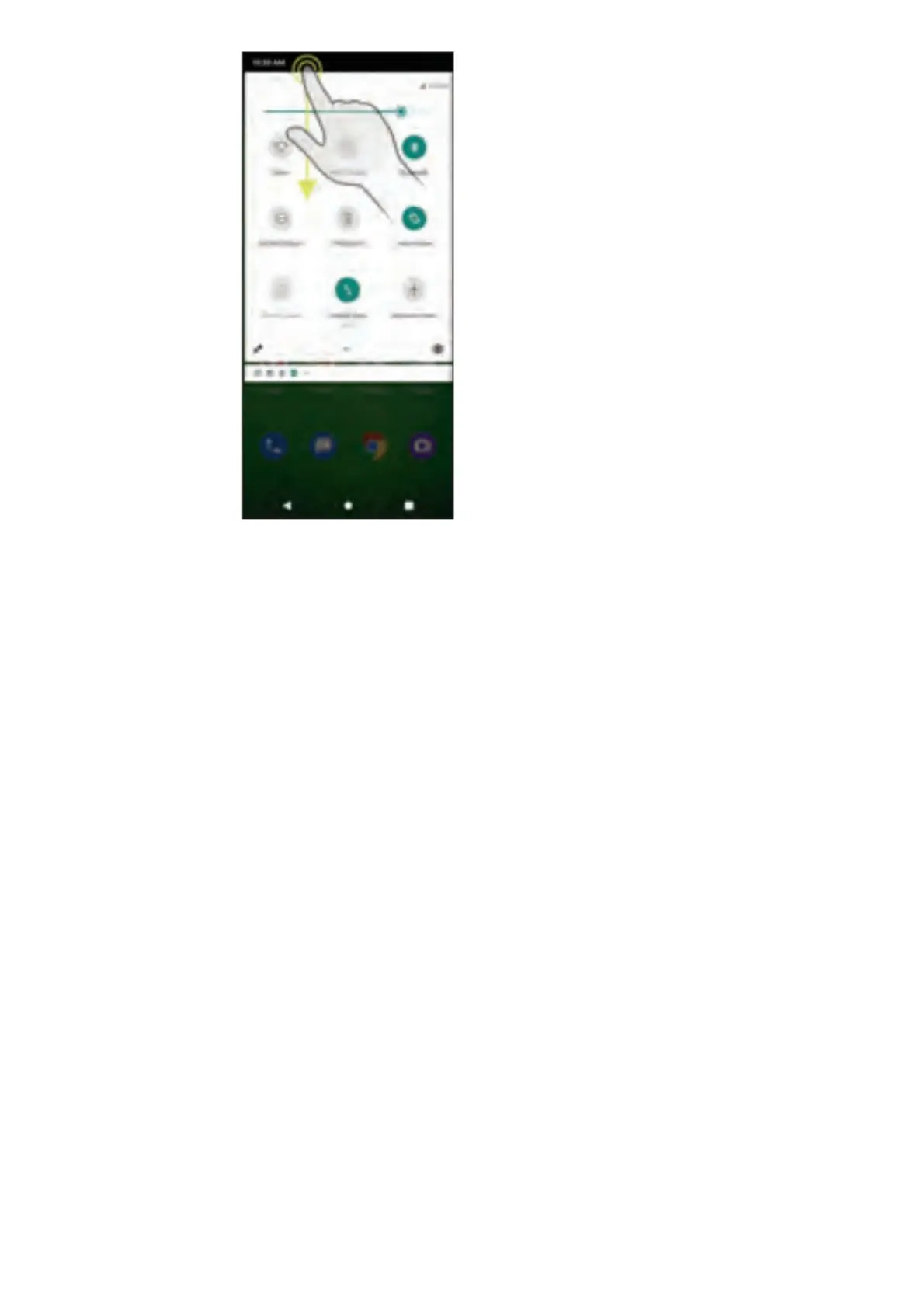
Quick Settings
1. Swipe down from the Home screen to view the Notification panel.
2. Swipe down again to see the Quick Settings menu.
3. Tap a setting to turn it on or off.
Text and Picture Messaging
Send a text message
1. From the Home screen, tap Messaging .
2. Tap to create a new message or start a new group chat.
3. Type your message and tap to send the message.
Send a picture message
1. From the Home screen, tap Messaging .
2. Tap to create a new message or start a new group chat.
3. Type your message. Tap to add picture files to a message. Tap to snap a photo, or touch Gallery to select
photos or to add a voice message.
4. Tap Send to send the message.
Email
Email setup
(Gmail, Yahoo!, etc.)
1. Swipe up from the bottom to open the Apps drawer, then tap Gmail .
2. Follow the steps to set up your account.
Create and send an email message
1. Tap from the Inbox screen to compose a new message.
2. Enter the recipient(s) email address in the To field. To add a carbon copy or blind carbon copy, tap .



 To Next Page