ongoing notifications will remain).
3. From the Notification panel, swipe down again to access the Quick Settings panel. Tap a setting to turn it on/off,
or tap Settings to access full Settings.
Personalizing Your Screen
Set your wallpaper
1. Press and hold an empty space on the Home screen and tap Wallpapers.
2. Select a wallpaper and tap Set wallpaper. Choose to set the wallpaper for the Home screen, Lock screen, or
both.
Add apps and widgets
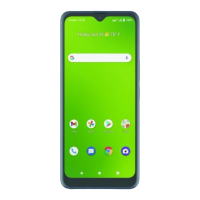
1. To add an app to the Home screen, swipe up from the bottom of the Home screen to access the Apps drawer.
Press and hold an app, then drag it to any Home screen.
2. To add a widget, press and hold an empty space on the Home screen and tap Widgets.
3. Press and hold a widget, then drag it to the Home screen.
Organize your Home screens
1. Press and hold the app, widget, or folder.
2. Drag the item to the desired position and then release.
Create app folders
1. From the Home screen, press and hold an app, then drag it over to another app to create a folder.
2. Drag more apps to the folder to add them.
3. To name or rename the folder, open the folder, tap the title bar, and enter the desired name.
Calls and Voicemail
HD Voice capable*
Enjoy crystal-clear conversations.
Make a call
1. To make a call, tap Phone from the Home screen.
2. Enter the number using the dial pad, or choose a contact from the Contacts , Recent , or Favorites tab and tap
the number to place the call.



 To Next Page