3. Enter the subject and content of your message. To add attachments, tap select Attach file.
4. Tap to send.
Note: To set up a corporate email account, contact your IT administrator.
Useful Features
Flashlight: Swipe down from the Status bar to open the Quick Settings panel. Tap Flashlight to turn it on or off.
Battery Saving Mode: Swipe down on the Status bar to open the Quick Settings panel. Tap Battery Saver to turn it
on or off.
Data Saver: Data Saver helps to reduce data usage by preventing some apps from sending or receiving data in the
background. To use Data Saver, go to Settings > Network & internet > Data usage. Tap Data Saver to turn it on or
off.
Apps on Google Play™
Access Google Play
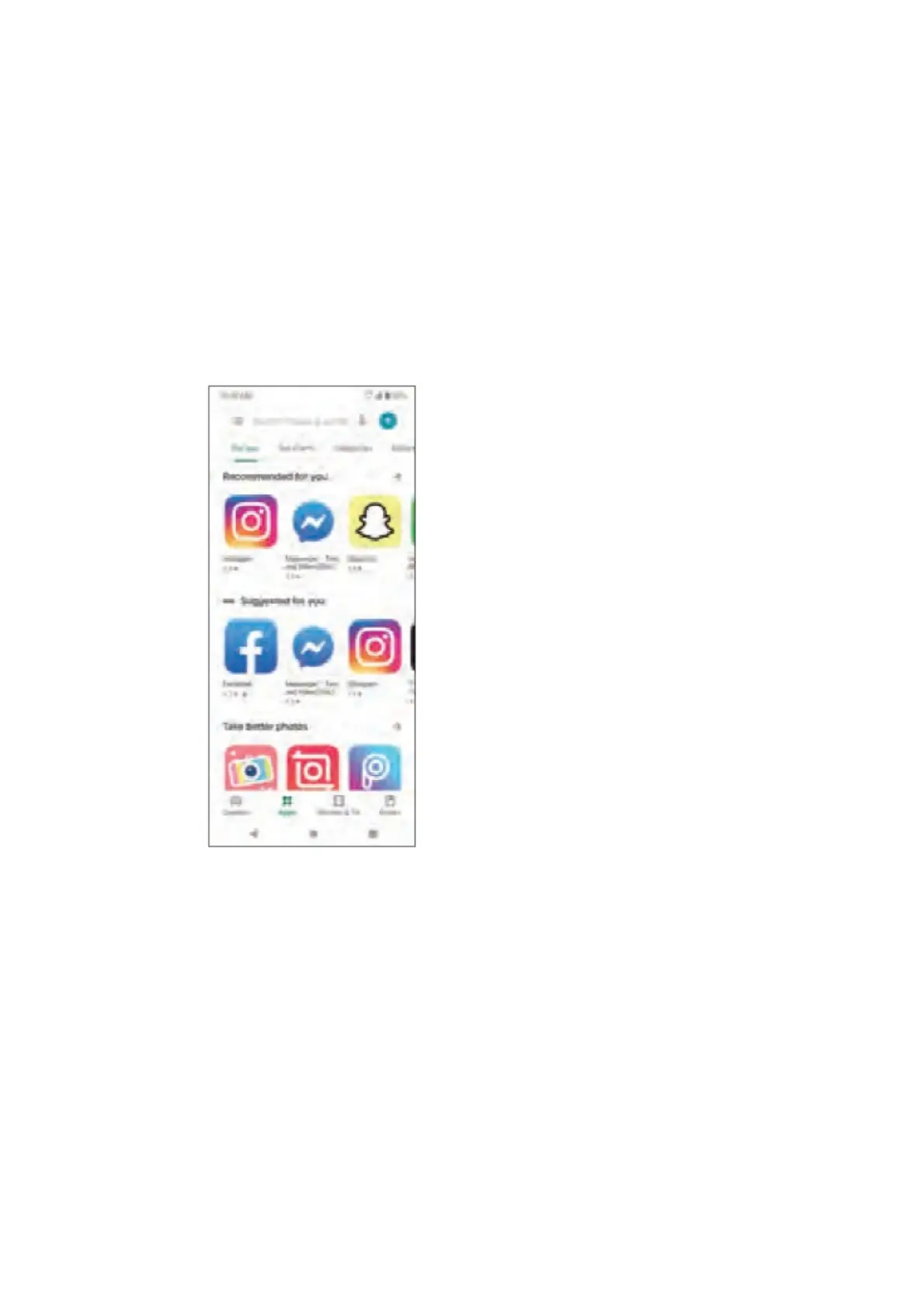
1. From the Home screen, tap Play Store .
2. Enter your existing Google™ account login or create one following the steps on the screen.
Navigate Google Play
1. Tap a category to browse apps, games, movies, and music organized by popularity or category.
2. Tap the Google Play search bar to search the Play Store for a specific game or app.
3. To install, tap the app and follow the instructions. Once installed, you will see a notification in the Notifications
panel. Open the app from this notification or by locating it in the apps drawer.
Note: A payment method such as Google Wallet is required to purchase apps.
Camera and Video



 To Next Page