Cricut DesignStudio™ • www.cricut.com 11
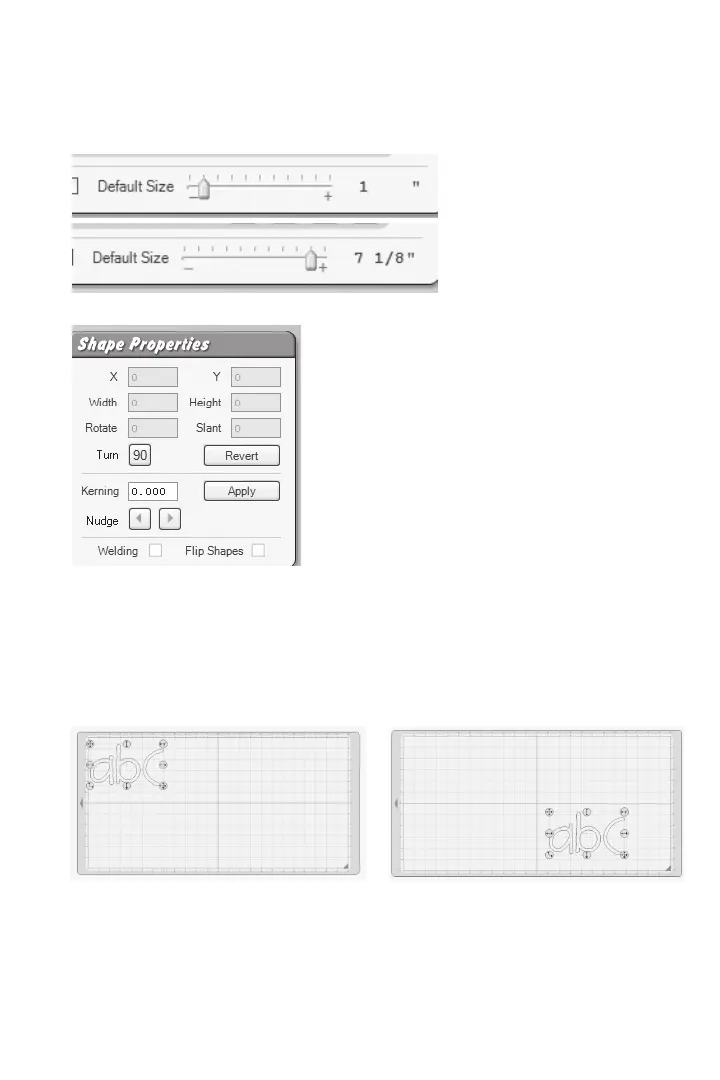
Default Size
Use the Default Size slider to choose the size of the next selected character. This size only
refers to character height or how tall a character is. Use the mouse pointer and then click
and hold on the slider bar to grab the slider arrow. Move it right to increase size and left to
decrease it. You can also click on the “plus” or “minus” symbols to do the same.
Tip: For quick size changing, click near the ends of the size slider to jump up or down in
larger increments.
Shape Properties
This window contains options for modifying image properties, such as position on the
mat, character dimension, and others. Simply enter in the desired data and press your
keyboard Enter key.
The controls in this window are just one way of manipulating shape properties. You can
also change shape properties directly with selection handles (see pages 19 and 20).
X-Axis
This option determines where a character or selection sits on the horizontal X-axis of the
mat, or how far left or right the image is.












 To Next Page