10 Cricut DesignStudio™ • www.cricut.com
Creative Feature Keys
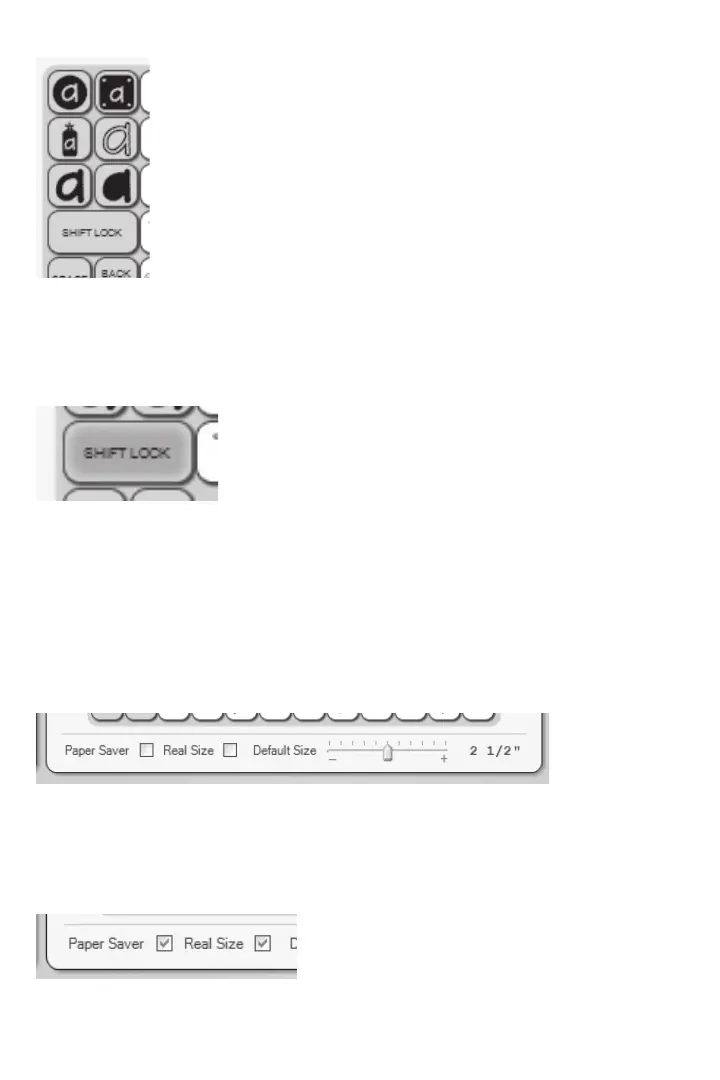
On the left side of the overlay are six gray keys for creative feature selection. Each of
these keys has a symbol that summarizes the theme of a particular creative feature. Click
on these keys to switch to the creative feature of your choice. Click on the button again
to de-activate the creative feature and return the keypad overlay to the base images.
You can also select creative features from the Features Menu (see page 23).
SHIFT LOCK
After clicking on the SHIFT LOCK key, any image selected will be a shifted image. Click on
the SHIFT LOCK key again to switch back to non-shift images. All shifting must be done with
this key. The Shift key on your computer’s keyboard will not work in its place.
SPACE
Just like with the Cricut machine, clicking the SPACE key will add a space after the image
currently selected.
BACK SPACE
Clicking the BACK SPACE key will remove the image or space currently selected.
Paper Saver
Select the Paper Saver mode by clicking the box. Paper Saver mode realigns images to
conserve as much paper space as possible.
Real Size
Select Real Size mode by clicking the box. Real Size mode, like Real Dial Size on your
Cricut machine, disregards a character’s proportionate size and causes images to be
shown and cut at the actual size you have chosen.












 To Next Page