Cricut DesignStudio™ • www.cricut.com 9
My Cartridges
Any cartridge you ag as your own appears in this category (see page 24 for more information).
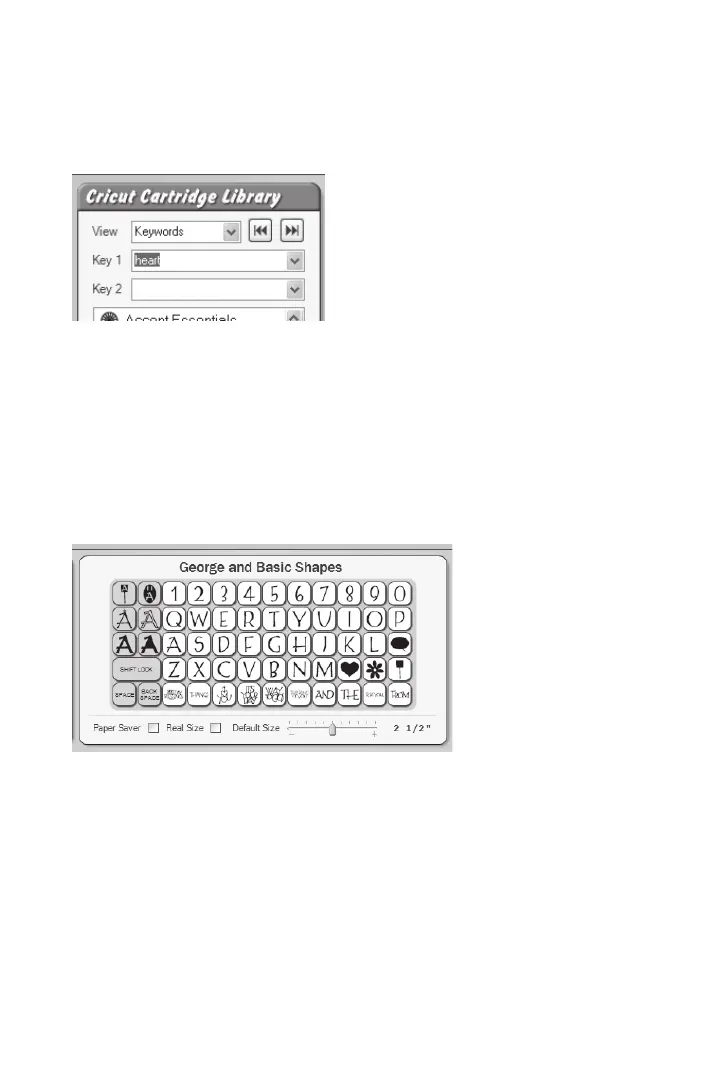
Keywords
Cricut content can be organized by character type, and browsed one by one.
Key 1 and Key 2
Enter search criteria in these elds to look for specic image types. For example, dog, star,
tag, etc.
Show Key Shape Buttons
Use these arrow buttons to view the “previous” or “next” character in the keyword
search results.
Cartridge List Window
Content will be listed in this window according to the chosen view method. Double-click
on the content name to select it.
Virtual Keypad Overlay
As you select content from the Cricut Cartridge Library, the keypad overlay will update
itself to represent the content you have chosen. Use these buttons just as you would on
the Cricut machine to input the images you want to work with or cut. Click on an image
button with the pointer to select that image and add it to the on-screen cutting mat.












 To Next Page