18 Cricut DesignStudio™ • www.cricut.com
Show Cartridge
This feature is tailored for those of us without photographic memories. Which set did that
cute little letter come from? Can’t remember? No worries. Just select the image in ques-
tion, choose Show Cartridge, and the Cartridge Library and Virtual Overlay will show you
exactly where that beauty lives, cartridge name and feature. Look for the highlighted key.
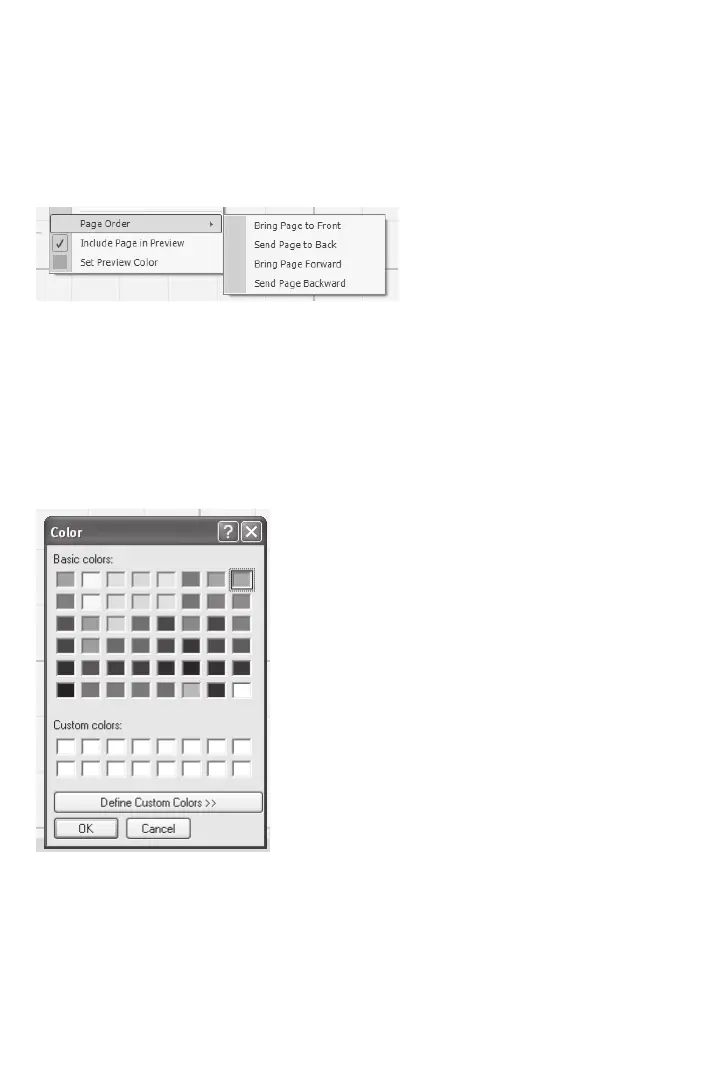
Page Order
They’re your pages, put them in any order you want. You can bring the currently selected
page to the front, send it to the back, jump it one page forward, or send it back one
jump. The page tabs show which page is where.
Include Page in Preview
Use this feature to decide which of your pages you want to be affected by the Preview
function. It might not be necessary to apply a preview to all your pages when all you want
to see is the change you just made on one page. Any page that has this feature checked
will be included in previews.
Set Preview Color
Selecting Set Preview Color will bring up a color palette window. In this window you can
choose the color your previewed images will take on when applying the Preview feature.
If you don’t like the colors offered, you can create your own custom color to be applied.
Choose something nice on the eyes.












 To Next Page