Cricut DesignStudio™ • www.cricut.com 19
Handles
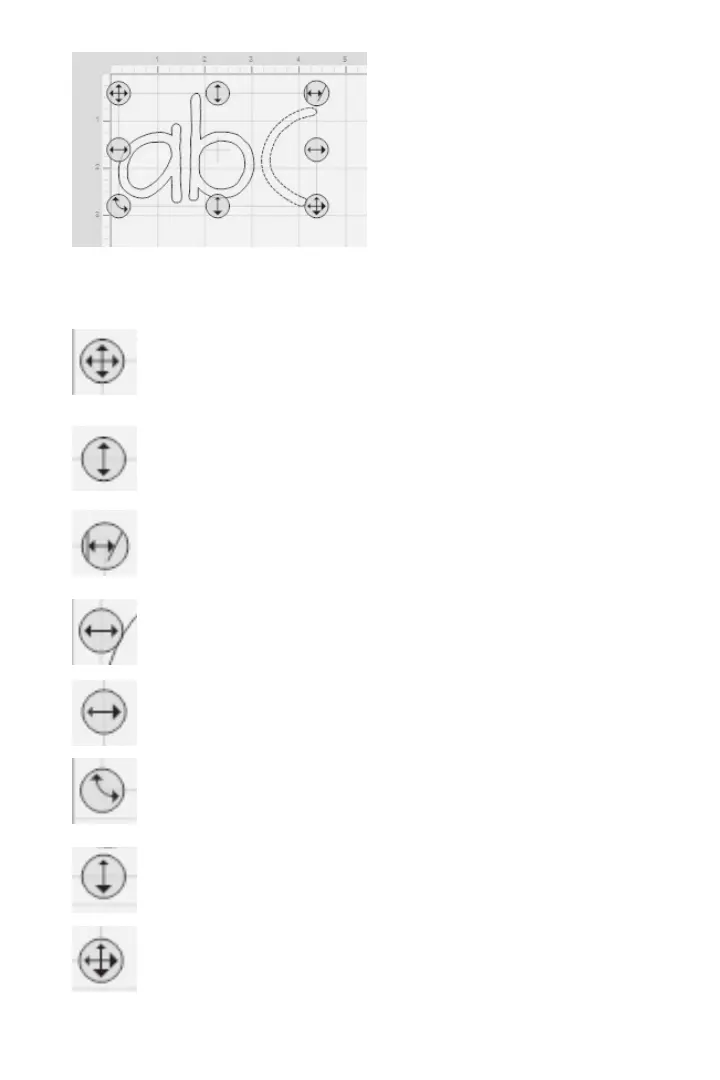
As you select images on the on-screen virtual cutting mat, you will see your selections in a
box with eight handles, one on every side and one at every corner. Each of these handles
performs a unique function. Getting well acquainted with these handles will transform you
into an image-tweaking expert! To use these selection handles, just click and drag.
Free Move
The handle on the top-left corner of the selection box is used to move your
selection anywhere on the on-screen mat.
Vertical Move
The handle in the top-middle of the selection box is used to move your
selection up or down on the on-screen mat. While using this handle, there is no
horizontal movement.
Slant
The handle in the top-right corner of the selection box is used to slant (skew)
your selection to the right or left.
Horizontal Move
The handle in the middle-left of the selection box is used to move your selec-
tion right or left on the virtual mat. While using this handle, there is no
vertical movement.
Horizontal Stretch
The handle in the middle-right of the selection box is used to stretch your selec-
tion horizontally.
Rotate
The handle on the bottom-left corner of the selection box is used to rotate your
selection to any desired angle.
Vertical Stretch
The handle in the bottom-middle of the selection box is used to stretch your
selection vertically.
Scale
The handle on the bottom-right corner of the selection box is used to scale your
selection to any desired size. While scaling, image proportions remain the same.












 To Next Page