Cricut DesignStudio™ • www.cricut.com 5
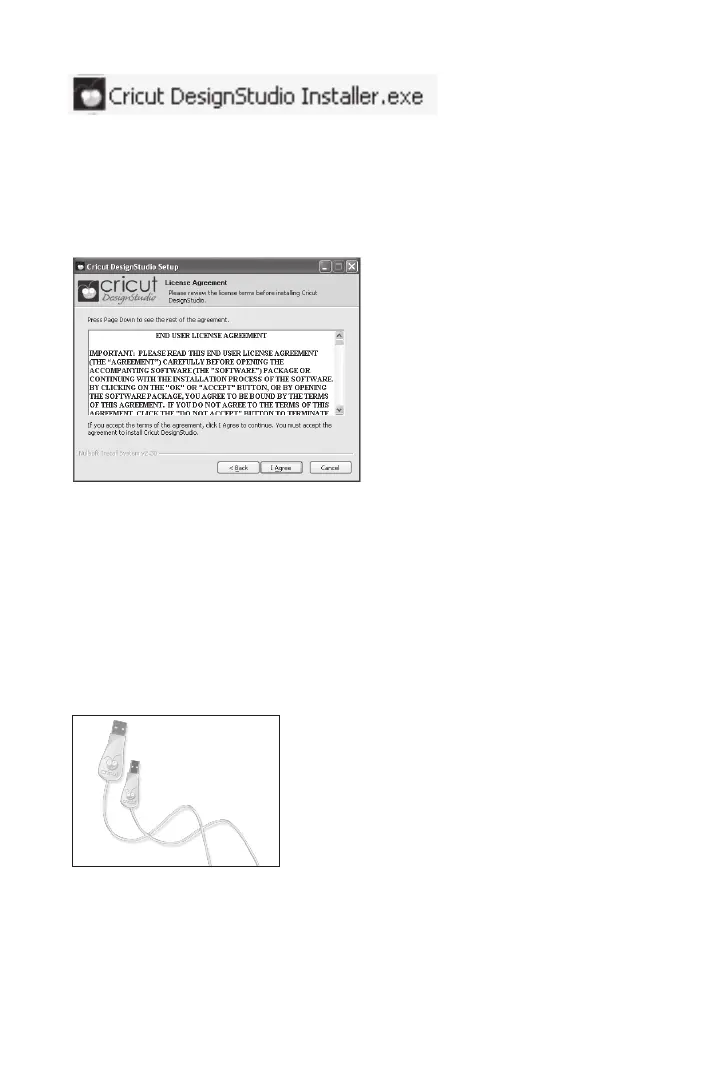
Note: If the Setup Wizard does not start automatically, you can start it manually by exploring
the contents on the disk and double-clicking on the “CDSInstaller.exe” le.
End User License Agreement
Please read the End User License Agreement as it applies to you in regards to your use of
the Cricut DesignStudio software. We promise it isn’t a very exciting read, but a small part
of you deep down inside will glow warmly at having participated in the act of being a
responsible consumer. Also, you can’t continue the installation process until you agree to
the stipulations the license puts forth.
.NET 2.0 Installation (if needed)
If at any time during the install or launch process you get a message referring to the
need for .NET 2.0 to be installed before proceeding it means that your current Windows
setup does not have this framework onboard. We included the install le for this on the
Cricut DesignStudio CD. You can access the contents of the CD from a Windows Explorer
window and double click the dotnetfx.exe le. Once completed, continue launching and
running the software.
Connecting Cricut Machine and Computer
IMPORTANT: Make sure you have installed the Cricut DesignStudio BEFORE connecting
your Cricut machine to your computer. This ensures the proper drivers are installed.
Locate the USB cable that came with your Cricut DesignStudio Bonus Pack. Then locate
the USB port on the back of your Cricut machine, next to the A/C adapter port. Notice its
unique shape and plug in the corresponding end of the Cricut USB cable. Finish the
connection by plugging in the standard end of the Cricut USB cable to an open USB port
on your computer. Make sure that you plug the USB cable into both the computer and












 To Next Page