5
4
EN
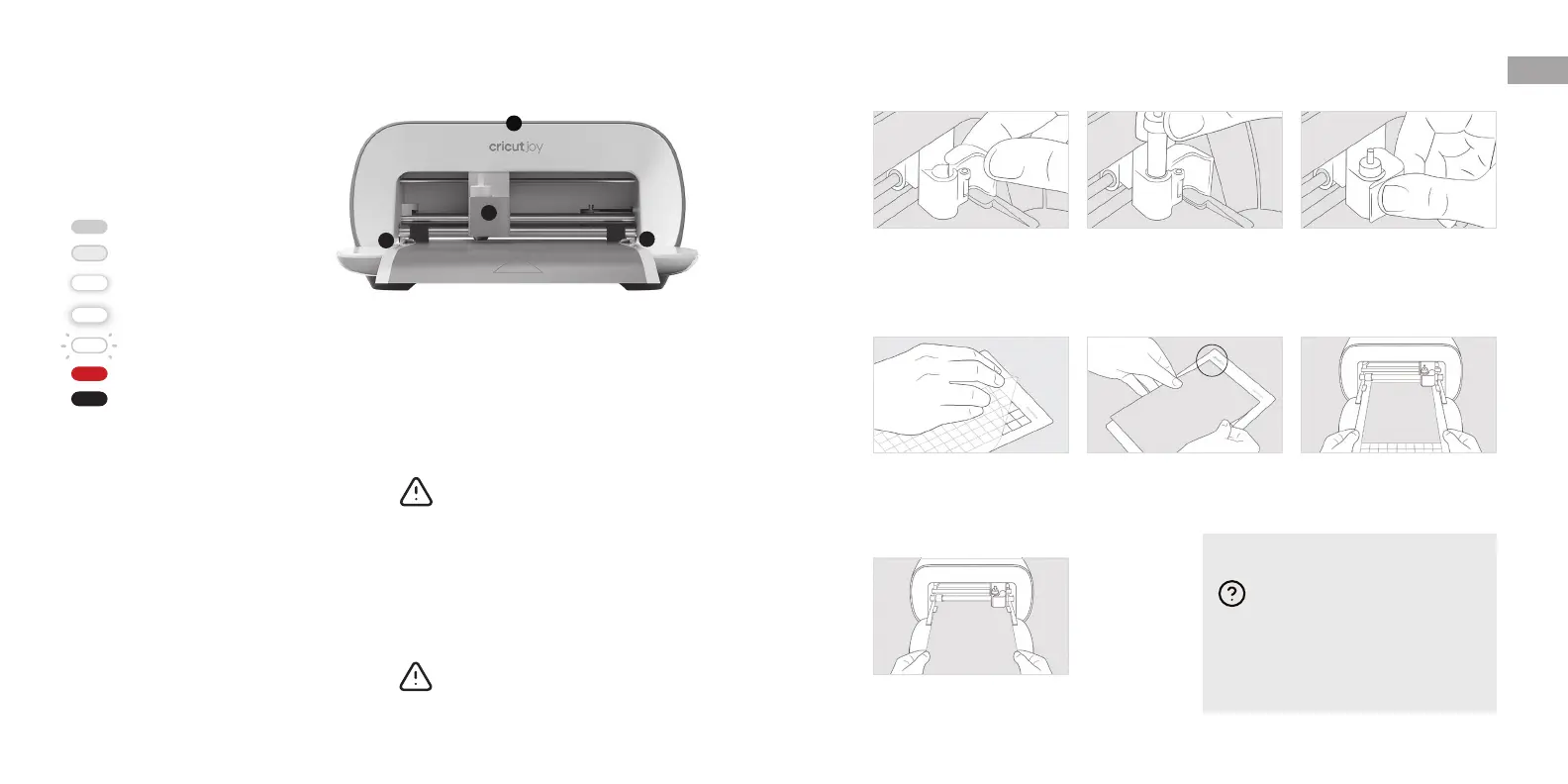
How to change tool
1. Open Tool Clamp (1)
and remove tool.
2. Seat tool. 3. Close clamp.
How to load
Smart Materials
™
When prompted, position Smart
Material under Material Guides (2).
Use caution, and follow instructions when
replacing blade. For instructions, see blade
packaging or help.cricut.com/blades
How to load machine mat with material
1. Remove protective clear cover. 2. From top-le corner, align
material onto mat.
3. When prompted, insert mat
under Material Guides (2).
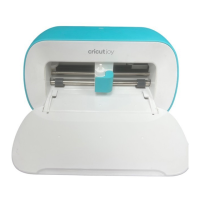
Get to know your Cricut Joy
™
1 Tool Clamp
2 Material Guides
3 Indicator Light
Included How to power on
Before operating machine, read enclosed
Important Safety Instructions
• Connect included power adaptor to machine.
• Make sure to only plug other end into
compatible wall outlet.
• Connect machine to compatible device via
Bluetooth.
• Activate your machine at cricut.com/setup
Indicator Lights
Solid Ready to use
50% brightness Idle
Slow pulse Searching for
Bluetooth
®
connection
Fast pulse Update in progress
Flash See Cricut app for directions
Red Error
Off No power source
• Cricut Joy Cutting Machine
• Blade + Housing
• Fine-Point Pen (0.4 mm)
• StandardGrip Mat, 4.5 in x 6.5 in
(11.4 cm x 16.5 cm)
• Welcome Card
• Power Adapter
• Free Trial Membership to Cricut Access
™
(New subscribers only)
• 50 ready-ro-make projects online
• Materials for a practice cut
Every project is unique.
For more help resources, see
help.cricut.com
• Get free expert-led Cricut courses &
workshops on demand at learn.cricut.com
• Join other Cricut Community members in
our O cial Cricut Facebook group.
1
2
2
3


 To Next Page