RADIO TROUBLESHOOTING
How can I fail my signalling paths without having to disconnect them?
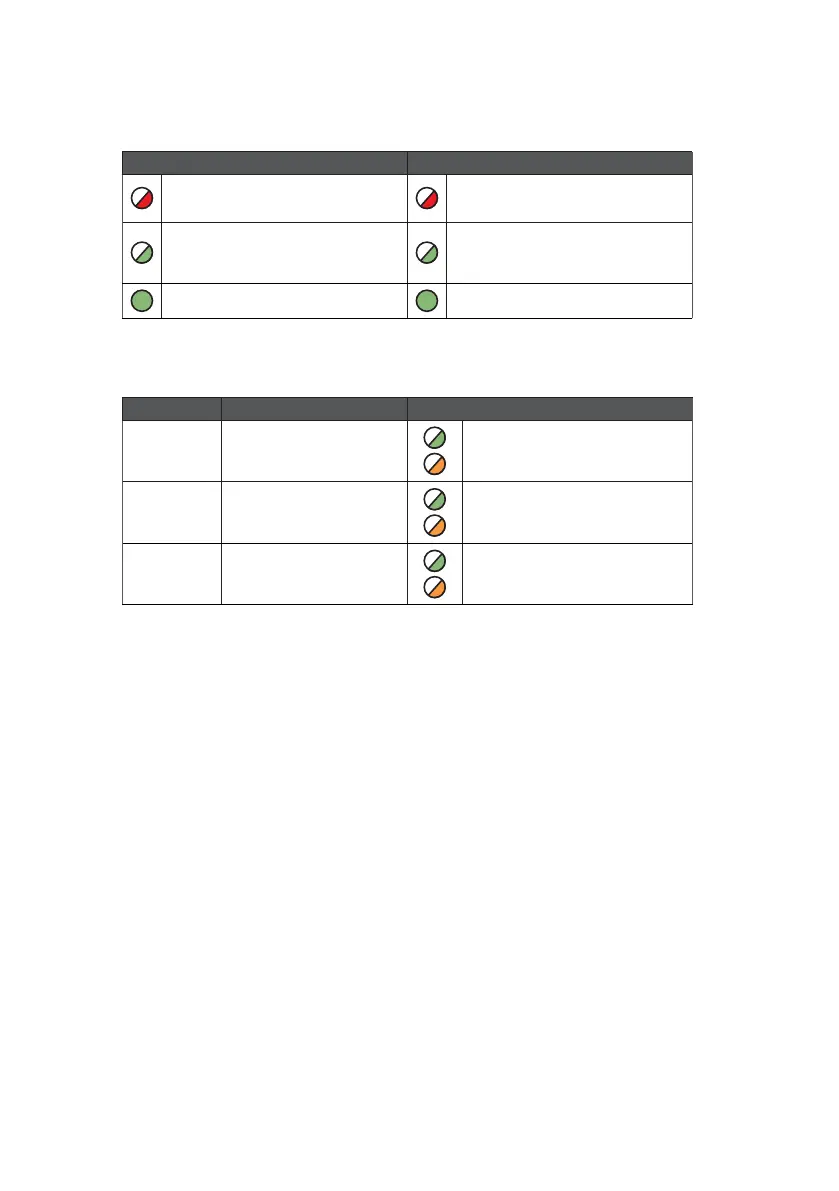
To fail each path enter the connectivity menu (see simulate path fail section - Figure 12 above). Press
and hold B to fail the primary path or C to fail the secondary path. The path will stay in fail for 15 mins
unless you tap B or C again to restore the applicable path.
How can I check the signal strength of each radio module?
You can check the signal strength of each radio module on a commissioned device via the My Base
App. Alternatively, when in the quiescent/normal state, you can press button A to toggle to the
connectivity menu. Once there, LED 1 (first path) & LED 2 (second path) will show you the signal
strength. We recommend a solid green LED (40% or 4/10).
Does my unit have a roaming SIM?
Yes, all DualCom Pro 2 devices come with at least 2 Roaming 4G SIMs
My signal strength is less than 30% (3/10) or my LED is orange/red. What can I do to improve it?
For all radio variants:
• Avoid coiling the aerial cable
• Move the aerial away from electrical equipment/wiring
• Move the aerial to a higher point in the property or closer to a window/door
12
LED DESCRIPTION LED DESCRIPTION
BUS
RS422 connection to additional
accessories (i.e remote radio
module)
Green/Amber flashing = Data is being
transfered
PNL Serial connection to panel Green flashing = Data is being transfered
ETH
LAN connection to customer’s
router
Green flashing = Data is being transfered
Figure 13 – Additional LEDs
There are 3 additional LEDs shown as BUS, PNL and ETH.
LED 1 LED 2
Red flashing = Interface in fail mode
Red flashing = Interface in fail mode
Green flashing = Interface tx/rx data Green flashing = Interface tx/rx data
Green solid = Interface out of fail mode
Green solid = Interface out of fail mode
Figure 12 – Simulate Path Fails (testing the system)
It is possible to simulate a path fail for the primary and secondary path. Once in the connectivity section, press and hold
B to fail the primary path and/or C to fail the secondary path. The path will stay in fail for 15 mins unless you tap B or C
again.



 To Next Page