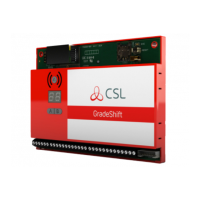
The DualCom Pro 2 Range offers a professional signalling system designed for easier and faster installation, providing enhanced resilience and access to the CSL Live ordering and management portal. This range includes the DigiAir Pro 2, a single-path solution utilizing either a Radio or LAN path for alarm signalling, and the GradeShift Pro 2, a dual-path solution that uses a combination of two Radio paths or one Radio and one LAN path for alarm signalling. The device is compatible with a wide range of control equipment, including systems installed to EN50136 & PD6662 standards, by using its onboard serial connections, pin triggering, or dial capture capabilities.
Installation and Setup:
The installation process for most DualCom Pro 2 units is straightforward. First, wire and connect the power, referring to the quick guide for pin and serial connection details. After connecting power, wait 5 minutes for LEDs 1-3 to turn green, indicating that the DualCom Pro 2 is downloading its configuration. Once these steps are complete, the device is ready for use.
For customisation and panel configuration instructions, users can access the CSL My Base App/Web Portal or refer to the online guides. The My Base App provides a convenient way to manage and configure DualCom Pro 2 devices, offering features such as viewing path status, checking signal strength, viewing panel connection status, configuring static IP information, amending panel connections, changing pin configurations, checking ATS path availability, remotely upgrading device firmware, viewing alarms, testing alarms, inverting fault relays, configuring outputs, amending Smart Reporting, and adding estate names. Login details for the My Base App can be obtained from CSL or the company's web administrator. For those awaiting login details but needing to complete an installation, one-time access to My Base via a web browser is available by scanning a QR code. Panel configuration instructions for compatible panels can also be accessed by scanning a QR code or visiting the Installer Zone on the CSL website.
Site Survey and Connectivity:
Before installation, a site survey is recommended. For variants with radio, a Signal Analyser (available from the CSL Installer Shop) should be used to determine if at least two base stations are available with sufficient signal strength (30% or above). This helps in identifying the optimum location for mounting the DualCom's aerial. If a Signal Analyser is not available, power up the DualCom Pro 2, connect the aerial(s), and go through the commissioning process to check the signal strength before permanent aerial fitting. During the connectivity menu, LED 1 (for single Radio systems) or LEDs 1 & 2 (for dual Radio systems) should be green to indicate an acceptable level of Radio signal/quality.
For variants with LAN, the DualCom Pro 2 uses DHCP by default, though fixed IP settings can be added/amended in the My Base App. The Ethernet cable should be connected to the device and the customer's router. Ensure the customer's LAN socket is live and has the correct network settings, including Port 50561 open for outbound traffic, NAT enabled, UDP data, and IP ranges 185.201.164.0/22 & 139.28.100.0/22. The ETH LED will flash green to indicate connection.
Physical Installation:
The DualCom Pro 2 must be installed within an enclosure suitable for installation certification and fixed securely using either adhesive pads or screw fixings (accessible by removing the lid). Once fitted, ensure aerial(s) and/or the Ethernet cable are connected. Power down the alarm panel or PSU before wiring the DualCom Pro 2 in the following order: Neg (-) power, Pos (+) power, and then the serial cable or inputs. If required, connect the serial cable (RS485, RS232, or TTL, panel dependent). Connect any hardwired alarms into the device and the fault output. Finally, restore power to the alarm panel or PSU.
Aerial Siting:
When siting the aerial, it is crucial to install it vertically in an open space and complete a signal test before installing it in the final position. Ensure the aerial cable is uncoiled. Avoid installing the aerial close to metal or sources of interference such as wiring, lighting, electrical installations, computers, monitors, routers, and other equipment. To improve signal strength if it is below 30% (3/10) or if the LED is orange/red, avoid coiling the aerial cable, move the aerial away from electrical equipment/wiring, and move it to a higher point in the property or closer to a window/door. All DualCom Pro 2 devices come with at least two Roaming 4G SIMs.
Commissioning and LED Indicators:
Upon power-up, the DualCom Pro 2 automatically contacts the Gemini Global Platform for commissioning, which takes 5-8 minutes. Once complete, LED 3 will turn green. For first-time use, all three LEDs will light green for 5 seconds before the device reboots.
The device's menu system is divided into Quiescent/Normal State and Connectivity. The My Base App is recommended for programming, but the LED menu system and buttons can be used if online access is unavailable. To move between sections, press button A. In quiescent/normal state, tap button C to send a Test Call or press and hold for 5 seconds to perform a self-learn of the current input state.
LED 3 indicates device status: green means paths and system are OK, amber means one path is not working, and red means an error. In the connectivity menu (accessed by pressing button A from quiescent/normal state), LEDs 1 & 2 show signal/connectivity status. For radio paths, solid green indicates a good signal, flashing green an acceptable signal, flashing amber indicates emergency/low signal (move aerial), flashing red indicates SIM not ready/no signal (move aerial), and red indicates an error. For LAN-connected devices, green indicates a good connection, and amber indicates powered but no data connection.
Additional LEDs include BUS, PNL, and ETH. The BUS LED (RS422 connection to accessories) flashes green/amber when data is being transferred. The PNL LED (serial connection to panel) flashes green when data is being transferred. The ETH LED (LAN connection to customer's router) flashes green when data is being transferred.
The device is triggered by removing or applying zero volts to input terminals 1-12, without requiring external pull-up resistors. This is typically achieved via the digital communicator outputs of a control panel. Upon receiving an input, the unit signals alarm conditions and forwards messages via the Gemini Global Platform to the ARC. Installers should ensure the trigger rate does not exceed the message reception rate at the ARC receiver.
To self-learn the current panel input status, press button C in quiescent/normal state for 5 seconds; LED 3 will flash red twice. To change input bias from negative removed/applied to positive removed/applied, use the My Base App under the Hardware menu button and select the A+ terminal instead of RTN. If panel polarity cannot be changed or My Base/website access is unavailable, contact technical support.
DualCom Pro device general inputs are defined as SIA untyped alarms for pins 1-12 (excluding pin 4), using UA/UR8001 to 8012 on standard product configuration. Pin 4 Open/Close inputs are defined as SIA alarm OP and CL, using OP/CL8004 on standard product configuration.
Outputs:
All three outputs can be configured as normally open (N.O) or normally closed (N.C). Output 1 defaults to indicating a total path fail condition to the control panel but can be reconfigured for other path failure types. Output 2 can be configured for a path fail condition or as a manual trigger, and Output 3 can also be used as a manual trigger. Amendments to outputs are made via the My Base App. If the device is powered by a 24V (fire panel), the + terminal will still deliver 12V.
Dial Capture:
DualCom Pro 2 simulates and replaces the phone line connection to the control panel's Digi-Modem. The control panel's Digi-Modem must use Fast Format*, Contact ID, or SIA alarm formats. When the control panel sends a signal to the ARC, DualCom Pro 2 captures and forwards it via Gemini. The Digi-Modem requires an ARC telephone number (e.g., 01) and account number (e.g., 1234) for Dial Capture to work. To monitor the Dial Capture connection, an output configured as PSTN line fault on the control panel should be connected to one of the DualCom's inputs, which is then designated as Dial Capture Fail at the ARC.
*Confirm Fast Format compatibility with DualCom Pro 2 via your ARC.
Panel Connection:
Devices come pre-configured without a panel connection (pins only). To enable serial connection, select the panel type in the My Base App. Panel guides are available by clicking the panel type in the My Base App, scanning a QR code, or visiting the Installer Zone.
Serial / RS232 / 485 / TTL Panel Connections:
DualCom Pro 2 is supplied with a serial cable compatible with Honeywell (RS485), Orisec (TTL), Pyronix (RS232), Texecom (TTL), and HKC (TTL) panels. Other panel types (RISCO, Eaton, UTC) may require additional cables/plug-ins purchased from the Installer Shop. It is possible to use pins and serial cable connections simultaneously if needed. Always power down the control panel and DualCom Pro 2 before connecting the serial lead to prevent damage.
Testing:
Before leaving the site, test the DualCom Pro 2 device. Place the device on test at the ARC and send signals from the panel. Perform a path test by tapping button C in quiescent/normal state; LED 3 will flash to indicate signals are being sent. Check that signals are received at the ARC.
Simulate path failures as part of the testing process. In the quiescent/normal state, press button A to enter the connectivity menu. The LEDs (LED 1 for single-path, LEDs 1 & 2 for dual-path) will light. Hold button B for 5 seconds; once released, LED 1 will turn red, indicating path 1 is in simulated fail. For dual-path devices, hold button C for 5 seconds; once released, LED 2 will turn red, indicating path 2 is in simulated fail. Check that path failure signals are received at the ARC. Tap buttons B & C to restore each path; LEDs 1 and/or 2 will turn green. Check that path failure signals are received at the ARC. If a dual-path device is purchased, ensure both paths are connected before leaving the site. If both paths are disconnected simultaneously, My Base will only show the first path in failure.



 To Next Page
 General