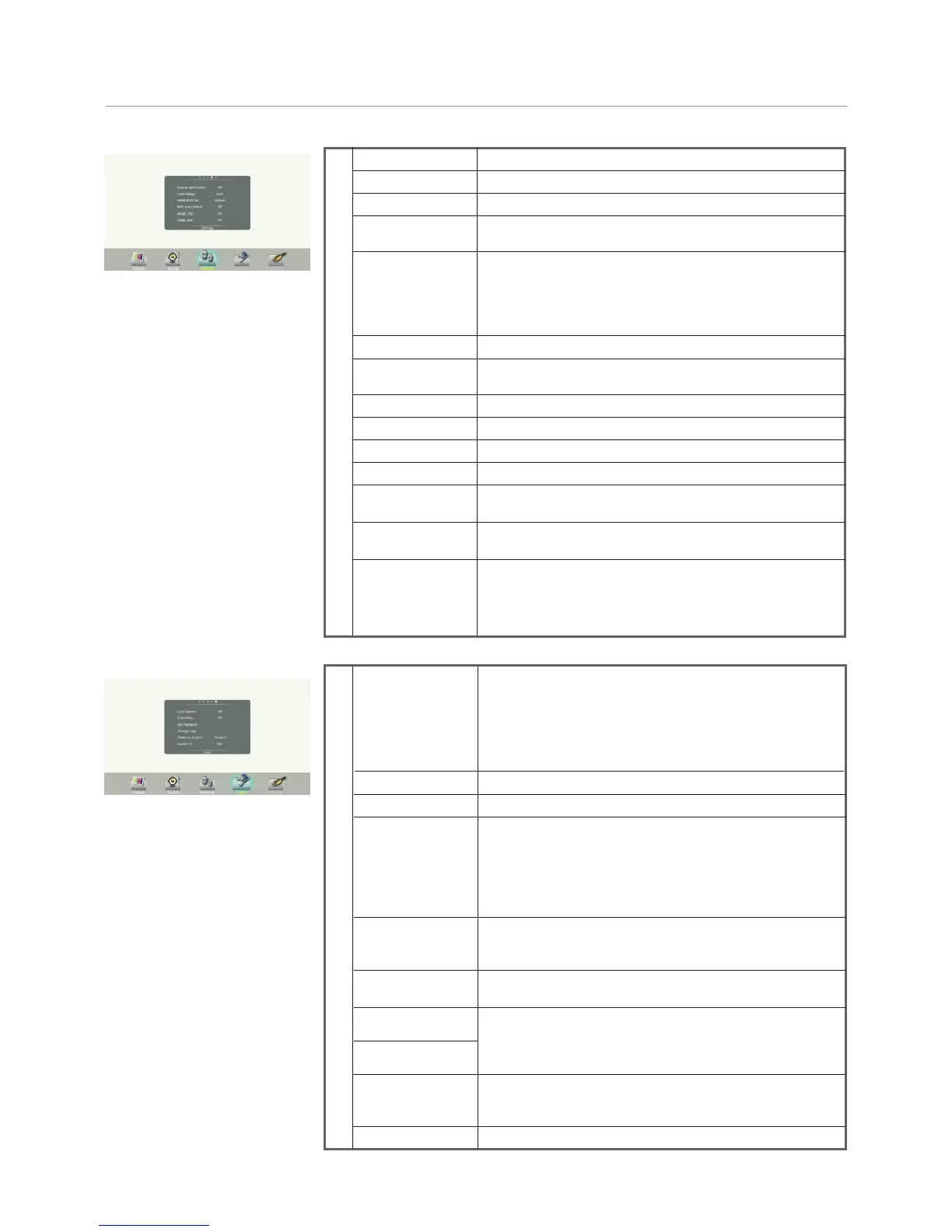
Menu List
16
Adjusting Setting menu
Source Auto Switch
Select On to automatically recognition source.
Setting
Color Range
Select color range. (Only for HDMI mode)
HDMI EDID Ver.
Select HDMI EDID Ver.
Display Date and Time.
Date / Time
Set Off timer to switch the CTOUCH to standby at a specified
time.
Off Timer
Set On timer to turn on the CTOUCH automatically to
source at a certain time.
On Timer
Set the duration of time until the monitor automatically goes
into Standby mode.
[Off] / [10 Minutes] / [20 Minutes] / [30 Minutes] / [60
Minutes] / [90 Minutes] / [120 Minutes] / [180 Minutes] /
[240 Minutes].
Sleep Time
Menu Timeout
Select OSD menu display time.
System Standby
Select On to automatically turn off the connected CEC
devices when you turn off the CTOUCH.
Device List
Display to connected HDMI_CEC device list.
Movie Mode
Turn on/off the movie mode.
HDMI_CEC
Select On to turn on enable HDMI_CEC.
HDMI_ARC
Select On to turn on enable HDMI_ARC.
MHL Auto Switch
Select On to automatically switch to the MHL input when it
connected.
The default password is 0000.
Lock
Lock System
Float Menu
Turn on/off the float menu display.
Set Password
Password settings.
Change Logo
Select Change Logo item to access and change Logo.
Note: 1. Save the logo which you are about to change in the
USB stick. The logo file sizes should be <512K,
and rename it as boot0.jpg.
2. Insert the USB stick into the USB port on the
Android board.
Power on Source
Power on Source Setting, in MEMORY mode, when the
monitor powered on, it will automatically switch to the source
when it powered off last time. otherwise, it is in setting mode.
System ID
Setting the device ID. (The ID must be in the range of 0-255,
but 138, 168 are unused ID, 0 is for broadcast.)
Adjusting Lock menu
Restore To Default
Reset all settings to factory defaults.
Notes: The connected device’s HDMI_CEC feature must be
turned on.
If you connect an HDMI device that is not HDMI_CEC
compatible, none of the HDM_CEC features work.
TouchOut1 To
TouchOut2 To
Select Off to Lock System unlocked.
Select Lock Keypad to t
Select Lock Touch to
Select Lock Both to the CTOUCH buttons and the touch
panel is locked.
he CTOUCH buttons is locked.
disable the function of the touch
panel.
TouchOut are for define the touch signal output to which
input, ex. TouchOut1 is set to VGA1 means touch
signal is output from TouchOut1 when input is VGA1.
TouchOut2 is priority default when two port are connected.
Wake up by gesture
Select On to enable two or more fingers touch the bottom of
the screen and drag upward to turn on the CTOUCH when
the CTOUCH is in standby mode.


 To Next Page