Laser Air Plus | User Manual Laser Air Plus | User Manual
1615
CONNECTIONSCONNECTIONS
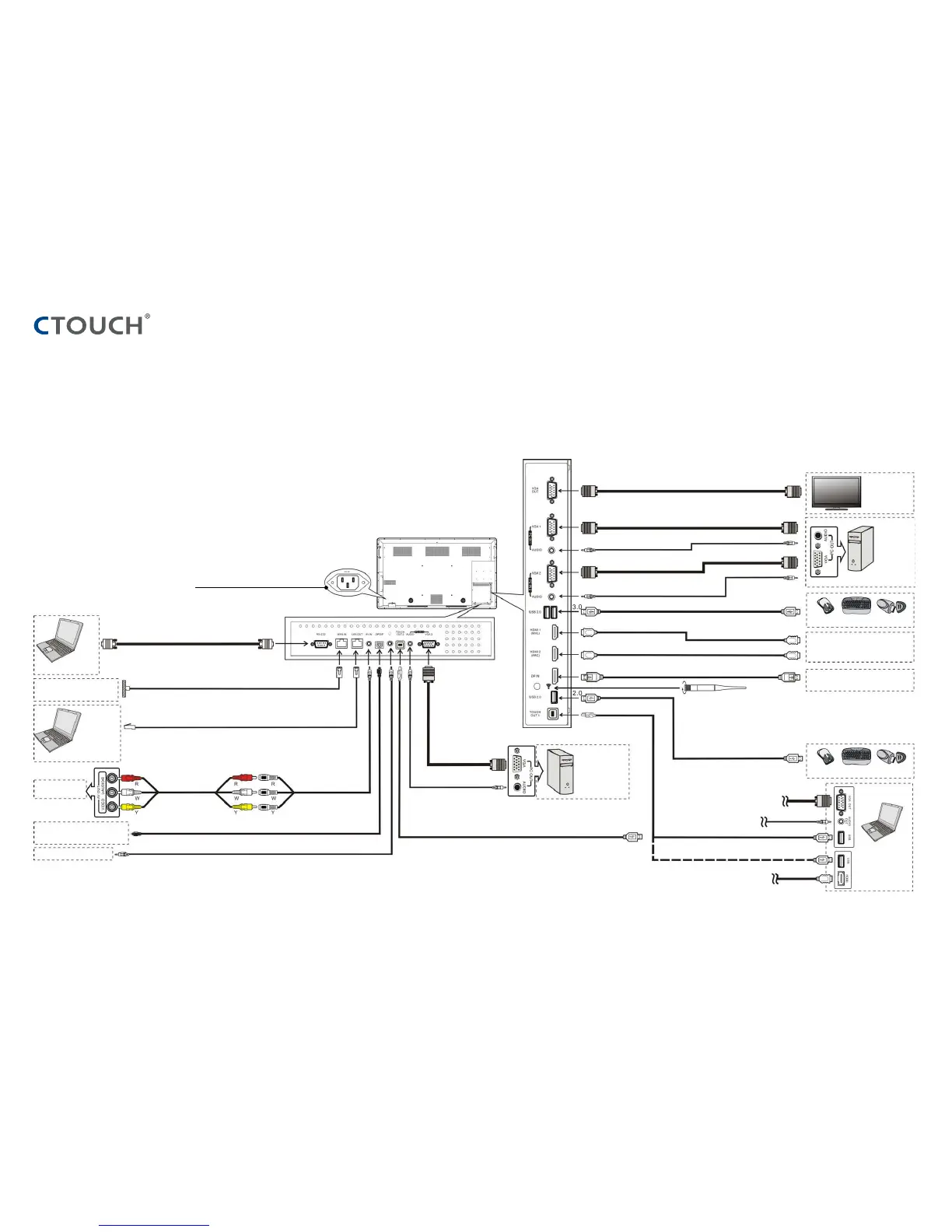
CAUTIONS BEFORE CONNECTING
• When connecting an external device to the CTOUCH interactive display, make
sure that the CTOUCH and the external device are turned off.
• Check the plugs at the ends of the cables to make sure that they are the correct type before
plugging them into the sockets on the CTOUCH interactive display.
• Make sure that all plugs are securely inserted into the sockets. Loose connections can result in image, colour or sound problems.
• The illustration of the external device may be different depending on your model.
• Refer to the operating manual of the external device as well.
• Before using headphones, adjust the device volume to avoid excessive volume, as hearing damage may result.
• The CTOUCH interactive display is designed with multiple USB port (3.0 or 2.0), if you
want to connect a USB device, please select the appropriate port.
• Connect TOUCH OUT with USB cable to PC USB port.
• Connect PC with VGA, DP or HDMI cable. Please choose the proper method of connection based on your device.
• This product should be operated only from the type of power source indicated on the marking label.
• Always unplug the AC cord from power outlet when you won’t use the screen for a long period of time.
1. Connect the female plug to the AC socket on the unit.
2. Connect the male plug to the wall outlet as illustrated.
Note: Tighten the WiFi antenna in clockwise direction. With the
Wifi antenna the router/Android is able to access a WiFi network.
Computer, etc.
Network connection
AV devices
Digital sound system
Audio input devices
Computer, etc.
Internet devices
Serial port cable
Network cable
AV cable
AV adapter
S/PDIF cable
Headphone cable
VGA cable
Audio cable
Network cable
PC, etc.
VGA devices
USB cable
VGA cable
VGA cable
Monitor
VGA cable
Audio cable
Audio cable
PC, etc.
VGA devices
USB devices
USB devices
HDMI devices
DP devices
USB cable
HDMI cable
HDMI cable
DP cable
Computer
USB cable
USB cable
USB cable



 To Next Page