21
Viewing Images
You will need an external viewing device or computer to
viewimages.First,removetheSDcardfromthecamera.
Make sure to only remove the SD card when the worm is
not visible. Here is a list of some viewing options.
1) Youcanviewtheimageswithanoptionalviewer
orapoint-and-shootcamerathatisabletoread
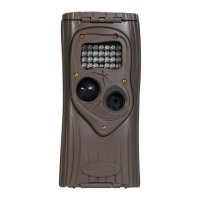
Ambush’s images (Note: not all SD based cameras
can view Ambush’s
images, please test any
camera before purchasing).
2) ReplacetheSDcardwithafreshSDcardandtake
the
original SD card with you to view on your PC
or other device.
3) Cuddeback’sCuddeView
®
viewer will allow you to
view the images, copy the images to a second SD
card and erase the images from the SD card. You
can then put the original SD card back into
Ambush
®
series.CuddeView
®
allows you to
transfer images from multiple cameras to a single
SD card. Go to www.cuddeback.com for more
informationonCuddeView
®
.(Note:CuddeView
®
may not be able to copy all the images taken in
Guard Duty mode. If you are using Guard Duty we
recommendyouviewtheimagesonacomputer.)
20
Use Windows PC to Manage Cuddeback
®
Images
with Trophy Room
®
Trophy Room
®
software makes it easy to manage your
Cuddeback
®
images.
Trophy Room
®
1) AutomaticallycopiesimagesfromyourSDcardto
your PC and organizes them by year and date.
2) Allowsyoutorenameeachfoldermakingiteasy
to find your images.
3)
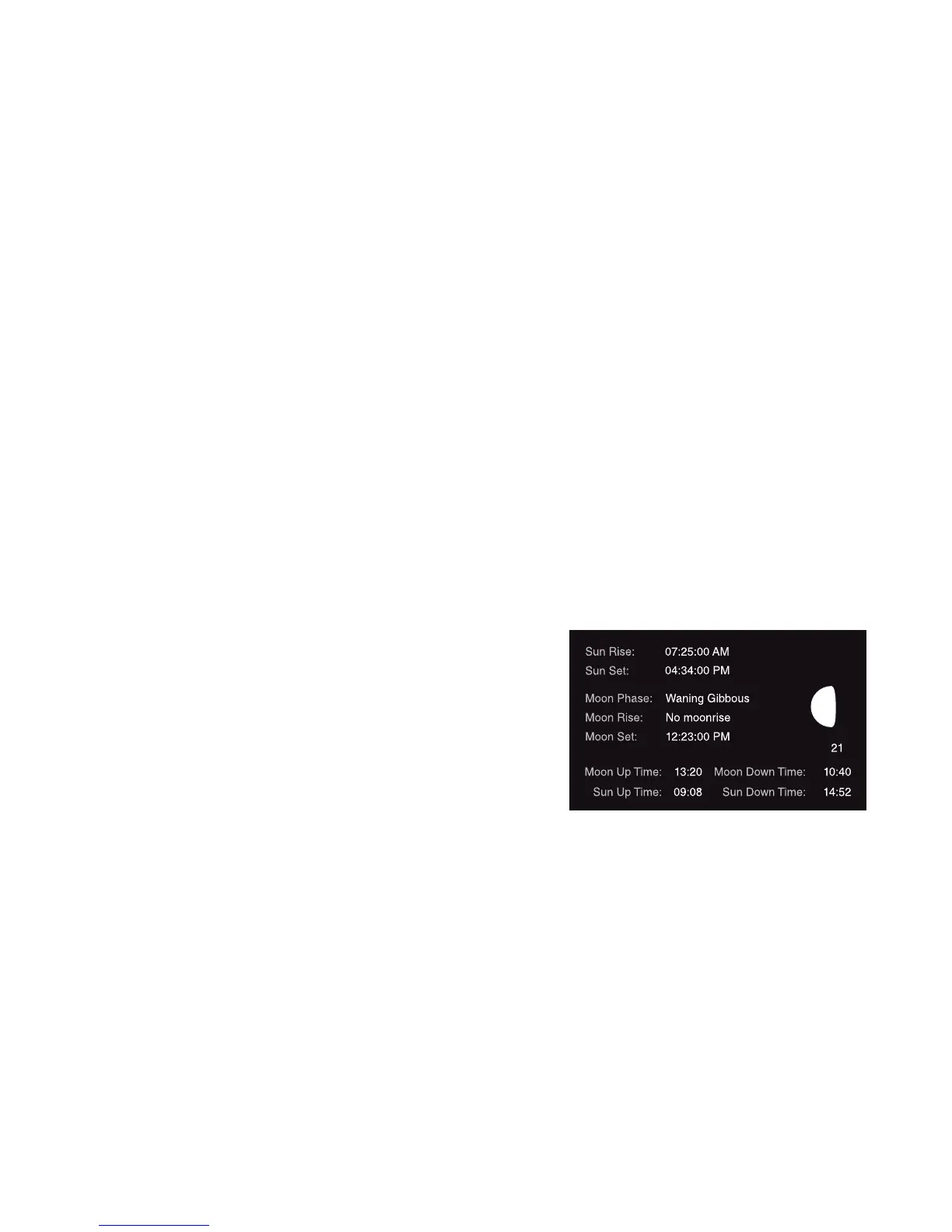
Displays sun and moon data for each image, including
moon phase, moon rise and set, sunrise and set, and
moon and sun position in the sky at the time the
image was taken.
4) Categorizesimagesasbuck,doe,fawn,bear,etc.
Thereare28categoriestoselectfrom.Forwhitetail
deer you can enter point count and give deer a name
to allow easy monitoring of trophy animals.
Trophy Room
®
data screen example


 To Next Page