To play from a USB device
From the Home Menu, select the USB option for a connected memory •
stick, hard drive or personal audio player.
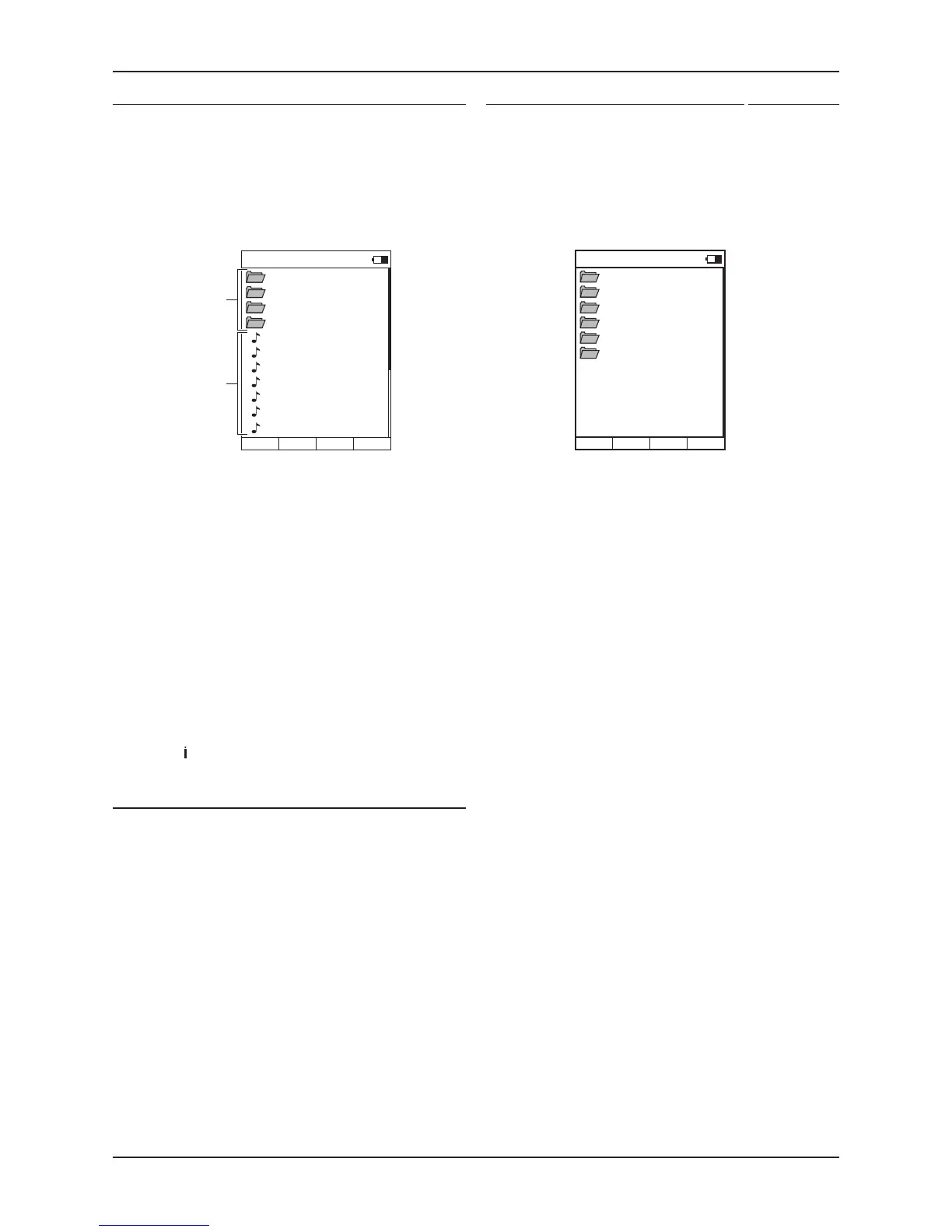
A list of folders and/or files contained in the root folder will be displayed.
Folders are indicated by a folder symbol, music files are indicated by a
music note as shown.
In the example below, there are both folders and music files in the root
folder. All folders will be displayed (not just those with music content).
Files that cannot be played by a Streamline
2
will be hidden.
Playing music
You can now browse the folders in the same way that you would browse
them from a computer.
Navigate to the folder where your music is stored.•
Continue to navigate through the folders to find the music selection •
you want to play.
Press the • / or ENTER button to play the selection.
After a short delay the music will start to play. The ‘Now Playing’ display
will be shown.
Track selection, pause, repeat and shuffle functions are selected in the
same way as music play from a network.
Music will continue to play until all tracks in the selection have played. If
a single track is selected, play will continue through the folder containing
the selected track.
Track information
The track information display shows technical information about the
music file you are playing.
Press the •
button during playback.
The file format and bit-rate are displayed.
To play a source connected to a digital Aux input
From the Home Menu, select the AUX input that you want to play.•
You can now set the source to play.
Set the volume with the volume buttons.•
To change the settings of the Streamline
2
unit
From the remote control you can change all settings of a Streamline
2
unit.
To open the Settings Menu of the Streamline
2
Press the Home button.•
The Home Menu will be displayed.
Select the ‘Settings’ option.•
The settings options from the Streamline
2
will now be displayed.
Refer to the ‘Streamline•
2
Setup Menu’ section in this handbook for
full instructions for setting up the Streamline
2
.


 To Next Page