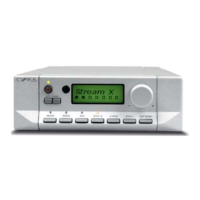
Controlling a Cyrus audio system
The n-remote also includes an infra-red system to send commands to a
Cyrus audio system.
To send infra-red commands to a Cyrus audio system
Press the hot-key labelled CyIR.•
NOTE: If there is no hot-key labelled CyIR, refer to the HKEY configuration
section of System Settings for instructions to enable a hot-key for Infra-
red commands.
The remote control will now send the listed commands to a Cyrus
system.
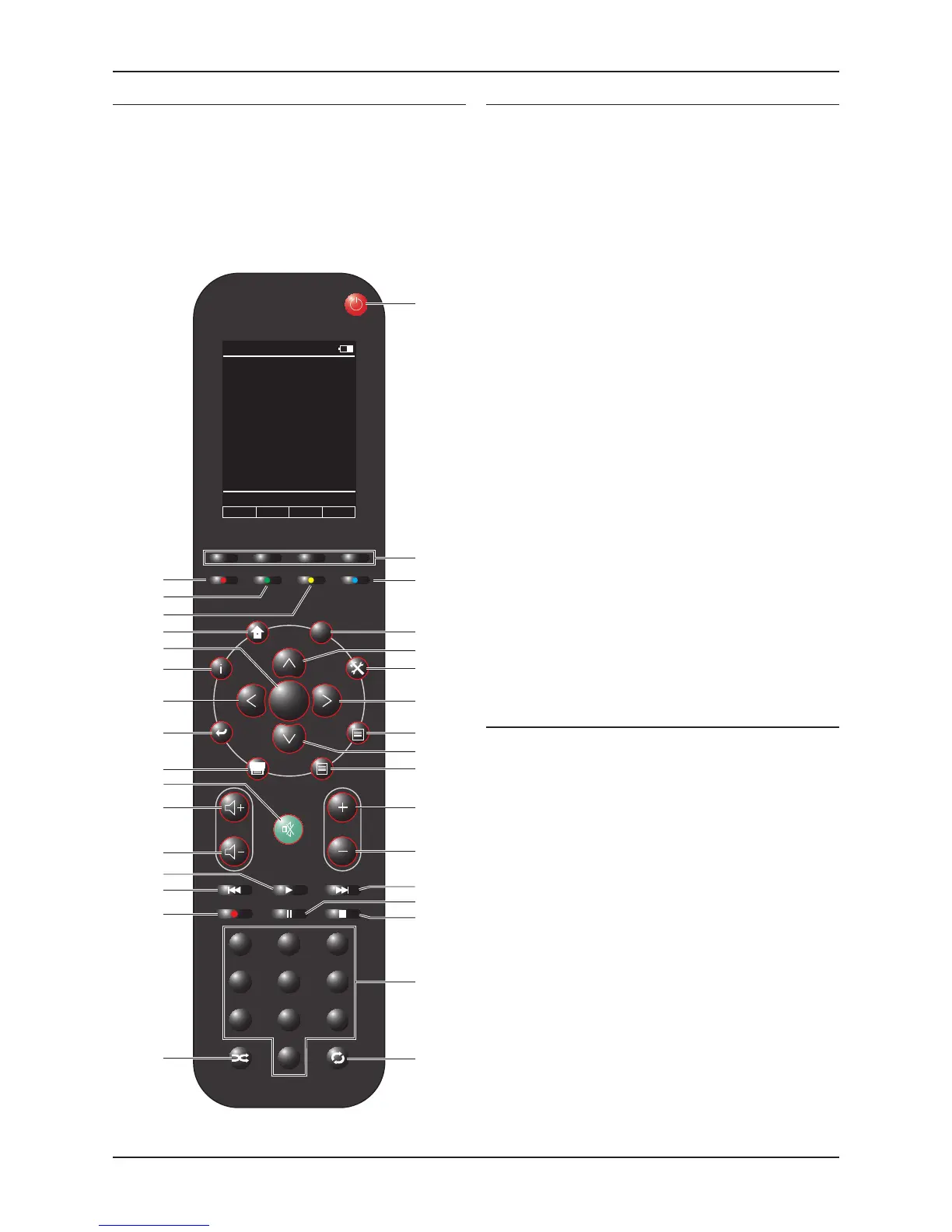
n-remote functions when operating a Cyrus system
Standby button - switches a Cyrus amplifier to and from Standby.1.
Hot-Keys - programmable for device selection.2.
Amplifier Stream X3.
2
input select.
No function with a Cyrus system.4.
DAB cursor up.5.
No function with a Cyrus system.6.
DAB cursor right.7.
No function with a Cyrus system.8.
DAB cursor down.9.
DAB menu.10.
Amplifier input scroll right.11.
Amplfiier input scroll left.12.
CD next track.13.
CD Pause.14.
CD Stop.15.
CD numeric keypad.16.
CD repeat.17.
No function with a Cyrus system.18.
DAB record.19.
CD previous track.20.
CD play.21.
Amplifier volume down.22.
Amplifier volume up.23.
Amplifier mute.24.
DAB band.25.
No function with a Cyrus system.26.
DAB cursor left.27.
DAB display mode.28.
DAB select.29.
No function with a Cyrus system.30.
Amplifier AV input select.31.
Amplifier TU/DAB input select.32.
Amplifier CD input select.33.
Controlling TVs, PVRs and other non-Cyrus equipment
In addition to the control of Cyrus Audio components, you can add remote
control command systems to the n-remote to control other (non-Cyrus)
equipment.
These additional remote control responses are downloaded from an on-
line library at the Cyrus website and are installed on the n-remote as
‘devices’ that you can assign to the four Hot-keys..
Adding remote control systems (devices)
Additional device responses are downloaded from the Cyrus website via a
computer, connected to the n-remote with a mini-USB cable (the supplied
charger cable may be used for this purpose). Refer to the Cyrus website
at www.cyrusaudio.com for more information about adding devices.
Assigning devices to Hot-keys
Once you have downloaded the devices you need, you can assign up to
four to hot-keys. Refer to the section ‘User-Settings - HKEY configuration’
on page 23 for the details you need to re-assign hot-keys.


 To Next Page