DAP-1620 Install Guide 7
Congure the DAP-1620
Using a Web Browser
Wi-Fi Name(SSID) 2.4Ghz:
dlink-xxxx
Wi-Fi Name(SSID) 5GHz:
dlink-xxxx-5GHz
Password: xxxxxxxx
To congure your extender, go to:
http://dlinkap.local.
Or http://192.168.0.50
Username: “Admin”
Password:” “ (leave the eld blank)
Open the wireless utility on your wireless device or computer. Select the
Wi-Fi Network name (from the Wi-Fi Conguration Card) and enter the
password. You may also connect the DAP-1620 to your router or computer
using an Ethernet cable.
2
You may log into the web-based conguration utility on the DAP-1620 to perform
the following tasks:
• Upgrade rmware
• Change wireless and network settings
• Change the login password
1
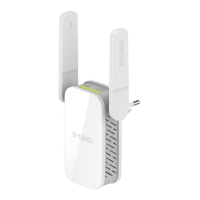
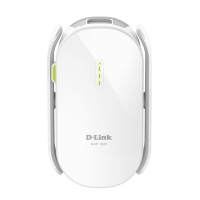
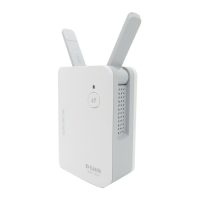
Plug the DAP-1620 in an available outlet near your router. You may move it
to a more suitable location after conguration.
Open a web browser (e.g., Internet Explorer, Firefox, Safari, or Chrome)
and enter http://dlinkap.local./. You may also enter the IP address of the
DAP-1620.
3



 To Next Page