18
Refresh:
Click on Refresh to get the
most updated list of available
networks.
Using the Configuration Utility with Windows OS (continued)
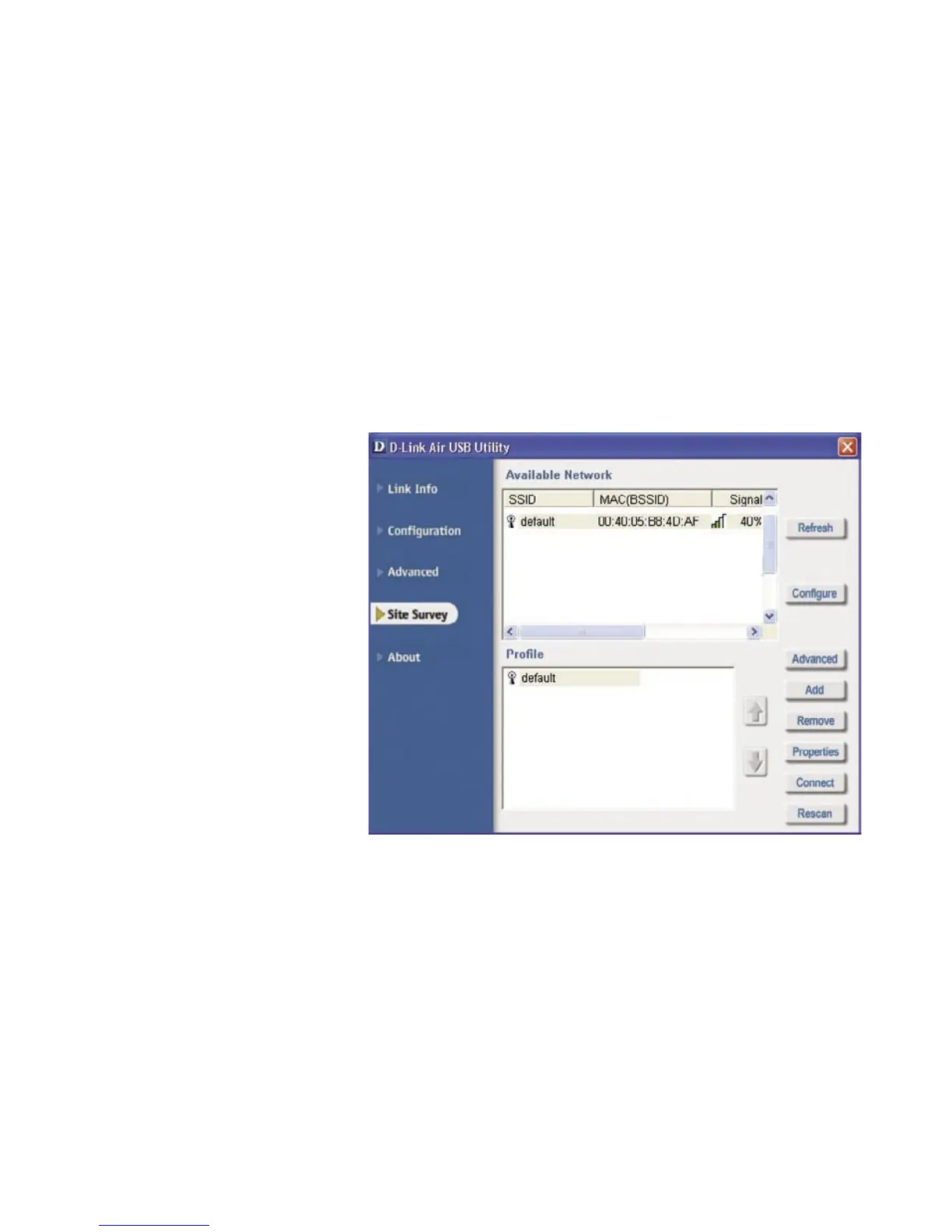
Site Survey
Available Network:
The top section of the window displays the Available Networks. Scroll up and
down the list and highlight the network to which you wish to connect. Click on
the Connect button.
Profile:
In the lower half of the screen, you can manage the profiles that you have created
for the wireless network at home, at the office and in public places. Scroll up and
down and highlight the profile that you wish to configure. You can Add or Remove
a profile, or configure the Properties of the profile in order to connect with an
available network.
Connect:
Highlight a network profile; click Connect to connect to that network.
Rescan:
Click Rescan to rescan and connect to the strongest signal with the current
SSID.
Configure:
Highlight an existing network
and click Configure; the
configuration window on the
next page will appear.
Advanced:
Highlight a network; click
Advanced and the screen on
the next page will appear.
Add:
Click Add and the screen on the next page will appear.
Remove:
Highlight a network profile; click Remove to remove a network from the profile
list.
Properties:
Highlight a network profile; click Properties and the screen on the next page
will appear.





 To Next Page