EasyManua.ls Logo

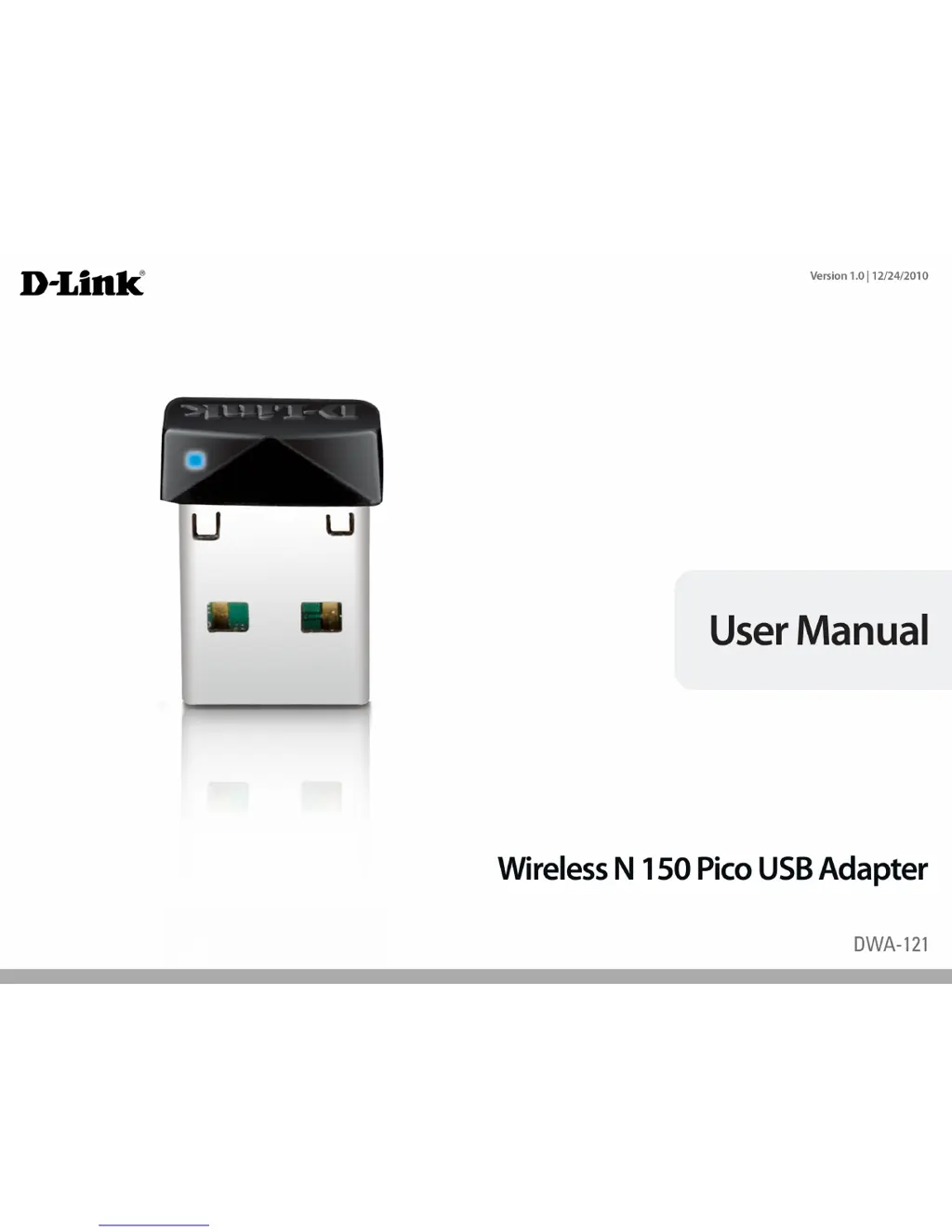
D-Link DWA-121 - User Manual

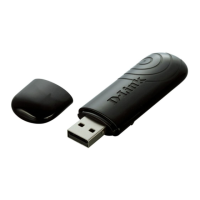
D-Link DWA-121
66 pages
Print Icon
To Next Page IconTo Next Page
Loading...

Other manuals for D-Link DWA-121

Questions and Answers

  • M
    marcus90Jul 26, 2025
    What to do if my D-Link Adapter DWA-121 cannot connect to the internet?
    • K
      Kevin GibsonJul 26, 2025
      If your D-Link Adapter DWA-121 cannot connect to the internet, verify that the LED indicators for the broadband modem show normal activity; a lack of activity may indicate a problem with your broadband connection. Also, check the LED indicators on the wireless router to ensure they are functioning correctly, and confirm that the AC power and Ethernet cables are securely connected. Ensure that the IP Address, subnet mask, gateway, and DNS settings are correctly obtained from your network and double-check your wireless key. When using Infrastructure mode, verify that the Service Set Identifier (SSID) is the same on both the wireless clients and access points; the default SSID for D-Link products is 'default'.
  • C
    Carol LoganAug 5, 2025
    How to fix D-Link Adapter DWA-121 not recognized?
    • B
      Brandon MarshallAug 5, 2025
      If your computer does not recognize the D-Link Adapter DWA-121, ensure that it is properly seated in the computer’s USB port. If Windows still doesn't detect the hardware after insertion, try a different port. Also, completely remove any previously loaded drivers for the adapter.
  • V
    vlangNov 13, 2025
    What to do if my D-Link Adapter DWA-121 cannot connect to the wireless network?
    • D
      Devin NortonNov 13, 2025
      If your D-Link DWA-121 Adapter fails to connect to the wireless network or the Internet, start by checking the LED indicators on your broadband modem for normal activity. If they're not working, it could indicate a problem with your broadband connection. Also, verify the LED indicators on the wireless router, ensuring both the AC power and Ethernet cables are securely connected. Confirm that your IP Address, subnet mask, gateway, and DNS settings are correctly obtained from your network and that your wireless key is correct. Ensure that the same Service Set Identifier (SSID) is specified on both the wireless client and access point settings; the default for D-Link products is 'default'. Check that the Network Connection for the wireless client is properly configured and set to AP (Infrastr...

Summary

Product Overview

Package Contents

Lists all items included in the D-Link DWA-121 package.

System Requirements

Details the necessary hardware and software for the D-Link DWA-121.

Introduction

Provides a brief overview of the D-Link DWA-121 adapter and its benefits.

Features

Highlights the key features and capabilities of the D-Link DWA-121.

Hardware Overview

Describes the physical components and connectors of the D-Link DWA-121 adapter.

Installation

Getting Started

Pre-installation checks including removing old adapters and verifying network settings.

Remove Existing Installations

Instructions for uninstalling previous wireless adapter software to prevent conflicts.

Disable Other Wireless Adapters

Steps to disable built-in or other wireless adapters to avoid interference.

Wireless Installation Considerations

Guidance on optimal placement and factors affecting wireless signal range.

Adapter Installation

Step-by-step instructions for installing the DWA-121 driver software.

Wi-Fi Protected Setup (WPS)

Guide to connecting the adapter using the Wi-Fi Protected Setup (WPS) method.

Configuration

D-Link Wireless Connection Manager

Overview of the software used for managing wireless adapter settings.

Wireless Networks

Explains how to view available wireless networks and connect.

Personal Identification Number (PIN)

Instructions for using the PIN method to connect via WPS.

My Wireless Networks

How to create, edit, and delete saved wireless network profiles.

Add Profile

Steps to manually add a new wireless network profile.

Modify Profile

Instructions for editing an existing wireless network profile.

Support

Accessing help and information within the D-Link Wireless Connection Manager.

About

Displays driver and utility version information for the DWA-121.

Connect to a Wireless Network Using Windows 7

Guide for connecting to a wireless network using Windows 7's built-in utility.

Connect to a Wireless Network Using Windows Vista

Guide for connecting to a wireless network using Windows Vista's built-in utility.

Connect to a Wireless Network Using Windows XP

Guide for connecting to a wireless network using Windows XP's built-in utility.

Wireless Security

What is WPA?

Explains the WPA and WPA2 security standards and their improvements over WEP.

Configure WPA;WPA2 Passphrase Using the D-Link Wireless Connection Manager

Steps to set up WPA/WPA2 security using the D-Link manager software.

Configure WPA;WPA2 Passphrase Using Windows 7

Instructions for setting WPA/WPA2 security in Windows 7.

Configure WPA;WPA Passphrase Using Windows Vista

Instructions for setting WPA/WPA2 security in Windows Vista.

Configure WPA;WPA2 Passphrase Using the Windows XP Utility

Instructions for setting WPA/WPA2 security in Windows XP.

Configure WPA;WPA2 (RADIUS) Using the D-Link Wireless Connection Manager

Advanced configuration for WPA/WPA2 using a RADIUS server.

Troubleshooting

How do I know if my adapter is installed properly?

Steps to check if the D-Link DWA-121 adapter is correctly installed in Device Manager.

The computer does not recognize the DWA-121 Wireless N 150 Pico USB Adapter.

Troubleshooting steps for when the computer fails to detect the USB adapter.

The computer with the DWA-121 installed is unable to connect to the wireless network and;or the Internet.

Solutions for connectivity issues, including checking LEDs, IP settings, and SSIDs.

Windows 7 Troubleshooting

Specific troubleshooting guidance for users of Windows 7.

Wireless Basics

What is Wireless?

Defines wireless and Wi-Fi technology for network connectivity.

Why D-Link Wireless?

Highlights D-Link's position as a leader in wireless networking products.

How does wireless work?

Explains the fundamental principles of wireless network operation.

Wireless Local Area Network (WLAN)

Defines Wireless Local Area Networks (WLAN) and their components.

Wireless Personal Area Network (WPAN)

Defines Wireless Personal Area Networks (WPAN) and their characteristics.

Who uses wireless?

Discusses the common users and applications of wireless technology.

Where is wireless used?

Lists various locations and public facilities where wireless access is available.

Tips

Provides general advice for setting up and optimizing a wireless network.

Wireless Modes

Explains the difference between Infrastructure and Ad-Hoc wireless networking modes.

Networking Basics

Check your IP address

Steps to verify the IP address, subnet mask, and gateway settings.

Statically Assign an IP address

Guide for manually configuring static IP addresses for the adapter.

Technical Specifications

Contacting Technical Support

Warranty

Limited Warranty

Details the terms and conditions of the D-Link product warranty.

FCC Statement

Regulatory compliance statement regarding FCC rules and RF exposure.

Industry Canada Notice

Regulatory compliance statement for Industry Canada and RF exposure.

Registration

D-Link DWA-121 Specifications

Power IconPower
operating voltage5 VDC +/- 5%
power consumption (transmit mode)230 mA
power consumption (receive mode)120 mA
Operating Environment IconOperating Environment
operating temperature0 to 40 ºC (32 to 104 ˚F)
operating humidity10% to 90% maximum (non-condensing)
frequency range2.4GHz to 2.483GHz (North America)
Weight and Dimensions IconWeight and Dimensions
dimensions0.7” x .06” x 0.2”
weight2.2 g

Related product manuals