56D-Link DWA-121 User Manual
Appendix B - Networking Basics
Statically Assign an IP address
If you are not using a DHCP capable gateway/router, or you need to assign a static IP address, please follow the steps below:
Windows
®
XP/2000 Users
• Windows XP - Click on Start > Control Panel. Make sure you are in Classic View. Double-click on the Network Connections icon.
Windows 2000 – From the desktop, right-click My Network Places > Properties.
• Right-clickontheLocal Area Connection which represents your D-Link wireless network adapter (or other adapter) which will be connected
to your router.
• HighlightInternet Protocol (TCP/IP) and click Properties.
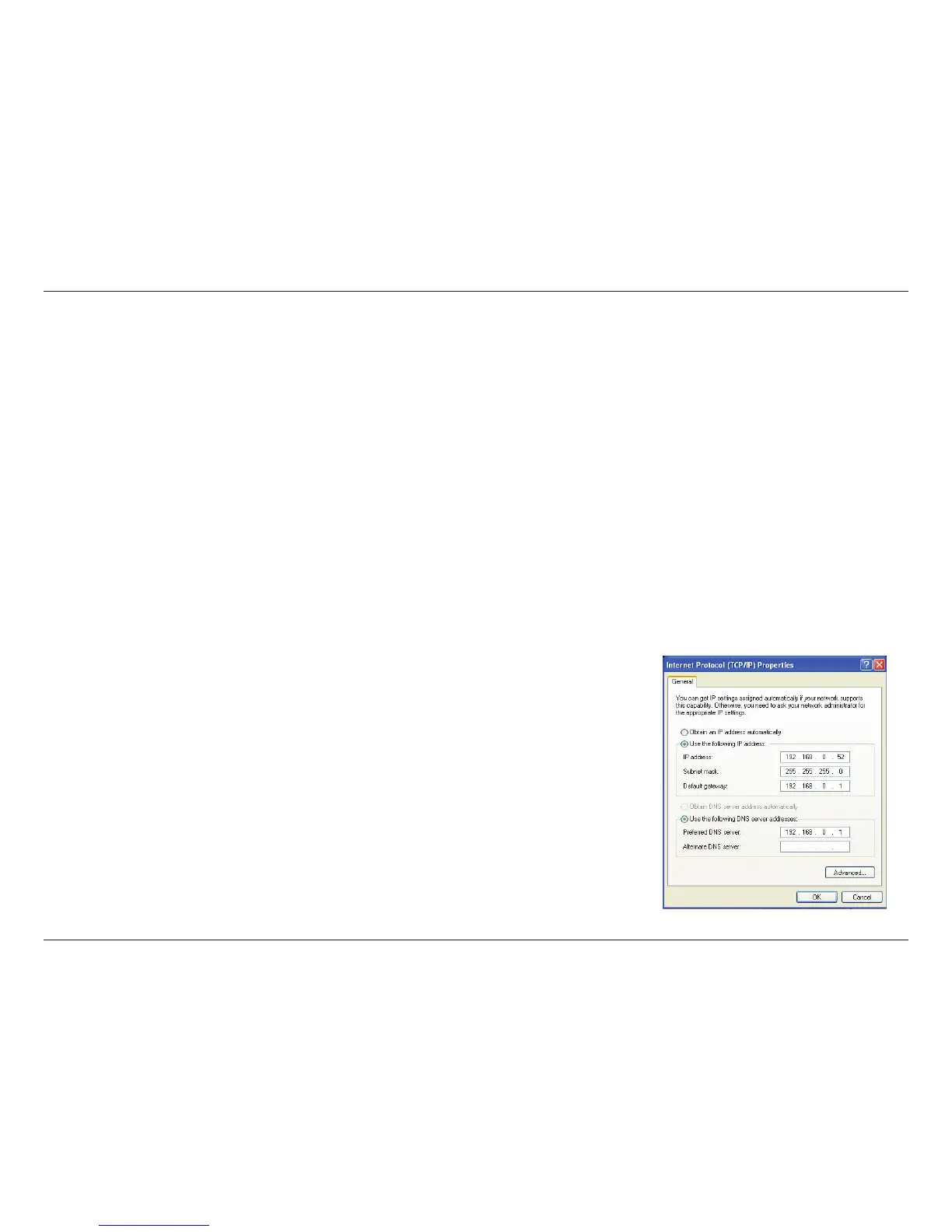
• ClickUse the following IP address and enter an IP address that is on the same subnet as your network or LAN IP address on your router.
Example: If the router’s LAN IP address is 192.168.0.1, make your IP address 192.168.0.X where X is a number between 2 and 99. Make sure
that the number you choose is not in use on the network.
• SetDefault Gateway the same as the LAN IP address of your router or gateway.
• SetPrimary DNS the same as the LAN IP address of your router or gateway.
• TheSecondary DNS is optional (you may enter a DNS server from your ISP).
• ClickOK to save your settings.




 To Next Page